Contribute to the DSpace Development Fund
The newly established DSpace Development Fund supports the development of new features prioritized by DSpace Governance. For a list of planned features see the fund wiki page.
Introduction
DSpace users have expressed the need for DSpace to be able to provide more support for different types of digital objects related to open access publications, such as authors/author profiles, data sets etc. Configurable Entities are designed to meet that need.
In DSpace, an Entity is a special type of Item which often has Relationships to other Entities. Breaking it down with more details...
- Entity: Every Entity is an Item.
- This means they must belong to a Collection, just like a normal Item. (Community & Collection objects are unchanged and unaffected by Entities.)
- Normal Items are still the "default" Item, and they are unchanged. So, not every Item is an Entity.
- Because Entities are all Items, they are immediately usable in submission/workflow process, batch import/export, OAI-PMH, etc.
- Entity (or Item) Type: Entities all have a "dspace.entity.type" metadata field which defines their Entity/Item "type". For example, this type may be "Person", "Project", "Publication", "Journal", etc. It's highly visible within the User Interface as a label.
- Relationships: Based on that "type", an Entity may be related to other Entities via a Relationship. One Entity type may support several relationship types at once. Examples of relationship types include "isPersonOfProject" or "isPublicationOfAuthor". These relationship types are named based on the Entity "type" (as you can likely tell). Relationships also appear on Entities as metadata using the "relation" schema.
- Virtual Metadata: Entities of different types may also have customized visualizations in the User Interface. These visualizations may also dynamically pull in metadata from related Entities. For example, a Publication entity may be displayed in the User Interface with an author name dynamically pulled in from a related Person entity. The metadata "appears" as though it is part of the Entity you are viewing, but it is dynamically pulled via the Relationship.
Entities and their Relationships are also completely configurable. DSpace provides some sample models out of the box, which you can use directly or adapt as needed.
The Entity model also has similarities with the Portland Common Data Model (PCDM), with an Entity roughly mapping to a "pcdm:Object" and existing Communities and Collections roughly mapping to a "pcdm:Collection". However, at this time DSpace Entities concentrate more on building a graph structure of relationships, instead of a tree structure.
Default Entity Models
DSpace currently comes with the following Entity models, both of which are defined in [dspace]/config/entities/relationship-types.xml. These Entity models are not used by default, but may be enabled as described below.
Research Entities
Research Entities include Person, OrgUnit, Project and Publication. They allow you to create author profiles (Person) in DSpace, and relate those people to their department(s) (OrgUnit), grant project(s) (Project) and works (Publication).
- Each publication can link to projects, people and org units
- Each person can link to projects, publications and org units
- Each project can link to publications, people and org units
- Each org units can link to projects, people and publications
Journals
Journal Entities include Journal, Journal Volume, Journal Issue and Publication (article). They allow you to represent a Journal hierarchy more easily within DSpace, starting at the overall Journal, consisting of multiple Volumes, and each Volume containing multiple Issues. Issues then link to all articles (Publication) which were a part of that journal issue.
NOTE: that this model includes the same "Publication" entity as the Research Entities model described above. This Entity overlap allows you to link an article (Publication) both to its author (Person) as well as the Journal Issue it appeared in.
Enabling Entities
By default, Entities are not used in DSpace. But, as described above several models are available out-of-the-box that may be optionally enabled.
Keep in mind, there are a few DSpace import/export features that do not yet support Entities in DSpace 7.0. These will be coming in future 7.x releases. See DSpace Release 7.0 Status for prioritization information, etc.
- AIP Backup and Restore does not fully support entity types or relationships. In other words, Entities are only represented as normal Items in AIPs
- Importing and Exporting Items via Simple Archive Format does not fully support entity types or relationships. In other words, Entities are only represented as normal Items in SAF. (Note: early work to bring this support is already begun in https://github.com/DSpace/DSpace/pull/3322)
- SWORDv1 Server and SWORDv2 Server does not yet support Entity or relationship creation.
1. Configure your entity model (optionally)
As described above, DSpace provides two default entity models defined in [dspace]/config/entities/relationship-types.xml. These models may be used as-is, or modified.
You can also design your own model from scratch (see "Designing your own model" section below). So, feel free to start by modifying relationship-types.xml, or creating your own model based on the relationship-types.dtd.
A simple XML configuration file is used to determine the relations. This configuration is read into the database (making modeling the data from the UI possible in future versions as well). A sample of how to define a relationship between Publication and Person is shown below:
<!-- This relationship defines both the Publication and Person Entities, along with how they are related together. -->
<relationships>
    <type>
        <leftType>Publication</leftType>
        <rightType>Person</rightType>
        <leftLabel>isAuthorOfPublication</leftLabel>
        <rightLabel>isPublicationOfAuthor</rightLabel>
        <leftCardinality>
            <min>0</min>
            <!--<max></max> not specified, unlimited-->
        </leftCardinality>
        <rightCardinality>
            <min>0</min>
            <!--<max></max> not specified, unlimited-->
        </rightCardinality>
    </type>
</relationships>
2. Import entity model into the database
In order to enable a defined entity model, it MUST be imported into the DSpace database This is achieved by using the "initialize-entities" script. The example below will import the "out-of-the-box" entity models into your DSpace installation
# The -f command requires a full path to an Entities model configuration file.
[dspace]/bin/dspace initialize-entities -f [dspace]/config/entities/relationship-types.xml
If an Entity (of same type name) already exists, it will be updated with any new relationships defined in relationship-types.xml
If an Entity (of same type name) doesn't exist, the new Entity type will be created along with its relationships defined in relationship-types.xml
Once imported into the Database, the overall structure is as follows:
- All valid Entity Types are stored in the "entity_type" database table.
- All Relationship type definitions are stored in the "relationship_type" database table
- All Relationships between entities get stored in the "relationship" table.
- Entities themselves are stored alongside Items in the 'item' table. Every Entity must have a "dspace.entity.type" metadata field whose value is a valid Entity Type (from the "entity_type" table).
Keep in mind, your currently enabled Entity model is defined in your database, and NOT in the "relationship-types.xml". Anytime you want to update your data model, you'd update/create a configuration (like relationship-types.xml) and re-run the "initialize-entities" command.
3. Configure Collections for each Entity type
Because all Entities are Items, they MUST belong to a Collection. Therefore, the recommended way to create a different submission forms per Entity type (e.g. Person, Project, Journal, Publication, etc) is to ensure you create a Collection for each Entity Type (as each Collection can have a custom Submission Form).
- Create at least one Collection for each Entity Type needing a custom Submission form. For example, a Collection for "Person" entities, and a separate one for "Publication" entities.
- Edit the Collection. On the "Edit Metadata" page, use the "Entity Type" dropdown to select the Entity Type for this Collection.
- This "Entity Type" selection will ensure that every Item submitted to this collection is automatically assigned that Entity type. So, it ties this Collection to that type of Entity (i.e. no other type of Entity can be submitted to this Collection).
- NOTE: Entity Type is currently not modifiable after being set. This is because changing the Entity type may result in odd behavior (or errors) with in-progress submissions (as they will continue to use the old Entity Type). If you really need to modify the Entity Type, you can do so by changing the "dspace.entity.type" metadata value on the Collection object. At this time, changing that metadata field would need to be done at the database level.
- NOTE: In 7.0, this "Entity Type" dropdown did not exist. In that release, you have to create a "Template Item" from that page. In the In the Template Item, add a single metadata field "dspace.entity.type". Give it a value matching the Entity type (e.g. Publication, Person, Project, OrgUnit, Journal, JournalVolume, JournalIssue). This value IS CASE SENSITIVE and it MUST match the Entity type name defined in relationship-types.xml
- As of 7.1 (or above) , if you previously created a Template Item in 7.0, the "dspace.entity.type" field value will be migrated to the "Entity Type" dropdown automatically (via a database migration).
- This "Entity Type" selection will ensure that every Item submitted to this collection is automatically assigned that Entity type. So, it ties this Collection to that type of Entity (i.e. no other type of Entity can be submitted to this Collection).
- In the Edit Collection page, switch to the "Assign Roles" tab and create a "Submitters" group. Add any people who should be allowed to submit/create this new Entity type.
- If you only want Administrators to create this Entity type, you can skip this step. Administrators can submit to any Collection.
- If you want to hide this Collection, you can choose to only make it visible to that same Submitters group (or Administrators). This does NOT hide the Entities from search or browse, but it will hide the Collection itself.
- In the Edit Collection page, switch to the "Authorizations" tab.
- Add a new Authorization of TYPE_CUSTOM, restricting "READ" to the Submitters group created above (or Administrators if there is no Submitters group). You can also add multiple READ policies as needed. WARNING: The Submitters group MUST have READ privileges to be able to submit/create new Entities.
- Remove the default READ policy giving Anonymous permissions.
- Assuming you want the Entities to still be publicly available, make sure the DEFAULT_ITEM_READ policy is set to "Anonymous"!
Each of these Collections must be contained in a Community. The simplest thing to do would be to create a new top-level Community, place your entity Collections there, and (optionally) hide the Community in a fashion similar to "hide this Collection" above.
Obviously, how you organize your Entity Types into Collections is up to you. You can create a single Collection for all Entities of that type (e.g. an "Author Profiles" collection could be where all "Person" Entities are submitted/stored). Or, you could create many Collections for each Entity Type (e.g. each Department in your University may have it's own Community, and underneath have a "Staff Profiles" Collection where all "Person" Entities for that department are submitted/stored). A few example structures are shown below.
Example Structure based on the departments:
- Department of Architecture
- Building Technology Program
- Theses - Department of Architecture
- Department of Biology
- Theses - Biology
- People
- Projects
OR
- Department of Architecture
- Building Technology Program
- Theses - Department of Architecture
- People in Department of Architecture
- Projects in Department of Architecture
- Department of Biology
- Theses - Biology
- People in Department of Biology
- Projects in Department of Biology
Example Structure based on the publication type:
- Books
- Book Chapter
- Edited Volume
- Monograph
- Theses
- Bachelor Thesis
- Doctoral Thesis
- Habilitation Thesis
- Master Thesis
- People
- Projects
4. Configure Submission Forms for each Entity type
You should have already created Entity-specific Collections in the previous step. Now, we just need to map those Collections to Submission processes specific to each Entity.
On the backend, you will now need to modify the [dspace]/config/item-submission.xml to "map" this Collection (or Collections) to the submission process for this Entity type.
- DSpace comes with sample submission forms for each Entity type.
- The sample <submission-process> is defined in
item-submission.xmland named based on the Entity type (e.g. Publication, Person, Project, etc). - The metadata fields captured for each Entity are defined in a custom step in
submission-forms.xml, and named in the format "[entityType]Step" (where the entity type is camelcased). For example: "publicationStep", "personStep", "projectStep".
- The sample <submission-process> is defined in
- Optionally, modify those sample submission forms. See Submission User Interface for hints/tips on customizing the
item-submission.xmlorsubmission-forms.xmlfiles As of 7.6, you can simply map each Entity Type to a specific submission form as follows in your
item-submission.xml(This section already exists, just uncomment it)<name-map collection-entity-type="Publication" submission-name="Publication"/> <name-map collection-entity-type="Person" submission-name="Person"/> <name-map collection-entity-type="Project" submission-name="Project"/> <name-map collection-entity-type="OrgUnit" submission-name="OrgUnit"/> <name-map collection-entity-type="Journal" submission-name="Journal"/> <name-map collection-entity-type="JournalVolume" submission-name="JournalVolume"/> <name-map collection-entity-type="JournalIssue" submission-name="JournalIssue"/>
- WARNING: If you create a new Collection using a specific Entity Type, you must currently restart your servlet container (e.g. Tomcat) for the submission form configuration to take effect for the new Collection. This is the result of a known bug where the Submission forms are cached until the servlet container is restarted. See this issue ticket: https://github.com/DSpace/DSpace/issues/7985
In 7.5 and earlier, you needed to map each Collection's handle one by one to a Submission form in
item-submission.xml. Map your Collection's handle (findable on the Collection homepage) to the submission form you want it to use. In the below example, we've mapped a single Collection to each of the out-of-the-box Entity types.<name-map collection-handle="123456789/5" submission-name="Publication"/> <name-map collection-handle="123456789/6" submission-name="Person"/> <name-map collection-handle="123456789/7" submission-name="Project"/> <name-map collection-handle="123456789/8" submission-name="OrgUnit"/> <name-map collection-handle="123456789/28" submission-name="Journal"/> <name-map collection-handle="123456789/29" submission-name="JournalVolume"/> <name-map collection-handle="123456789/30" submission-name="JournalIssue"/>
Once your modifications to the submission process are complete, you will need to quickly reboot Tomcat (or your servlet container) to reload the current settings.
4.1 Use of collection-entity-type attribute for default Submission forms per Entity Type
Alternatively to a collection's Handle, Entities Types can be used as an attribute. So, instead of specifying the collection handle, you will need to use the collection-entity-type attribute and what Entity Type to use (like: Person, Project). Please mind that your Collections with Entity Type need to be previously created.
<name-map collection-entity-type="Publication" submission-name="Publication"/>
<name-map collection-entity-type="Person" submission-name="Person"/>
<name-map collection-entity-type="Project" submission-name="Project"/>
<name-map collection-entity-type="OrgUnit" submission-name="OrgUnit"/>
<name-map collection-entity-type="Journal" submission-name="Journal"/>
<name-map collection-entity-type="JournalVolume" submission-name="JournalVolume"/>
<name-map collection-entity-type="JournalIssue" submission-name="JournalIssue"/>
Once your modifications to the submission process are complete, you will need to quickly reboot Tomcat (or your servlet container) to reload the current settings.
For DSpace 7.6 release it requires Tomcat Restart for every new collection
Due to the way SubmissionConfigReader is loaded into memory (on a initialize process) currently there is no implemented way to reload submission forms. So, every time you assign an entity type to a collection, or create a new collection with an associated entity type, you will need to do a Tomcat restart for that collection to be available at the item submission config. There is an on going fix for that.
DSpace 7.6.1 introduced a fix and you don't need to do a Tomcat Restart anymore
DSpace 7.6.1 adds a way to reload Submission Configs, so you no longer need to do a Tomcat Restart after creating a new collection with an entity type, or assigning to a existing one.
5. Configure Workflow for each Entity type (optionally)
The DSpace workflow can be used for reviewing all objects in the Object Model since these objects are all Items, and separate collections can be used. The workflow used for e.g. a Person Object can be configured to be identical to a publication, different from a publication, or use no workflow at all.
See Configurable Workflow for more information on configuring workflows per Collection.
6. Configure Virtual Metadata to display for related Entities (optionally)
"Virtual Metadata" is metadata that is dynamically determined (at the time of access) based on an Entity's relationship to other Entities. A basic example is displaying a Person Entity's name in the "dc.contributor.author" field of a related Publication Entity. That "dc.contributor.author" field doesn't actually exist on the Publication, but is dynamically added as "virtual metadata" simply because the Publication is linked to the Person (via a relationship).
Virtual Metadata is configurable for all Entities and all relationships. DSpace comes with default settings for its default Entity model, and those can be found in [dspace]/config/spring/api/virtual-metadata.xml. In that Spring Bean configuration file, you'll find a map of each relationship type to a metadata field & its value. Here's a summary of how it works:
The "org.dspace.content.virtual.VirtualMetadataPopulator" bean maps every Relationship type (from
relationship-types.xml) to a <util:map> definition (of a given ID) also in thevirtual-metadata.xml<!-- For example, the isAuthorOfPublication relationship is linked to a map of ID "isAuthorOfPublicationMap" --> <entry key="isAuthorOfPublication" value-ref="isAuthorOfPublicationMap"/>
That <util:map> defintion defines which DSpace metadata field will store the virtual metadata. It also links to the bean which will dynamically define the value of this metadata field.
<!-- In this example, isAuthorOfPublication will be displayed in the "dc.contributor.author" field -->
<!-- The *value* of that field will be defined by the "publicationAuthor_author" bean -->
<util:map id="isAuthorOfPublicationMap">
    <entry key="dc.contributor.author" value-ref="publicationAuthor_author"/>
</util:map>
A bean of that ID then defines the value of the field, based on the related Entity. In this example, these fields are pulled from the related Person entity and concatenated. If the Person has "person.familyName=Jones" and "person.givenName=Jane", then the value of "dc.contributor.author" on the related Publication will be dynamically set to "Jones, Jane.
 <bean class="org.dspace.content.virtual.Concatenate" id="publicationAuthor_author">
    <property name="fields">
        <util:list>
            <value>person.familyName</value>
            <value>person.givenName</value>
            <value>organization.legalName</value>
        </util:list>
    </property>
    <property name="separator">
        <value>, </value>
    </property>
    <property name="useForPlace" value="true"/>
    <property name="populateWithNameVariant" value="true"/>
</bean>
If the default Virtual Metadata looks good to you, no changes are needed. If you make any changes, be sure to restart Tomcat to update the bean definitions.
Designing your own Entity model
When using a different entities model, the new model has to be configured an loaded into your repository
Thinking about the object model
First step: identify the entity types
- Which types of objects would you want to create items for: e.g. Person, Publication, JournalVolume
- Be careful not to confuse a type with a relationship. A Person is a type, an author is a relationship between the publication and the person
Second step: identify the relationship types
- Which relationship types would you want to create between the entity items from the previous step: e.g. isAuthorOfPublication, isEditorOfPublication, isProjectOfPublication, isOrgUnitOfPerson, isJournalIssueOfPublication
- Multiple relationships between the same 2 types can be created: isAuthorOfPublication, isEditorOfPublication
- Relationships are automatically bidirectional, so no need to worry about whether you want to display the authors in a publication or the publications of an author
Third step: visualize your model
- By creating a drawing of your model, you’ll be able to quickly verify whether anything is missing
Configuring the object model
Configure the model in relationship-types.xml
- Similar to the default relationship-types.xml, configure a relationship type per connection between two Entity Types
- Include the two Entity Type names which are being connected.
- Determine a clear an unambiguous name for the relation in both directions
- Optionally: determine the cardinality (min/max occurrences) for the relationships
- Optionally: determine default behavior for copying metadata if the relationship is deleted
Configuring the metadata fields
Determining the metadata fields to use
- Dublin Core works for publications, but not for a Person, JournalVolume, …
- There are many standards which can be easily configured: schema.org, eurocris, datacite, …
- Pick a schema which suits your needs
Configure the submission forms
- Add a form in submission-forms.xml for each entity type, containing the relevant metadata fields
- See also Submission User Interface documentation.
- Configure which relationships to create
Configuring the item display pages
- The metadata configuration is not specific to configurable entities.
- Similar to other customizations to the item display pages, configure in Angular which metadata fields to display and their label. A template per entity type can be created
- The relationship display is similar to the metadata configuration
- Similar to the metadata configuration: configure in Angular which relationship to display and their label
Configuring virtual metadata
- The isAuthorOfPublication relationship can be displayed for the Publication item as dc.contributor.author
- The isOrgUnitOfPerson relationship can be displayed for the Person item as organization.legalName
- This can be configured in virtual-metadata.xml
Configuring discovery
- Configure the discovery facets, filters, sort options, …
- The facets for a Person can be job title, organization, project, …
- The filters for a Person can be person.familyName, person.givenName, …
Additional Technical Details
The original Entities design document is available in Google Docs at: https://docs.google.com/document/d/1wEmHirFzrY3qgGtRr2YBQwGOvH1IuTVGmxDIdnqvwxM/edit While this content has been copied into the DSpace wiki, the file remains available as needed.
A talk on Configurable Entities was also presented at DSpace 7 at OR2021
Database Storage
The actual type of entity is stored in the "dspace.entity.type" metadata field.
Flyway will create tables to store the entity type and relationship configuration. The entity type table contains a unique ID and name for the entity type. This table typically only contains a few rows. It uses database indexes to easily and quickly find the entity types.
Table "entity_type"
 Column |         Type          | Modifiers
--------+-----------------------+-----------
 id     | integer               | not null
 label  | character varying(32) | not null
The relationship type table contains a unique ID, the 2 entity type IDs (foreign keys), the labels for the relation, and the cardinality details (min and max occurrences in each direction). This table typically only contains a few rows. It uses database indexes to easily and quickly find the relations types.
Table "relationship_type"
        Column         |         Type          | Modifiers
-----------------------+-----------------------+-----------
 id                    | integer               | not null
 left_type             | integer               | not null
 right_type            | integer               | not null
 left_label            | character varying(32) | not null
 right_label           | character varying(32) | not null
 left_min_cardinality  | integer               |
 left_max_cardinality  | integer               |
 right_min_cardinality | integer               |
 right_max_cardinality | integer               |
The actual relations are stored in another new database table, containing a row per relation between two entities.
Table "relationship"
   Column    |  Type   | Modifiers
-------------+---------+-----------
 id          | integer | not null
 left_id     | uuid    | not null
 type_id     | integer | not null
 right_id    | uuid    | not null
 left_place  | integer |
 right_place | integer |
It contains a unique ID, the ID of the relationship type (a foreign key to the table above), and the left and right item (foreign keys to the actual items), and place values to keep track of the position of the entity for the given relationship type. It uses database indexes to easily and quickly find all relations from the current item.
Ordering of Relations (place column)
The “place” columns for relations are similar to the "place" column in the metadatavalue table, which also determines the order of the values. It gets updated automatically with the next number if a relation is created, similar to the current solution to populate the "place" column in the metadatavalue table.
The reason why there's a left and right place separately, is because we don't want the model to restrict which part of the relation has a "place".
Unidirectional example

For a journal, there are relations to the journal volumes as visible in REST. The relevant section is:
https://demo.dspace.org/entities/journalvolume/f9b89a11-b44e-4a64-a3b4-ab24a33553c7
"leftId": "a23eae5a-7857-4ef9-8e52-989436ad2955",
"rightId": "f9b89a11-b44e-4a64-a3b4-ab24a33553c7",
"leftPlace": 1,
"rightPlace": 1,
https://demo.dspace.org/entities/journalvolume/343d3263-2733-4367-9dc4-216a01b4a461
"leftId": "a23eae5a-7857-4ef9-8e52-989436ad2955",
"rightId": "343d3263-2733-4367-9dc4-216a01b4a461",
"leftPlace": 2,
"rightPlace": 1,
For this particular relation, the leftPlace is relevant because the leftId contains the current item ID. First the item with leftPlace 1 is displayed. Hereafter the item with leftPlace 2 is displayed.
Bidirectional example
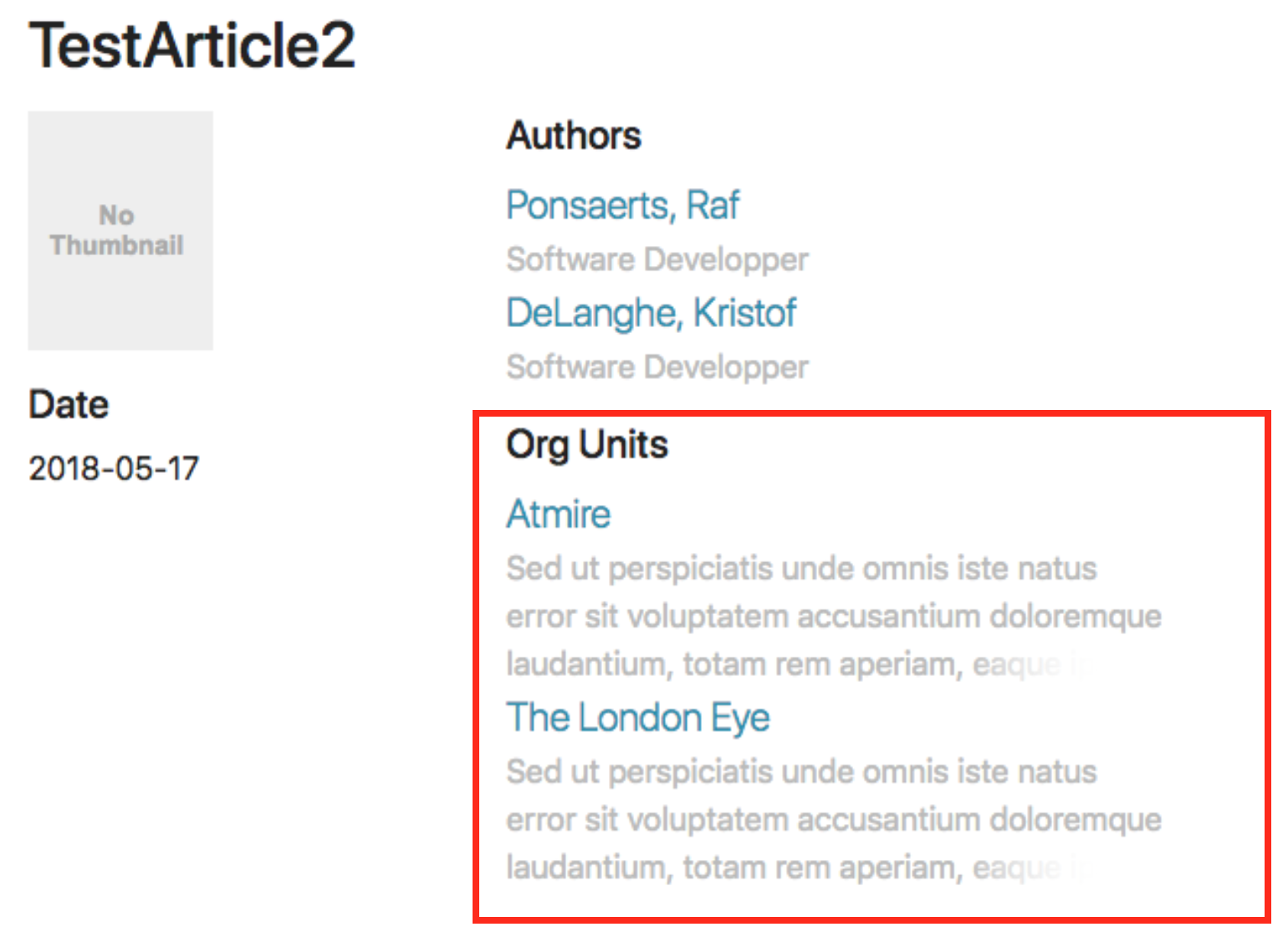
For an article, there are relations to the OrgUnits visible in REST. The relevant section is:
https://demo.dspace.org/entities/orgunit/d30de96b-1e76-40ae-8ef9-ab426b6f9763
"leftId": "96715576-3748-4761-ad45-001646632963",
"rightId": "d30de96b-1e76-40ae-8ef9-ab426b6f9763",
"leftPlace": 1,
"rightPlace": 2,
https://demo.dspace.org/entities/orgunit/c216201f-ed10-4361-b0e0-5a065405bd3e
"leftId": "96715576-3748-4761-ad45-001646632963",
"rightId": "c216201f-ed10-4361-b0e0-5a065405bd3e",
"leftPlace": 2,
"rightPlace": 2,
For this particular relation, the leftPlace is relevant because the leftId contains the current item ID. First the item with leftPlace 1 is displayed. Hereafter the item with leftPlace 2 is displayed.
In the other direction, on the OrgUnit item page there are 6 publications visible in REST. The relevant section is:
https://demo.dspace.org/entities/publication/e98b0f27-5c19-49a0-960d-eb6ad5287067
"leftId": "e98b0f27-5c19-49a0-960d-eb6ad5287067",
"rightId": "d30de96b-1e76-40ae-8ef9-ab426b6f9763",
"leftPlace": 1,
"rightPlace": 1,
https://demo.dspace.org/entities/publication/96715576-3748-4761-ad45-001646632963
"leftId": "96715576-3748-4761-ad45-001646632963",
"rightId": "d30de96b-1e76-40ae-8ef9-ab426b6f9763",
"leftPlace": 1,
"rightPlace": 2,
https://demo.dspace.org/entities/publication/2f4ec582-109e-4952-a94a-b7d7615a8c69
"leftId": "2f4ec582-109e-4952-a94a-b7d7615a8c69",
"rightId": "d30de96b-1e76-40ae-8ef9-ab426b6f9763",
"leftPlace": 2,
"rightPlace": 3,
For this particular relation, the rightPlace is relevant because the rightId contains the current item ID. First the item with rightPlace 1 is displayed. Hereafter the item with rightPlace 2 is displayed, …
The relation with rightPlace 2 is the same relation as mentioned for the article above
The default DSpace database tables will not need to be modified as the entity type is part of the regular metadata.
Tilted relationships
The tilted relationships are a default DSpace 7 feature, developed in https://github.com/DSpace/DSpace/pull/3134
It’s designed to improve performance when an entity has 1000s of relationships. It will avoid loading the relationships in the configured direction unless explicitly requested to retrieve them. It’s mainly used for setups where there are so many related items that it doesn’t make sense to list them all, and they are rather made available via search. Using tilted relationships, those setups can get a big performance boost.
The behavior can most easily be explained using a real-life example
Use case: OrgUnit vs Publication relationship
DSpace 7 has an isOrgUnitOfPublication relationship type defined by default. When there are OrgUnits with 1000s or more Publications linked to them, the default isOrgUnitOfPublication relationship can run into performance issues.
When setting the tilted to left, where the left entity type is Publication and the right entity type is OrgUnit, you are specifying that the Publication should still load the related OrgUnits (expected to be a small amount anyway), but the OrgUnit is not supposed to load all the related Publications.
The implications of this setup are:
When checking the
OrgUnitmetadata, it won’t populate therelation.isPublicationOfOrgUnitvirtual metadataWhen checking the
OrgUnitrelationships, it won’t return the relationships based on this typeBut using the relationship search angular component, the related
Publications can still be displayed on theOrgUnititem pageIt is also still possible to use the relationship list angular component on the
OrgUnititem page without a performance impact, but for theOrgUnitentities, the pageable list doesn’t have much added valueWhen checking the
Publicationmetadata, it will still populate therelation.isOrgUnitOfPublicationvirtual metadata, and can also populate any other virtual metadata such as the OrgUnit name on the PublicationWhen checking the
Publicationrelationships, it will include the relationships based on this typeThe relationship list angular component on the
Publicationitem page can be used, and won’t have any issues
Impact of the tilted relationships
Performance tests were performed in https://github.com/DSpace/DSpace/pull/3134 (some tests were specific to improvements which are independent from tilted relationships, and which are already applied in all cases)
In general:
Retrieving the item REST representation which includes virtual metadata when using the tilted relationships for items with 600 relationships reduced the duration to 5% (so a 95% reduction in time spent)
Creating new relationships when using the tilted relationships for items with 1000 relationships or more reduced the duration as well, but more recent tests revealed this reduced the duration to 25% (so a 75% reduction in time spent)
Using tilted relationships, there are production environments with single entities having over 40k relationships using a single relationship type. Using the tilted relationships, this setup doesn’t impact the performance.
Using the OrgUnit to Person relationship, it’s possible to have an OrgUnit with 40k Person entities, and the virtual metadata of the Person entity contains the Org Unit’s name, ID, ….
Versioning Support
DSpace entities fully support versioning. For the most part, this works like any other item. For example, when creating a new version of an item, a new item is created and all metadata values of the preceding item are copied over to the new item. Special care was taken to version relationships between entities.
Example of the latest status of a relationship (technical details)
To understand how versioning between entities with relationships works, let's walk through the following example:
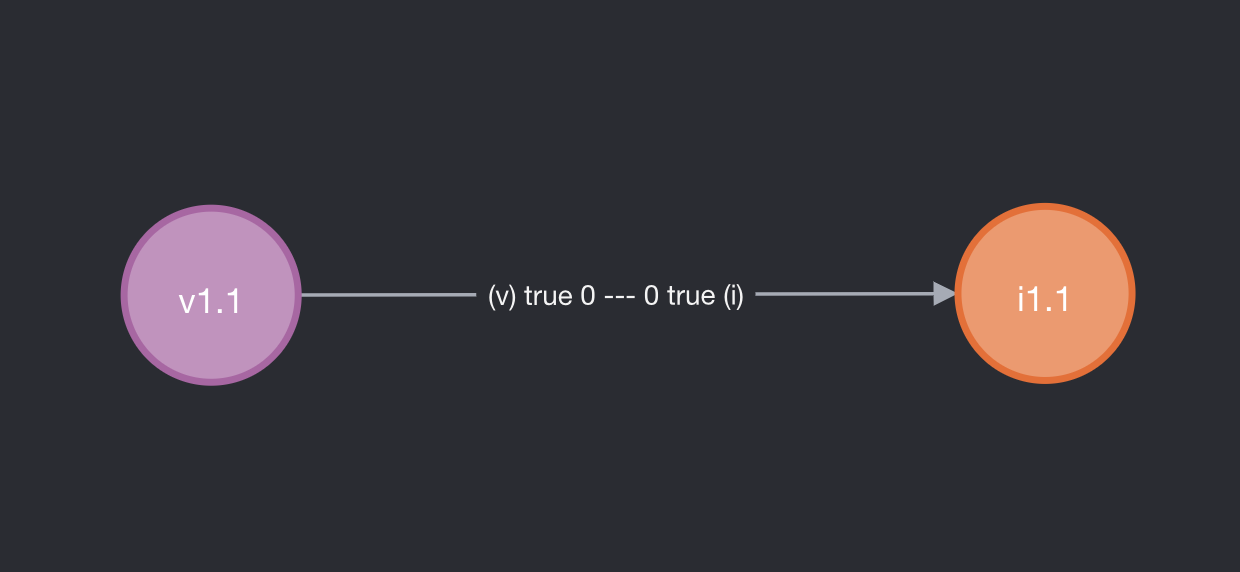
Consider Volume 1.1 (left side) and Issue 1.1 (right side). Both are archived and both are the first version. Note that on the arrow, representing the relation between the volume and the issue, two booleans and two numbers are indicated.
- The boolean on side
(v)is true if and only if volume 1.1 is the latest version that is relevant to issue 1 (even though it may be possible that volume 1.2, the second version of volume 1, exists). This means that on the item page of issue 1.1, a link to the item page of volume 1.1 should be displayed. It also means that searching for (the uuid of) issue 1.1 should yield volume 1.1. - The boolean on side
(i)is true if and only if issue 1.1 is the latest version that is relevant to volume 1.1 (even though it may be possible that issue 1.1, the second version of issue 1, exists). This means that on the item page of volume 1.1, a link to the item page of issue 1.1 should be displayed. It also means that searching for (the uuid of) volume 1.1 should yield issue 1.1. - The number on side
(v)indicates the place at which the virtual metadata representing this relationship (if any) will appear on volume 1.1. E.g. using the out-of-the-box configuration invirtual-metadata.xml, metadata fieldpublicationissue.issueNumberof issue 1.1 would appear as metadata fieldpublicationissue.issueNumberon volume 1.1 on place 0 (i.e. as the first metadata value). - The number on side
(i)indicates the place at which the virtual metadata representing this relationship (if any) will appear on issue 1.1. E.g. using the out-of-the-box configuration invirtual-metadata.xml, metadata fieldpublicationvolume.volumeNumberof volume 1.1 would appear as metadata fieldpublicationvolume.volumeNumberon issue 1.1 on place 0 (i.e. as the first metadata value).
With the groundwork out of the way, let's see what happens when we create a new version of volume 1.1. The new version is not yet archived, because it still has to be edited in the submission UI.
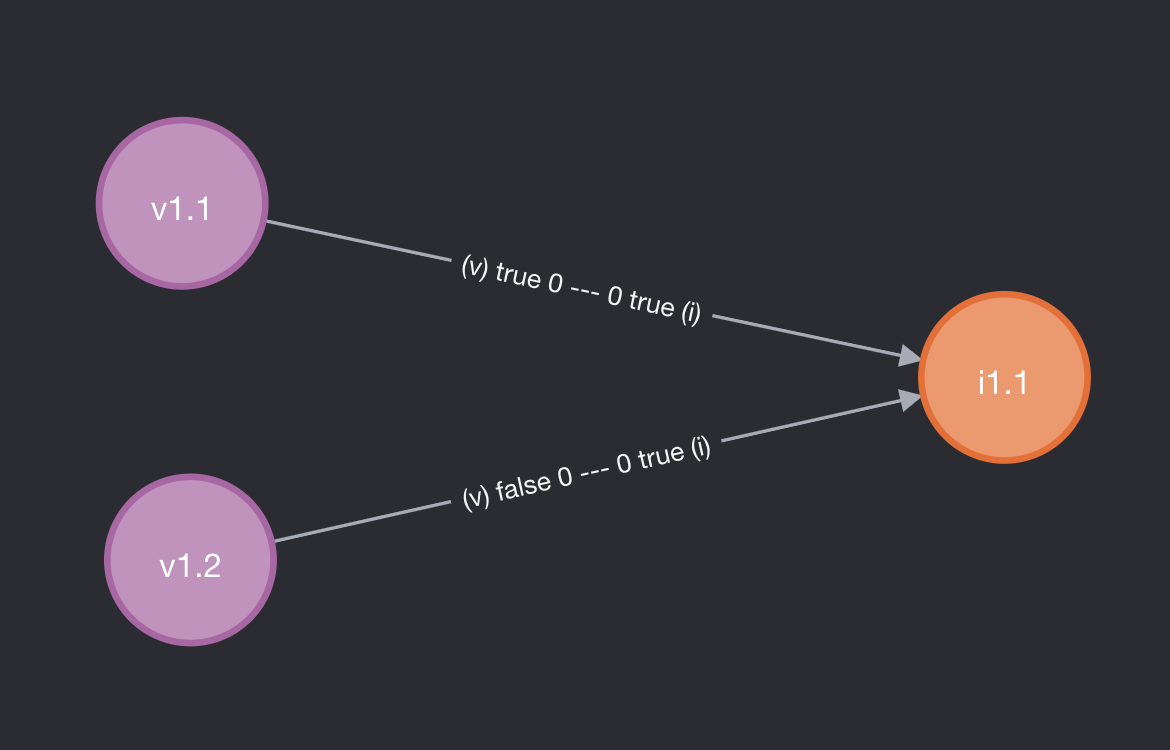
At this moment, when viewing the item page of issue 1.1, the user should only see volume 1.1 (as volume 1.2 is not yet archived). When viewing the item page of volume 1.1, nothing has changed: only a link to issue 1.1 will appear. When viewing the item page of volume 1.2 (e.g. as an admin), a link to issue 1.1 will appear as well.

As soon as volume 1.2 is deposited (archived), the "latest status" of both volume 1.1 and volume 1.2 are updated. When viewing the item page of issue 1.1, volume 1.2 should be visible. When viewing the item pages of the volumes, nothing has changed.
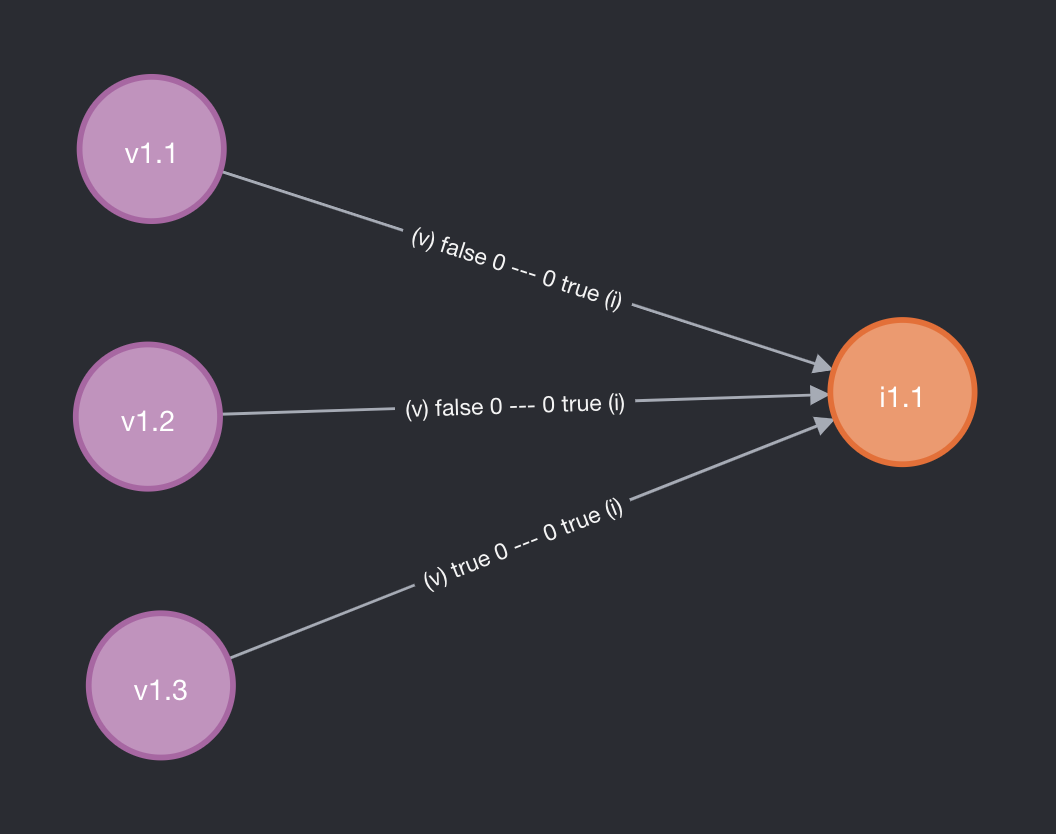
Let's create another version of the volume (not archived):
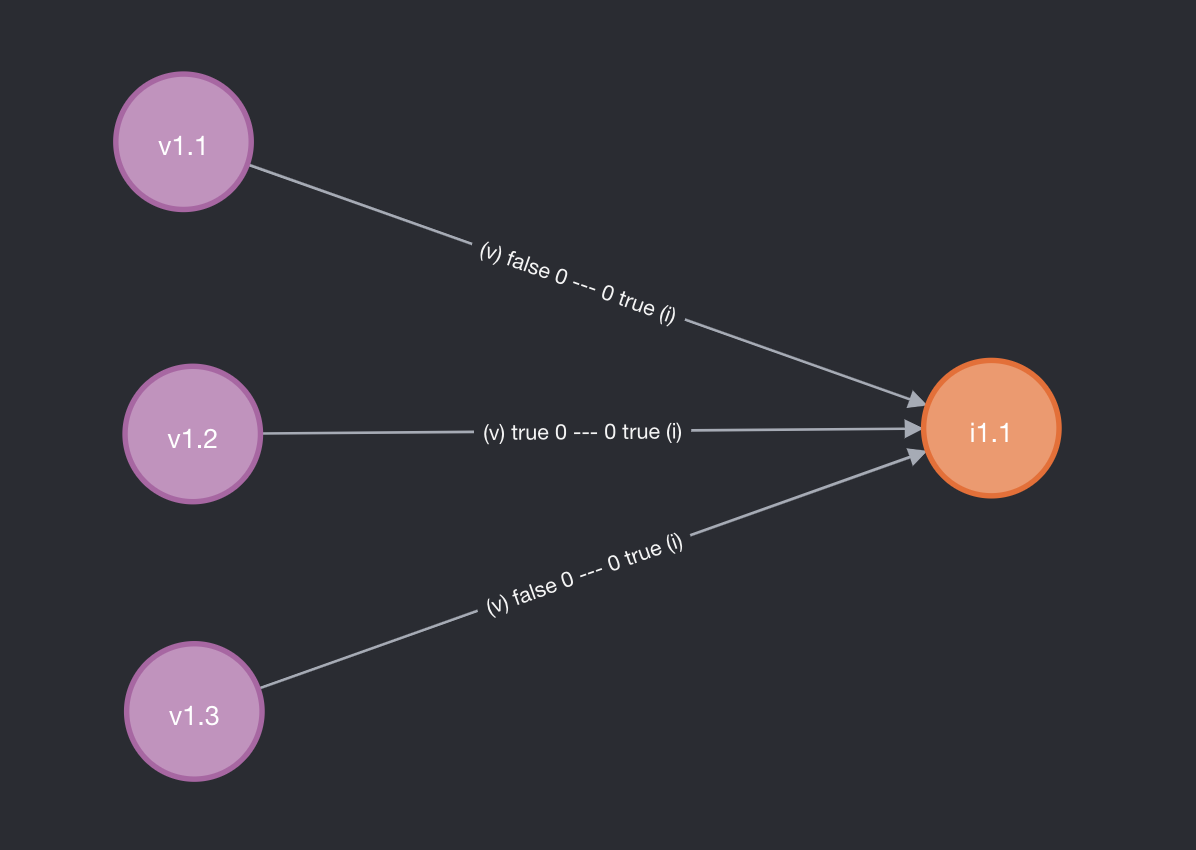
And after archiving volume 1.3:
What happens if we create a new version of issue 1.1?
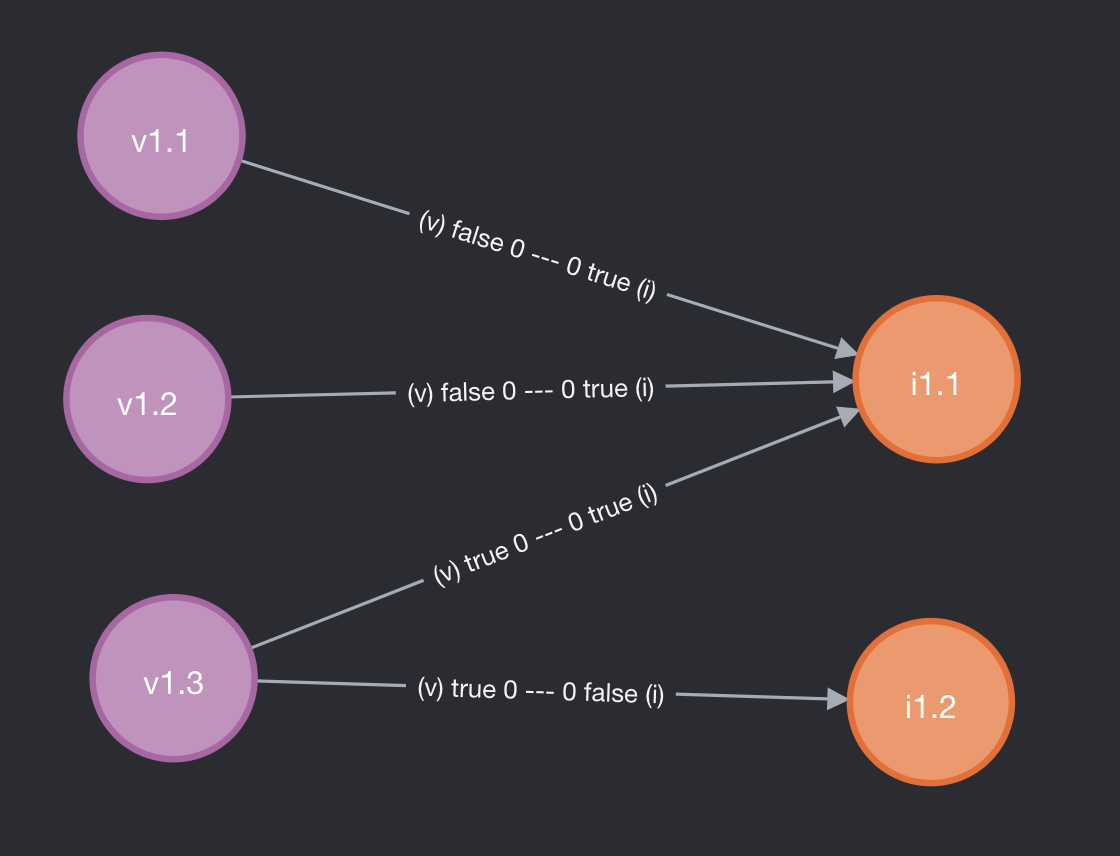
Only the relationship with volume 1.3 is copied. For issue 1.1, no relationship was displayed with volume 1.1 and 1.2. (The relationships still exist in the database, but are not visible in the UI.). For volume 1.1, a relationship to issue 1.1 remains present, but it should not be updated to issue 1.2. For issue 1.2, these relationships are longer relevant, so they are not copied.
On the item pages of volume 1.1, volume 1.2 and volume 1.3, you should see issue 1.1 (as 1.2 is not archived yet)
Because issue 1.2 is not yet archived, all volumes are still pointing to issue 1.1. Let's archive it:
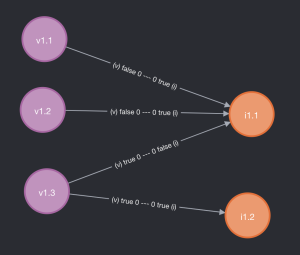
Now on the item pages of volume 1.1 and volume 1.2, you should see issue 1.1; it's the latest issue at the time that those volumes were superseded by volume 1.3. On the item page of volume 1.3, you'll see issue 1.3. On the item page of issue 1.1 you'll still see volume 1.3 as well.
Metadata fields that represent relations
If you have a closer look at items with relationships, you'll notice two categories of metadata fields that are controlled by DSpace:
relation.*fields, for examplerelation.isIssueOfJournalVolumeon volume itemsrelation.*.latestForDiscoveryfields, for examplerelation.isIssueOfJournalVolume.latestForDiscoveryon volume items
Metadata fields of the first category (relation.*) contain all uuids of related items that the current item can see. I.e. a relationship has to exist between the current item and the other item, and the other item needs to have "latest status" for that specific relationship.
As an example take the following state of the previous section:
Item issue 1.1 will contain metadata field relation.isJournalVolumeOfIssue with as value the uuid of volume 1.3. Volume 1.1 and 1.2 are not included because they don't have "latest status" on the relevant relationships.
Metadata fields of the second category (relation.*.latestForDiscovery) contain all uuids of the items for which the current item is visible. I.e. a relationship has to exist between the current item and the other item, and the current item needs to have "latest status" for that specific relationship. These fields are particularly important for indexing and search, because they allow to us to surface all the items that a particular item is referring to.
Continuing on the example above, issue 1.1 will have metadata field relation.isJournalVolumeOfIssue.latestForDiscovery containing the uuids of volume 1.1 and 1.2.
With issue 1.1 containing volume 1.1 and 1.2 in relation.isJournalVolumeOfIssue.latestForDiscovery, a search on the volume 1.1 page for all issues containing volume 1.1 will display issue 1.1 thanks to this setup.
Configure versioning for an entity type
DSpace contains a bunch of example entity types that support versioning out of the box. What follows is an overview of the requirements to make entity versioning work.
- when introducing a relationship type, make sure to add four new metadata fields to
config/registries/relationship-formats.xml. E.g.relation.isAuthorOfPublication,relation.isAuthorOfPublication.latestForDiscovery,relation.isPublicationOfAuthorandrelation.isPublicationOfAuthor.latestForDiscovery - when introducing an entity type, filter items on
latestVersion:trueindiscovery.xml. This will be the default search, which ensures older versions are not shown- If you want to show all related items, including older versions, you can create another discovery config without
latestVersion:true. This should be used for item pages displaying the related items to the current item using the discovery search. - The entity types configured out-of-the-box have discovery config
<entity-type>and discovery config<entity-type>Relationshipsfor that purpose.
- If you want to show all related items, including older versions, you can create another discovery config without
Note that versioning support is enabled by default, but can be turned off by setting versioning.enabled = false in versioning.cfg or local.cfg. For more details on item versioning, see: https://wiki.lyrasis.org/display/DSDOC7x/Item+Level+Versioning.
Overview
Content Tools
All content on the LYRASIS Wiki is licensed under the CC BY (Attribution) license , unless otherwise noted.
1 Comment
Tim Donohue
Additional documentation should be added here based on the detailed notes/discussion of the DSpace 7 Entities Working Group (2018-19) around this feature, all documented in this Google Doc: https://docs.google.com/document/d/1wEmHirFzrY3qgGtRr2YBQwGOvH1IuTVGmxDIdnqvwxM/edit
Specifically, that Google doc also includes: