Contribute to the DSpace Development Fund
The newly established DSpace Development Fund supports the development of new features prioritized by DSpace Governance. For a list of planned features see the fund wiki page.
Prerequisites
Having two DSpace instances:
- DSpace 1
- DSpace 2
COAR Notify Workflow Reference
https://coar-notify.net/catalogue/workflows/repository-relationship-repository/
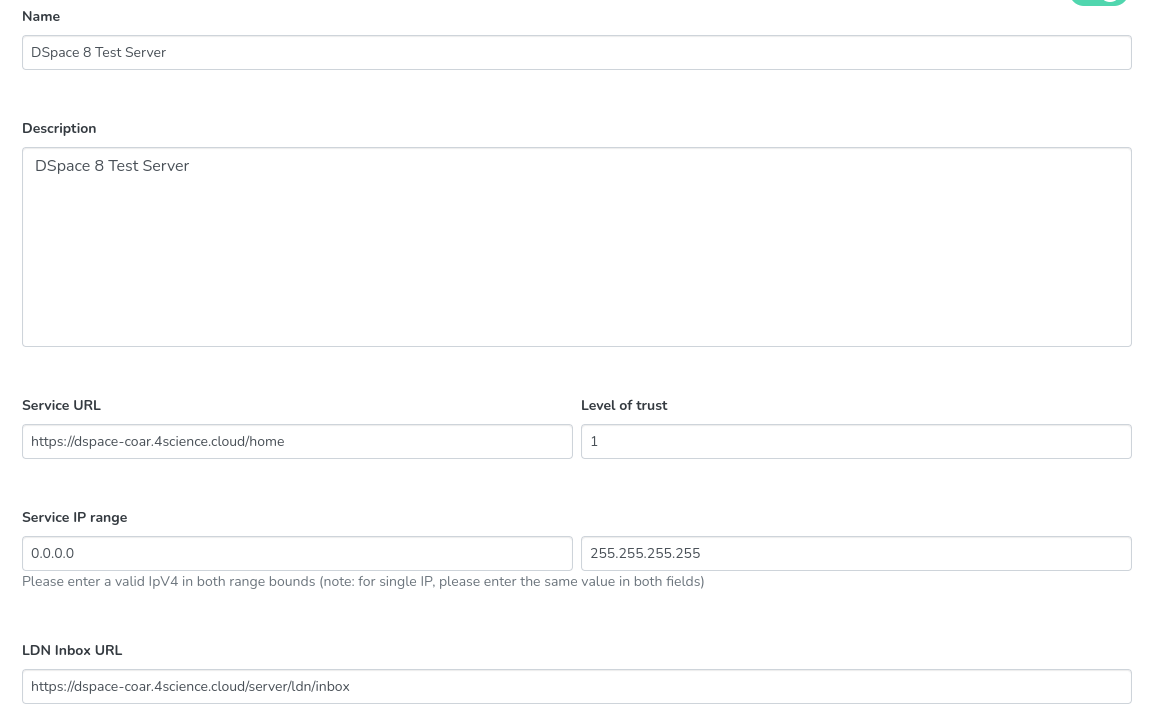
Register the other DSpace System/Service in the current DSpace instance
DSpace 1 configuration
Create a new LDN Service on DSpace 1, ensuring that the LDN Inbox is correctly configured. Generally this URL is in the format: https://<baseurl>/server/ldn/inbox.
Configure the Service IP range and Level of trust as required.
Make sure to configure the Announce Relationship as supported pattern and flag it as Automatic. This is very important since the Announce Relationship is the only pattern that allows two DSpace to intercommunicate, and this pattern can only be used in the Automatic mode since no submission additional step allows this workflow to be triggered.
DSpace 2 configuration
Create a new LDN Service on DSpace 2, ensuring that the LDN Inbox is correctly configured. Generally this URL is in the format: https://<baseurl>/server/ldn/inbox.
Configure the Service IP range and Level of trust as required.
Make sure to configure the Announce Relationship as supported pattern and flag it as Automatic. This is very important since the Announce Relationship is the only pattern that allows two DSpace to intercommunicate, and this pattern can only be used in the Automatic mode since no submission additional step allows this workflow to be triggered.
Notes about configuration
As seen above, each DSpace service must be configured to know and recognize the other DSpace instance, so that the current system knows the external system and is aware of what kind of notifications should be managed.
Also, the IP authorization is checked, otherwise the notification is not processed and is flagged as untrusted.
Further customization
Filters
The Announce Relationship allows to notify a created relationship between systems.
Since multiple LDN Services could be configured and they could all be using the Announce Relationship pattern, it makes sense to define an item filter for each provided pattern for the defined LDN Service. These filters are not out of the box (only basic filters are provided) but they could be defined on item-filters.xml. These filters can be configured in order to allow the LDN message to be generated/triggered only on a given condition (for instance: a specific relation URL pattern is recognized, item is openaccess and so on..).
Relation Metadata
By default the Announce Relationship pattern retrieves the dc.relation metadata, which is currently not configured in any of the standard submission forms and must be added manually.
This metadata can be overridden by setting the java property ldn.notify.relation.metadata so that any custom metadata could be used.
Real use case
After making sure all the above configurations are properly set proceed with the following:
- Start a submission on DSpace 1 for an item and set the dc.relation metadata (or any other metadata, in case it is overridden by the property ldn.notify.relation.metadata)
- Once the submission is completed on DSpace 1, wait for the notification to be processed and sent (access the LDN Dashboard to check the notification status)
- Once the LDN Message is delivered to DSpace 2, move to the DSpace 2 system and check that the notification is correctly received (and processed)
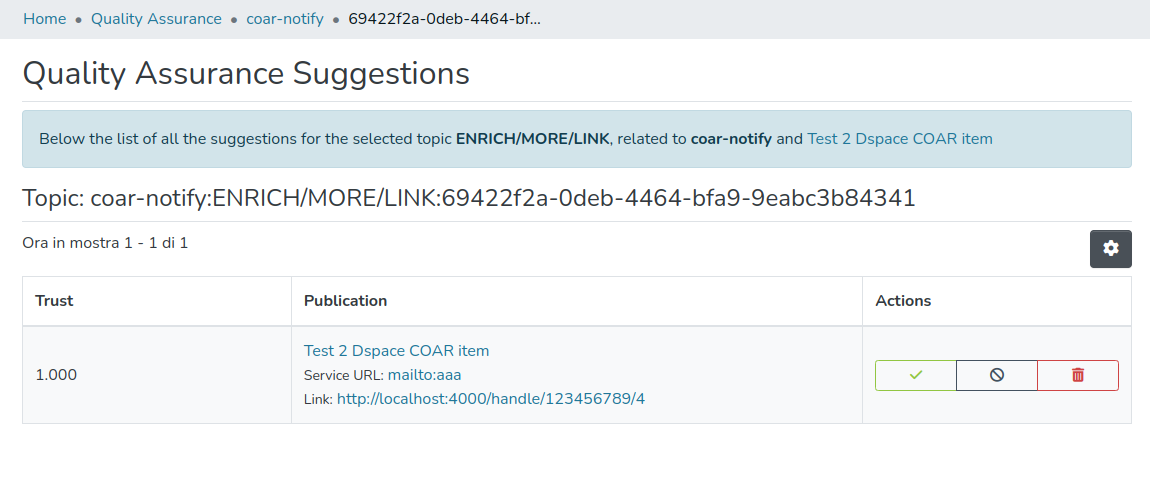
- Check the Quality Assurance page on DSpace 2 for the processed notifications and approve them (Approval is not requested if a configuration for automatic approval has been provided, check the documentation page COAR Notify - LDN Services#ConfiguringautomaticQAevaluationusingtheLevelofTrust)
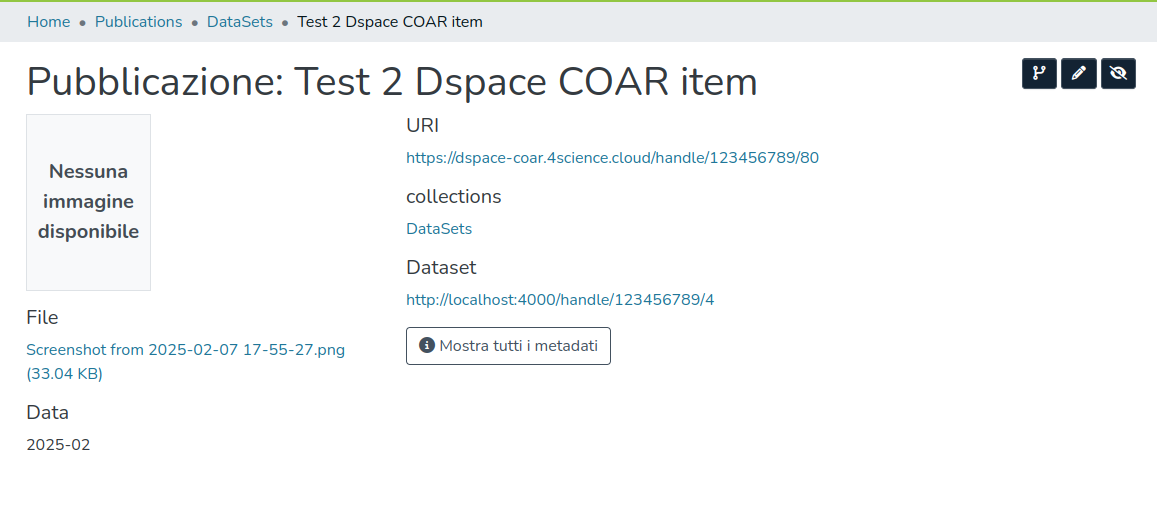
- Once the notification is approved on DSpace 2, a new metadata is added to the item. This metadata is the reference to the DSpace 1 related item (i.e. the item involved in the relationship)
Notes
The metadata added to the Item(s), once the QA event for the LDN Notification is approved, can be customized in qaevents.xml in the following bean:
     <bean id="RelationMetadataAction" class="org.dspace.qaevent.action.QANotifyMetadataMapAction">
	     <property name="types">
	         <map>
               <entry key="default" value="datacite.relation.isReferencedBy" />
               <entry key="http://purl.org/vocab/frbr/core#supplement" value="datacite.relation.isSupplementedBy" />
	         </map>
	     </property>
     </bean>
Some UI examples
Registering the Service (both DSpace instances)
Configuring the Announce Relationship Pattern (both DSpace instances)

Start a submission and fill the related item field (Configure it if not present) (DSpace 1)

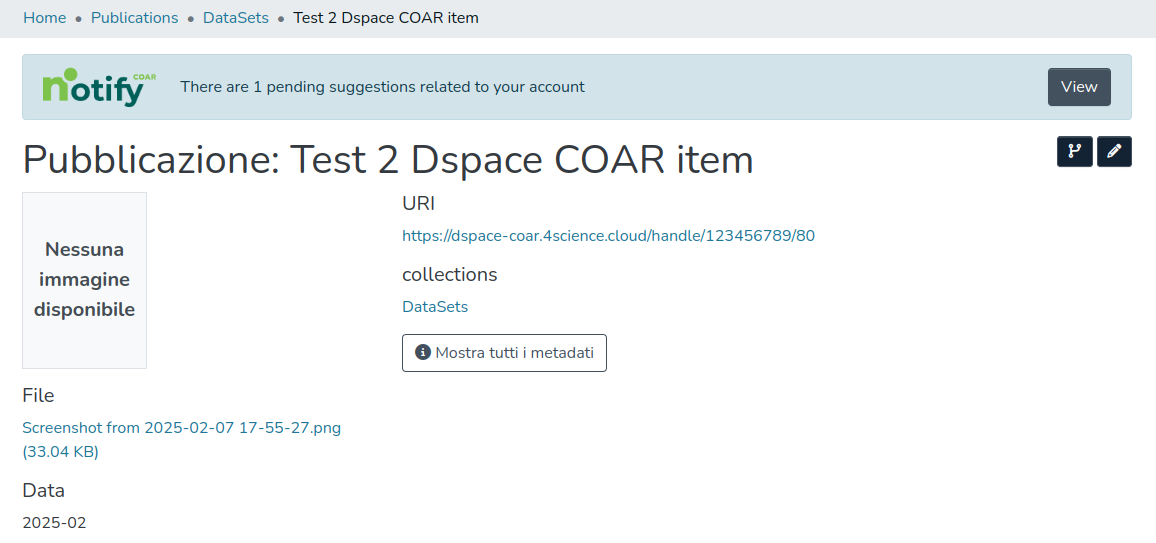
The system receives the notification (DSpace 2)
Approve the generated QA Event (DSpace 2)
Check the Item for the newly added relation (DSpace 2)
Overview
Content Tools
All content on the LYRASIS Wiki is licensed under the CC BY (Attribution) license , unless otherwise noted.