All Versions
DSpace Documentation
Unreleased Documentation
This documentation is unreleased and still in development. It may describe features which are not yet released in DSpace.
Looking for another version? See all documentation
Work in Progress
By means of the AddToAny plugin, it is possible to share DSpace-CRIS content with common Social Media Platforms.
The AddToAny plugin can be enabled and configured through the Angular environment property addToAnyPlugin. It is also possible to decide on which pages it should be enabled by configuring the Angular router.
The AddToAny plugin is enbled by default. In order to disable it you need to set the Angular environment property addToAnyPlugin.socialNetworksEnabled to false.
|
The Angular environment property addToAnyPlugin provides the following configuration properties:
scriptUrl is the URL of the script that enables the plugin
socialNetworksEnabled is a boolean flag that allow to enable the plugin
buttons is an array of strings that contains the IDs of available buttons
showPlusButtons is a boolean flag that enables the button that shows all available share options
showCounters is a boolean flag that shows the share count for each service that provides a public API
title is a string that may be used as title, content, or subject for the shared post
link is an optional string containing the address of the DSpace installation,
This is the default plugin configuration in default-app-config.ts:
|
This is an example of configuration override in config.ENVIRONMENT.yml file:
|
Search the desired service in the following list, then copy the service code and add it to the buttons property:
Another way to get the button IDs is to generate the button code on AddToAny website.
Open Share Buttons Code for Any Website - AddToAny, then click “Choose services” and select the desired services:
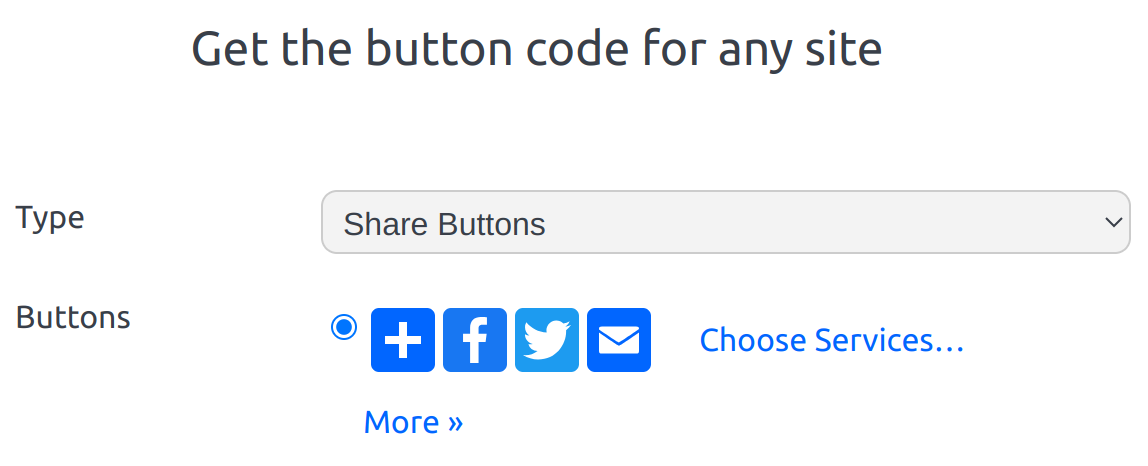
Then click “Get button code” to generate the HTML code:
|
For each button you will get an anchor element containing the button ID:
|
In order to add the buttons you can copy all the IDs and add them to the button array.
Note that you don’t need this HTML code, but only need the button IDs. The HTML code is automatically generated by DSpace CRIS.
Configure the Angular Router to activate the feature in every desired route (you may want to include just informative pages in order to exclude administrative pages or edit pages).
Add showSocialButtons: true to the data object of each configured route
|
The AddToAny container element will then be positioned inside the page accordingly to the widget configuration.
Accorting to what reported at https://www.addtoany.com/buttons/faq/#data-privacy, AddToAny does not store personal data and does not require the user to accept any privacy policy.
All content on the LYRASIS Wiki is licensed under the CC BY (Attribution) license , unless otherwise noted.