You can make content publicly available by designating a bucket as -public (See How to Create Buckets) or by uploading content to your public folder if you're using the SFTPGo web-based application.
You can construct what a public link will look like based on this pattern:
https://{BUCKET_NAME}.s3.{REGION}.amazonaws.com/{PREFIX}/{FILE}
If you have spaces in any of your folder or filenames, replace those with a + sign when forming a URL. The region information is also optional.
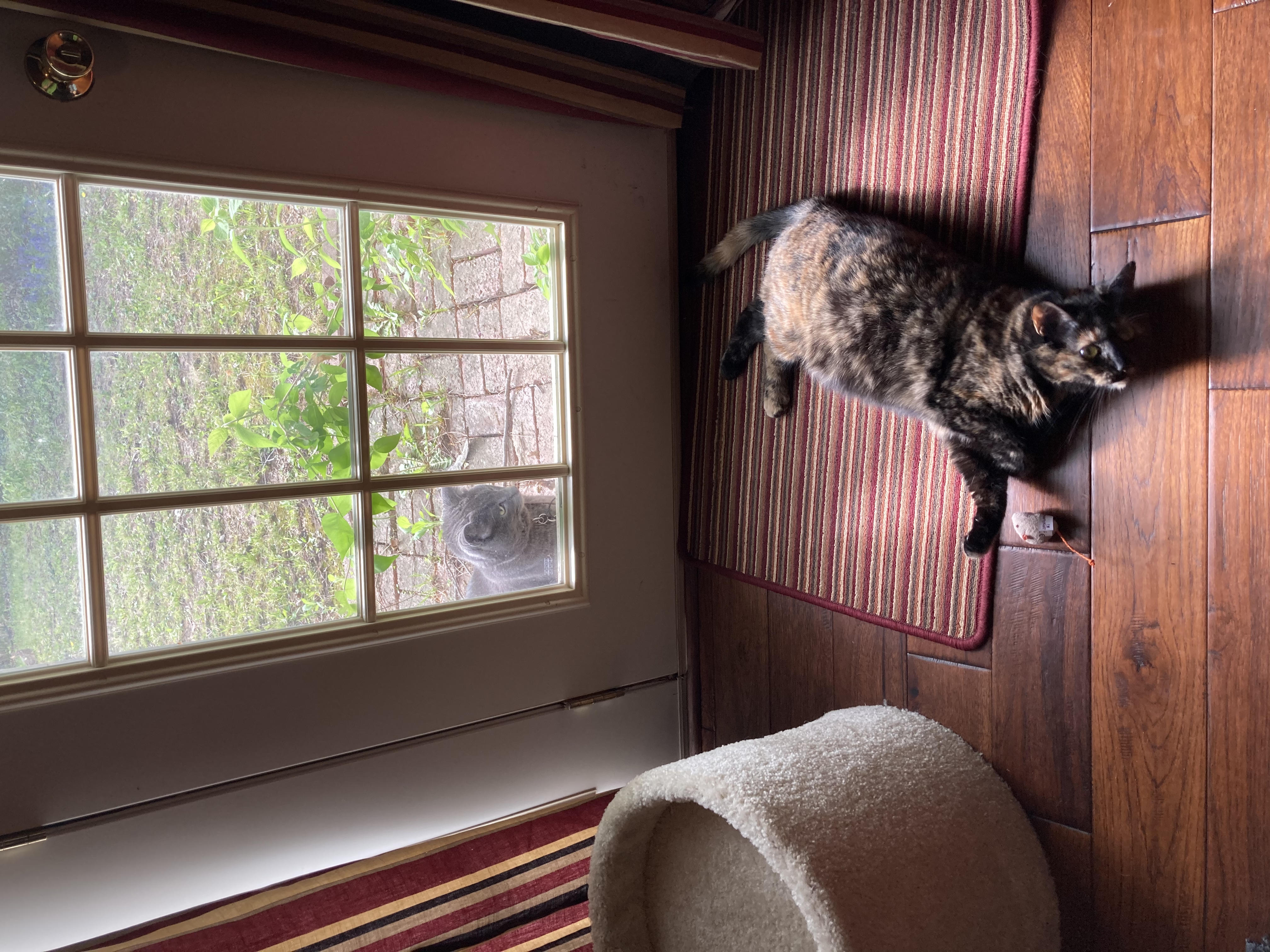
So, for example, an image found in the lyrasis account's bucket public→test-01→catpics folder structure would look like
https://duracloud-lyrasis-public.s3.us-west-2.amazonaws.com/test-01/catpics/callie_and_friend.jpg
OR, without the region information
https://duracloud-lyrasis-public.s3.amazonaws.com/test-01/catpics/callie_and_friend.jpg
Cyberduck sharing options
Cyberduck has some additional ways to share folders and individual objects.
- Navigate to the item you wish to share
- Right click on a Windows machine/control+click on a Mac keyboard or 2-finger click on a touch pad and select "Copy URL"
- You will have options for how you wish to copy the URL, including HTTPS or HTTP, with an expiration on the link (for individual objects only), or if you want the AWS command link
- You will now be able to share the item however you wish
- The HTTPS and HTTP links will be formed slightly differently from that described above, with the AWS information before the bucket name information, but these links should still provide public access to objects in your DuraCloud account.

0 Comments