In order to keep things simple for the end user, less complicated to maintain on the technical side, but also provide some flexibility over how content can be uploaded to S3, there is no prescribed user interface. Any S3-compatible client can be used to interact with DuraCloud.
We believe this is the right choice because there are many popular, well-supported, and tested options already available. However, we provide streamlined documentation for the use of the open source program Cyberduck as a downloadable GUI option, the AWS CLI for command line usage, and the web-based browser SFTPGo for the simplest access point.
Here’s a list of clients that have been used or tested by Lyrasis staff:
- AWS CLI
- Cyberduck
- S3Browser (Windows only; we are not providing additional documentation here about this option)
- SFTPGo
But there are many others and you are free to use any S3 compatible client that you prefer.
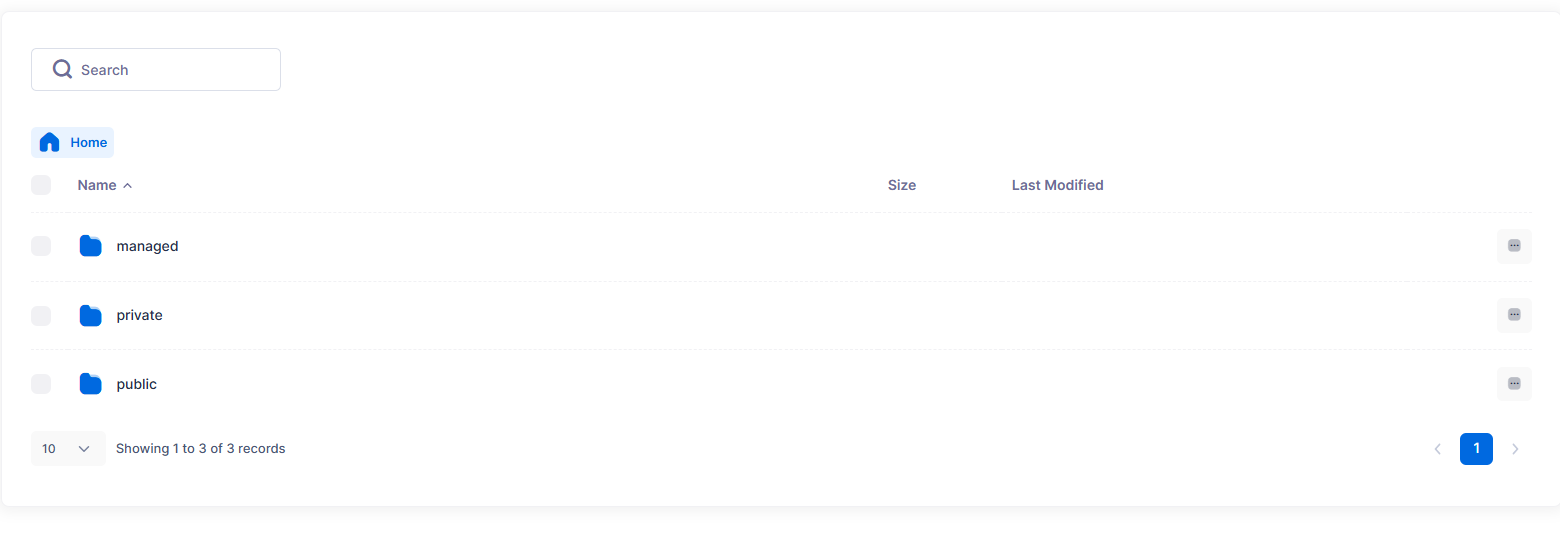
After connecting to your S3 account via your preferred method, you will see the folders already created for your account using your duracloud-$ID, including -bucket-requested and -managed as well as -private (a default bucket for files that cannot be accessed publicly) and -public (a default bucket for files that can be accessed publicly).
AWS CLI documentation
Step 1: Install AWS CLI
Installing or updating to the latest version of the AWS CLI
After following the instructions for your operating system, check your installation:
aws --version
Step 2: Configure Your AWS Credentials
Configuration and credential file settings in the AWS CLI
aws sts get-caller-identity
If you have multiple AWS accounts or environments, set up a named profile and configure with your key, secret and region (west-2):
aws configure --profile duracloud
Setting region for Lyrasis hosting
If you are a Lyrasis hosted DuraCloud client, the AWS is region is west-2. You can set this in a few ways:
1. Add --region directly to the command
This is the most explicit and overrides all other settings (profiles, config files, etc.)
aws s3 ls --region us-west-2
With a profile:
s3 sync ./data s3://{stackname}-bucket --profile duracloud-pilot --region us-west-2
2. Set the region temporarily in your shell
This applies only to the current terminal session:
export AWS_REGION=us-west-2
Then commands can be run without specifying the region
3. Set the region inside the profile
[profile duracloud-pilot]
region = us-west-2
output = json
Cyberduck documentation
Cyberduck's documentation for setting up new connections: https://docs.cyberduck.io/cyberduck/connection/
Step-by-step instructions for DuraCloud:
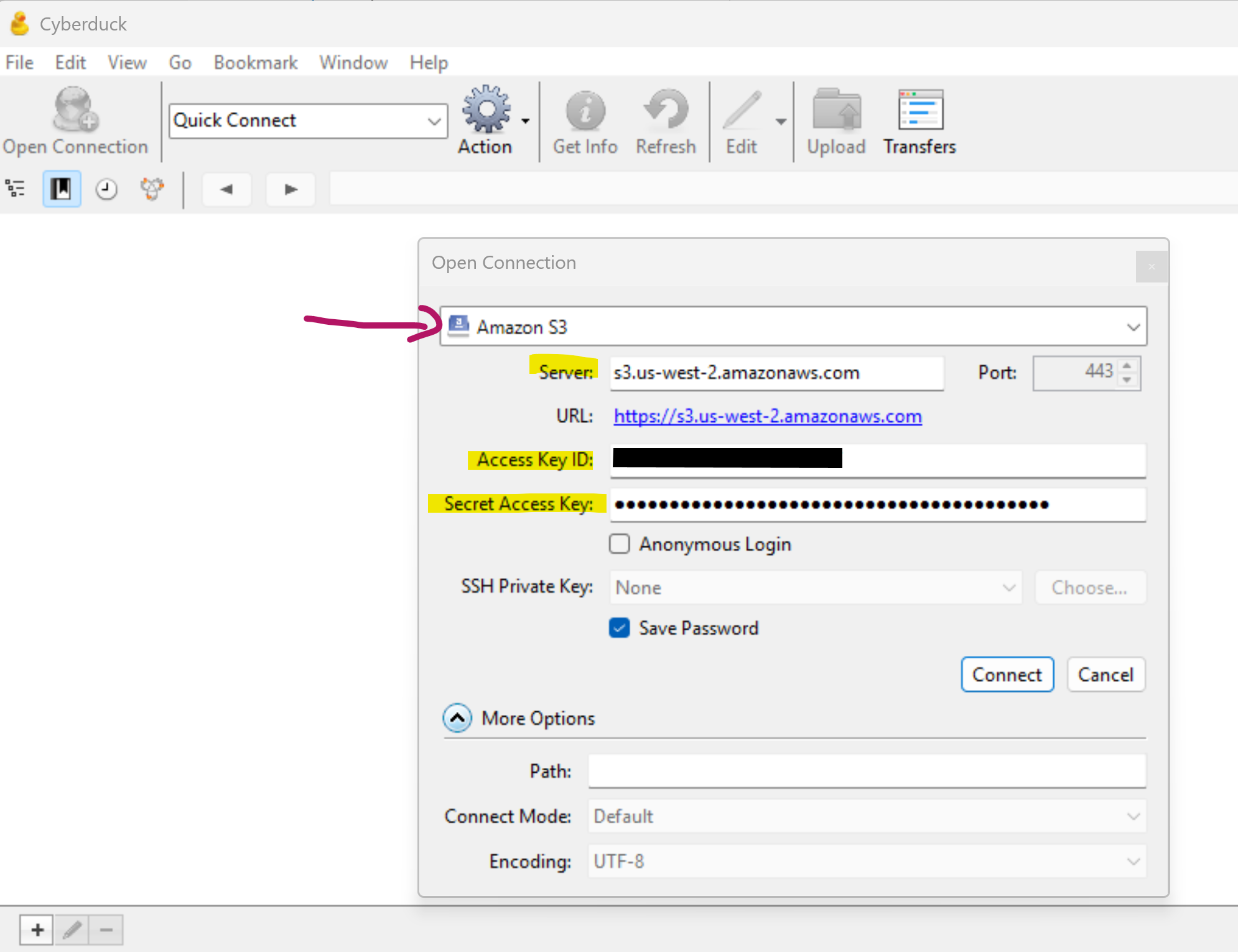
- File - Open Connection
- Change dropdown menu to Amazon S3; if you are a Lyrasis Hosting Services client, update Server to state s3.us-west-2.amazonaws.com (*Lyrasis Hosting can support us-west-2 and us-east-2 currently)
- Type in provided Access Key ID and Secret Access Key
- Click Connect
Tips
- Click on "Go --> Enclosing Folder" to navigate up the file path tree, one level at a time, or click in the filepath dropdown to navigate up multiple steps in the tree after your connection is set up.
- Logs and other items you wish to download for viewing will go straight to your Downloads folder. You can update this by going to Edit --> Preferences --> Transfers, under the General tab and choose a different folder if you wish.
SFTPGo documentation
Navigate to https://pilot.duracloud.net/ to login, upload, and download content.
With this web-based application, individual users will be provided credentials by their system administrator (such as the Lyrasis Hosting team). The first time you login, you will be asked to change your password. You can do this from the small person icon in the upper right corner of the screen.
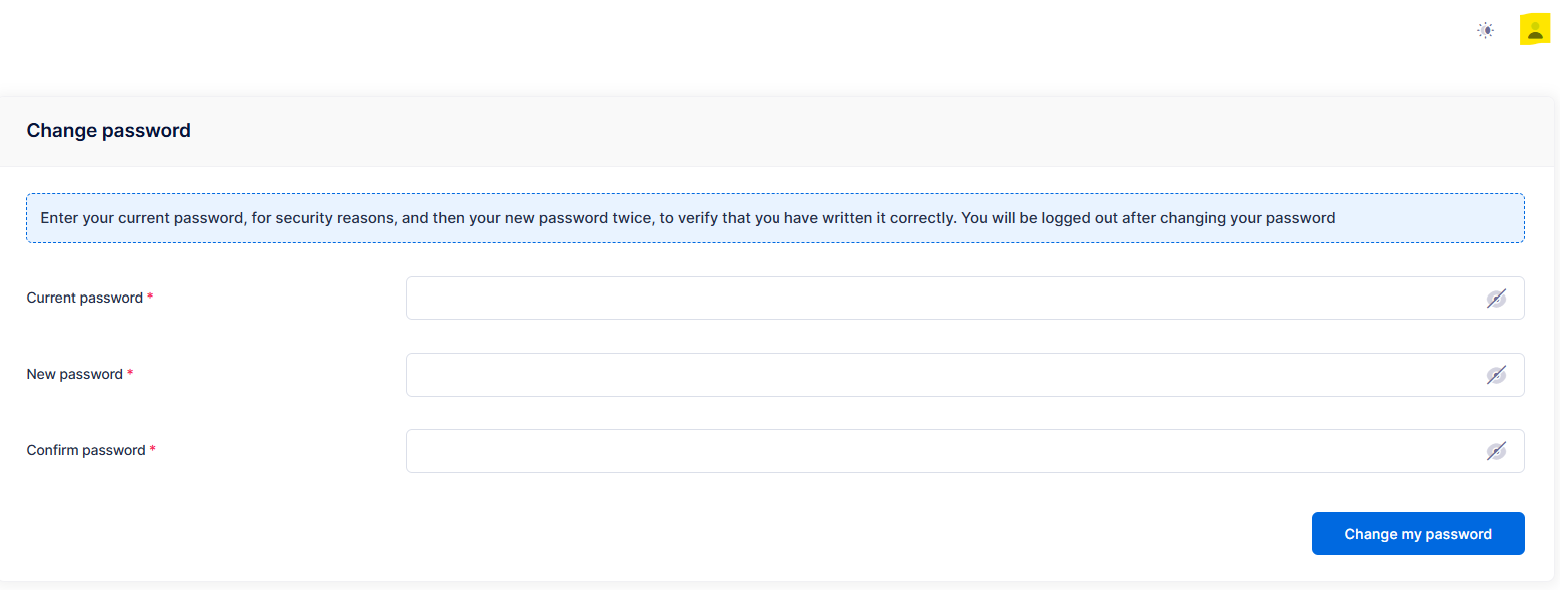
NOTE: with this option, clients will not be creating their own buckets. Instead upon login, you will see three buckets already created for you: managed, private, and public. You will be able to upload content to the private and public folders, creating sub-folder directory structures as needed, and you will be able to download reports and the other content provided by your hosting service from the managed bucket.

Add Comment