All Versions
DSpace Documentation
Contribute to the DSpace Development Fund
The newly established DSpace Development Fund supports the development of new features prioritized by DSpace Governance. For a list of planned features see the fund wiki page.
Bitstreams are files attached to items in DSpace. After an item is submitted, the bitstream(s) attached to it can be edited. New bitstreams can be added and existing bitstreams can be edited or deleted.
Bitstreams are added in bundles (e.g., Original, which contains the original file(s); License, which contains any license associated with the file(s); Text, which contains any file(s) with extracted text for searching; Thumbnail, which contains any thumbnail image(s) of the original file(s)). New bundles can be added and the bitstreams in existing bundles can be edited or deleted.
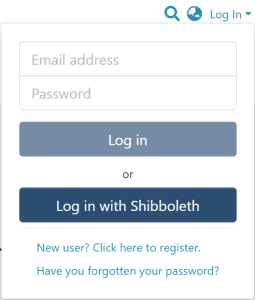
Step 1: Login using your DSpace credentials.
Step 2: Go to the item you want to edit.
Users can reach an item through multiple methods, including those listed below:
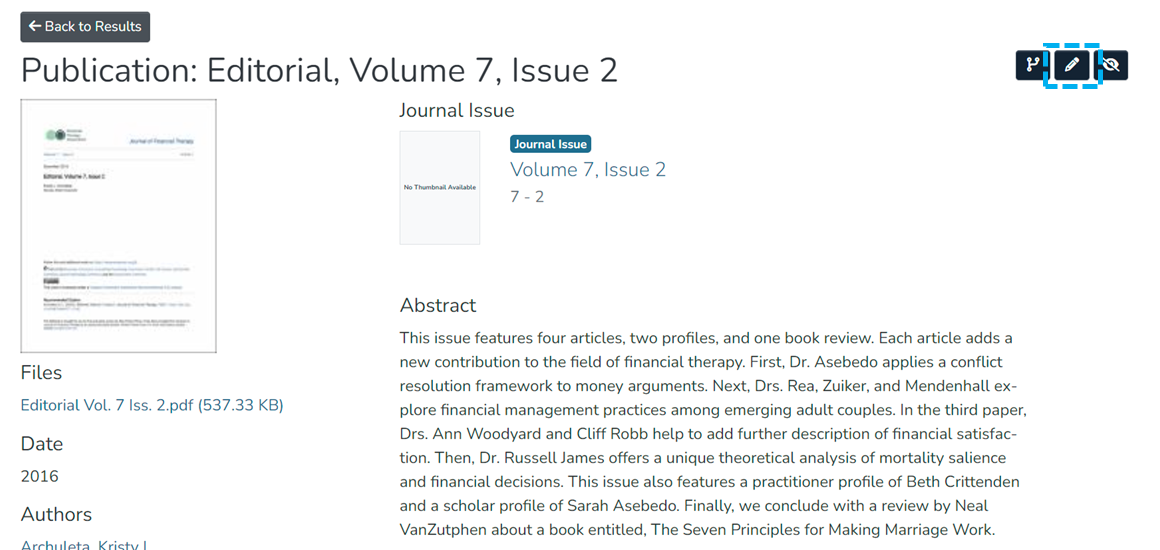
Step 3: Click on the “Edit” button as highlighted on the screen below. This button will appear to any user who has edit rights on the target item.
Step 4: Click on the “Bitstreams” tab to edit the bitstreams.
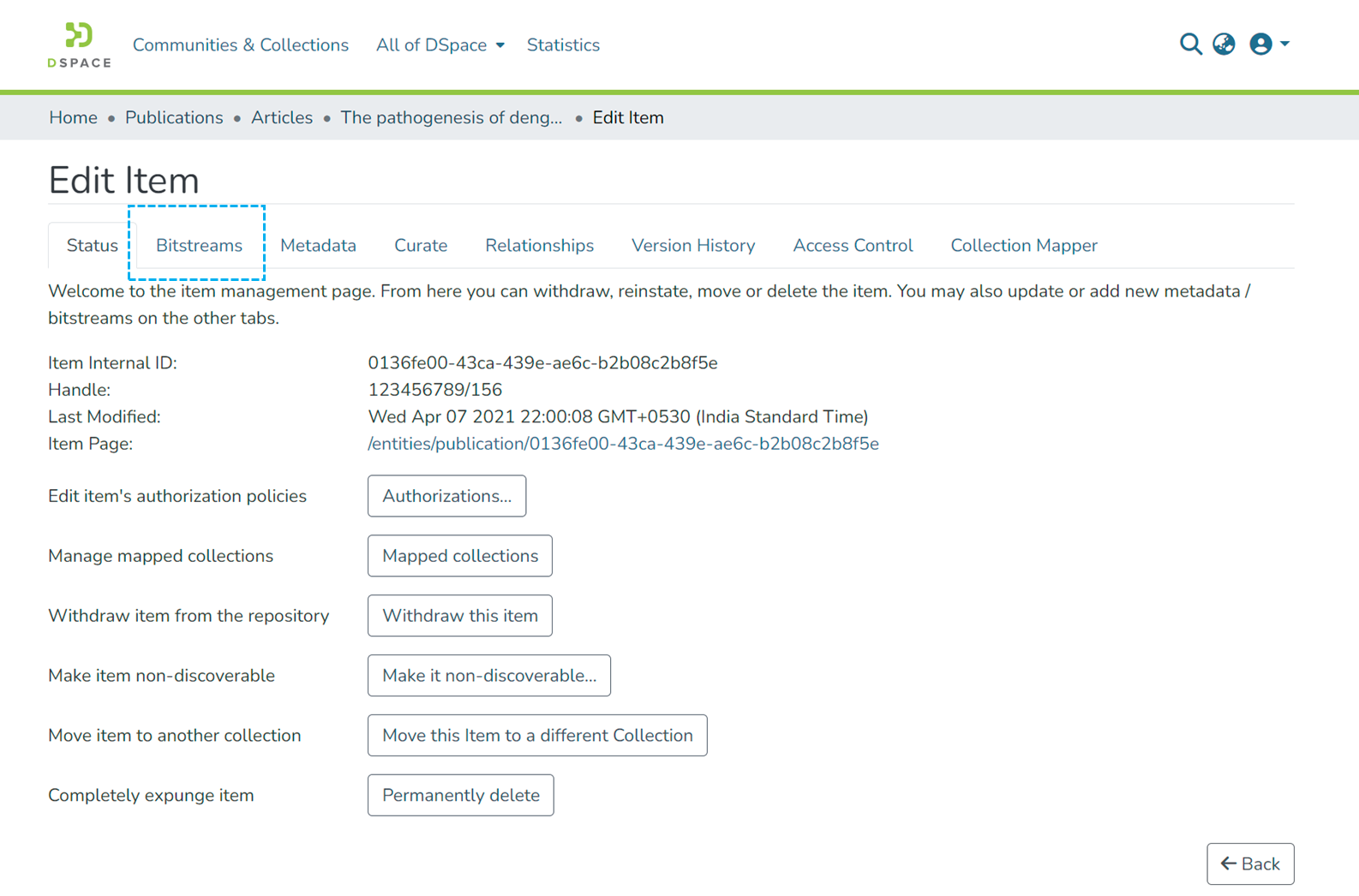
From the Bitstreams tab you can:
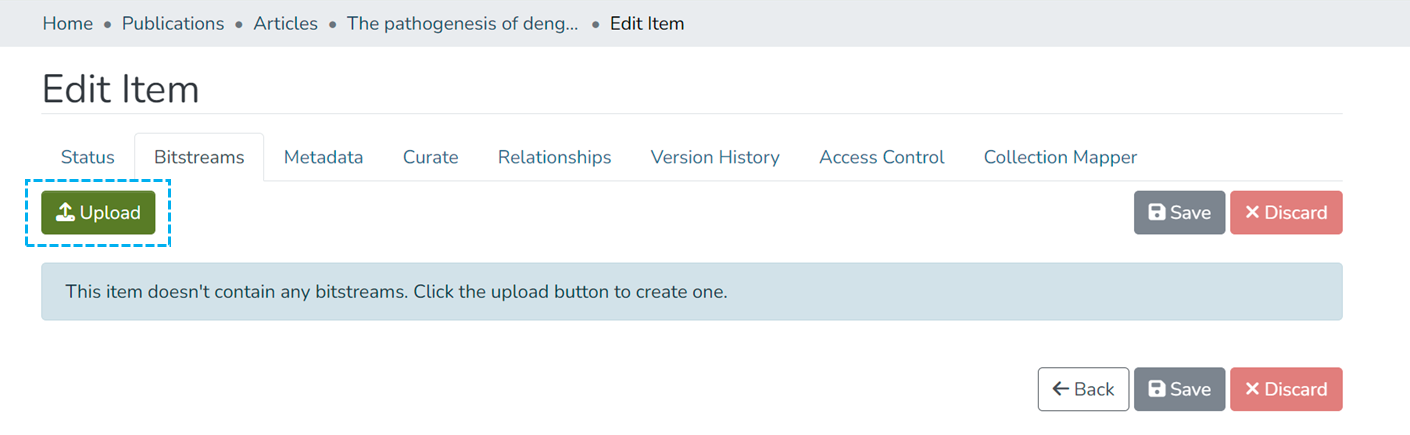
Step 1: Click on the “Upload” button to upload a bitstream in existing bundles or create a new bundle to add a bitstream.
Step 2: Enter the bundle name or select an existing name from the dropdown menu.
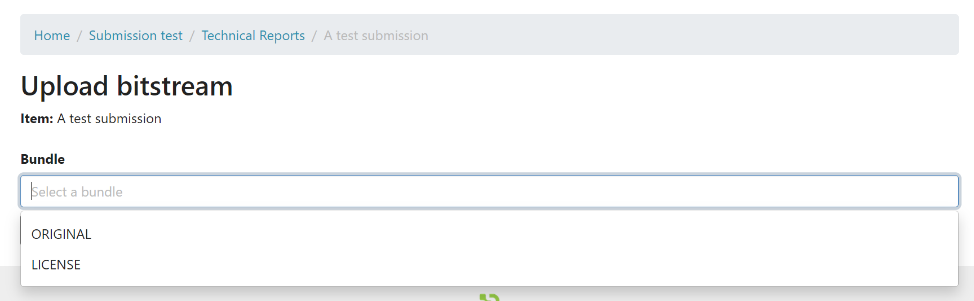
Step 3: Drag and drop the bitstream(s) you want to attach to the bundle, or click on the “browse” link appearing in the file upload section to locate the bitstream(s).
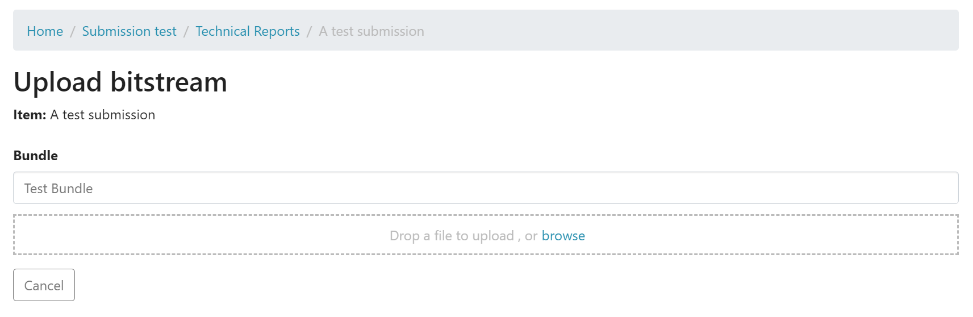
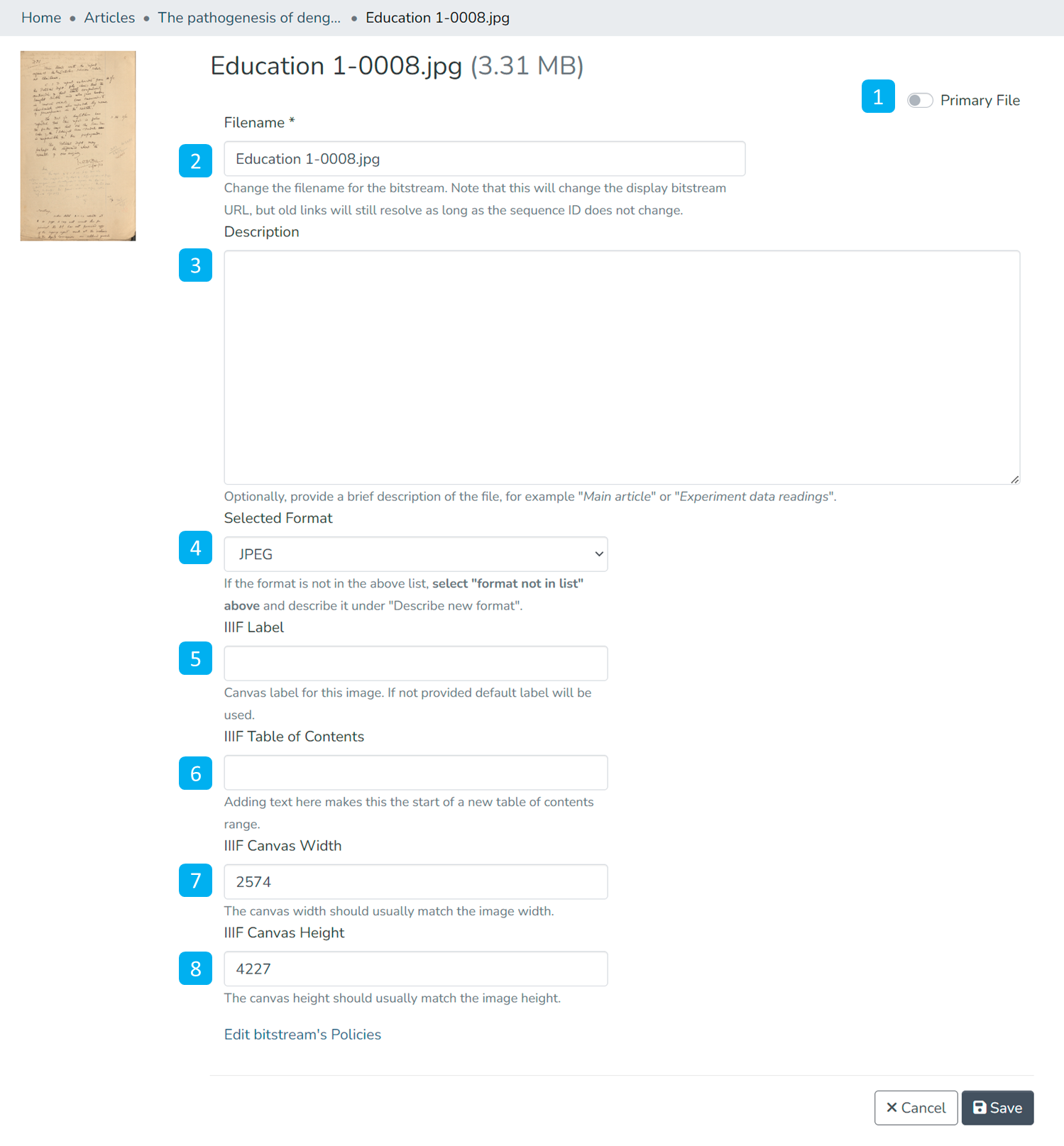
Step 4: After a successful bitstream upload, add more details about the bitstream on the next screen. Click the “Save” button at the bottom of the page to save details, or click the “Cancel” button to discard updates.
Below is the description of various fields appearing on this page
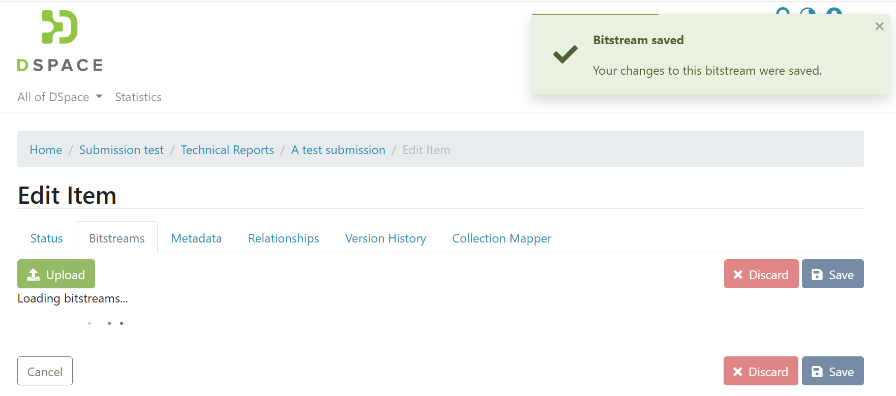
After clicking the “Save” button, the user will be redirected to the bitstream tab. A prompt confirming success or failure will appear.
Step 1: Click on a bitstream and drag it above or below another bitstream(s) in the bundle to change the bitstream’s sequence.
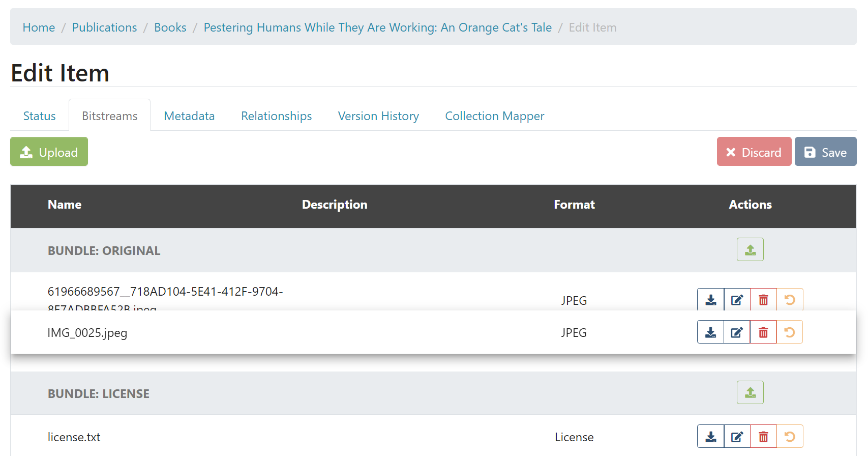
Step 2: Apart from adjusting the bitstream’s sequence in a bundle, below are other options available:
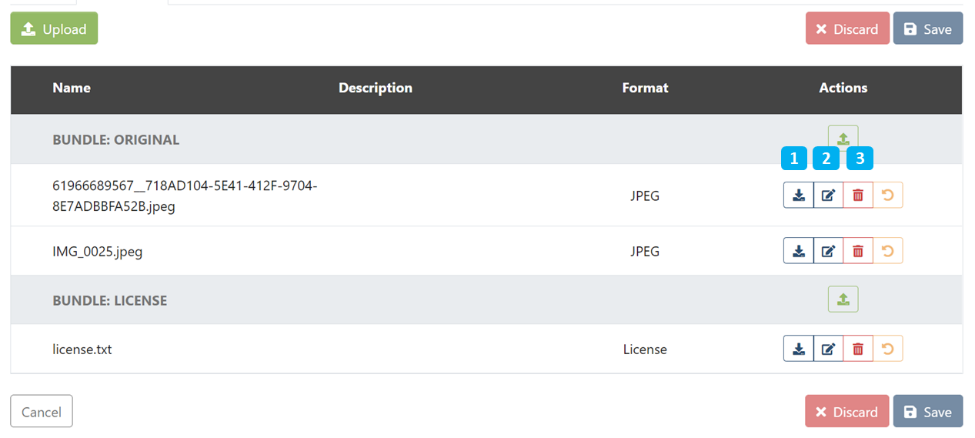
Step 3: Click the "Edit" button on the screen above to edit the bitstream details. Below is the description of various fields appearing on this form
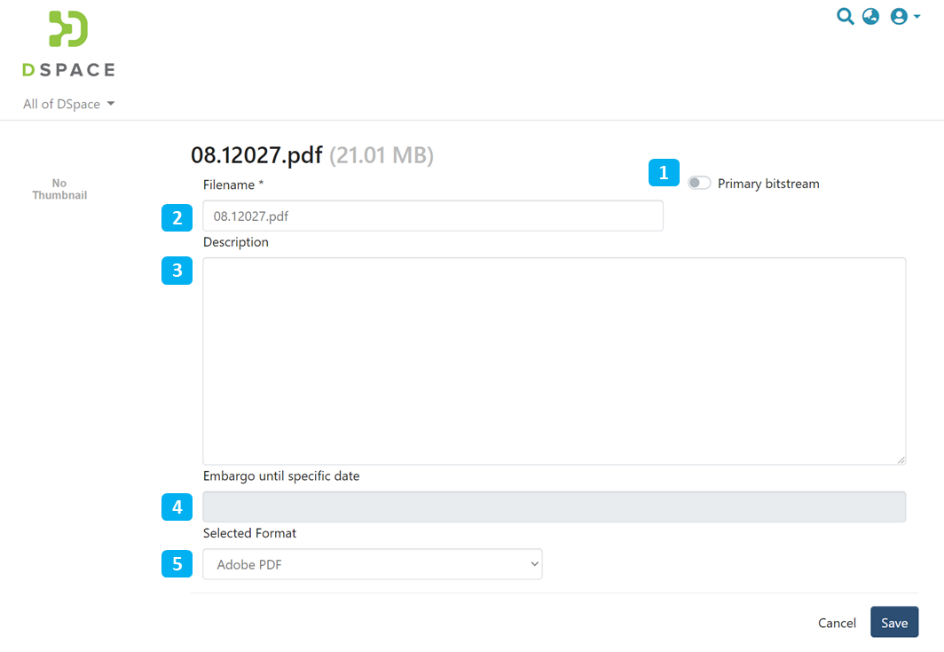
After clicking the “Save” button, the user will be redirected to the bitstream tab. A prompt confirming success or failure will appear.
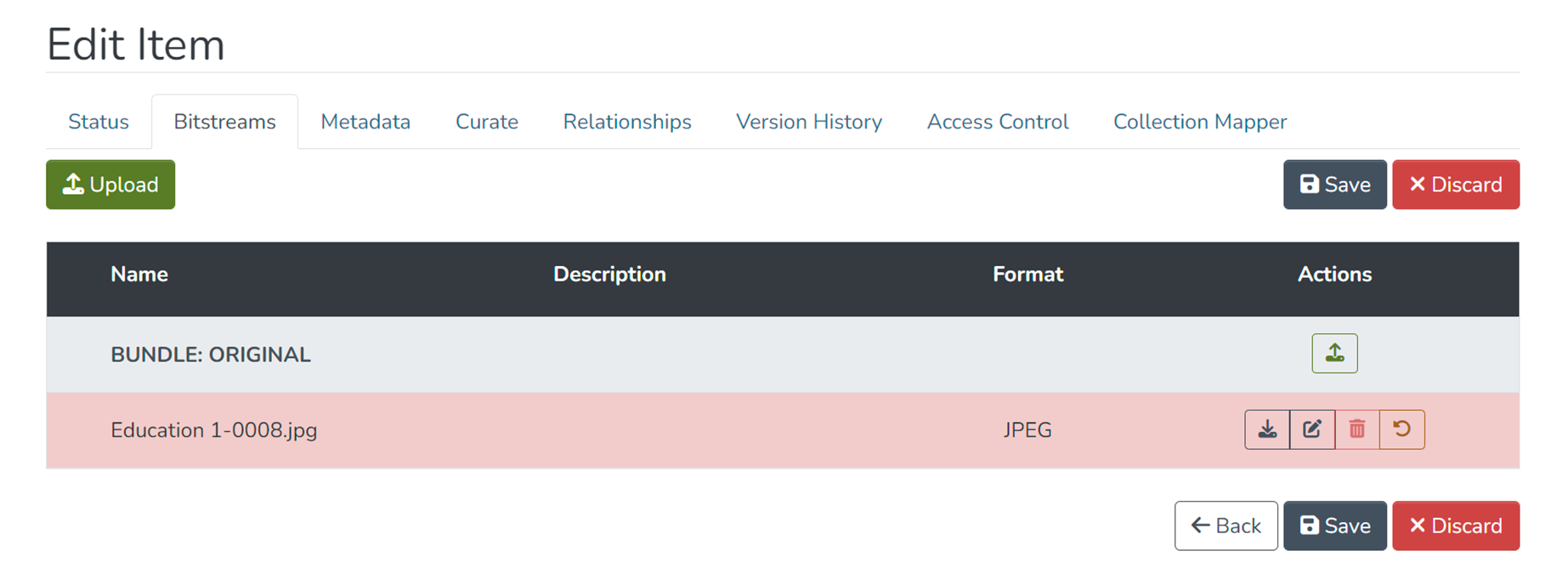
Step 4: Use the "Delete" button to delete a bitstream. The attachment you want to delete will be highlighted in the red background for confirmation.
Click the “Save” button appearing below the bitstreams list to continue with the deletion. Otherwise, click the “Discard” button to cancel the process.
All content on the LYRASIS Wiki is licensed under the CC BY (Attribution) license , unless otherwise noted.