All Versions
DSpace Documentation
Unreleased Documentation
This documentation is unreleased and still in development. It may describe features which are not yet released in DSpace.
Looking for another version? See all documentation
DSpace uses a hierarchy of Communities, Collections, and Items. Collections are created within Communities and contain Items.
Use these instructions to delete an entire Collection. This will also delete any Items that are contained within the Collection, even if they are mapped to other Collections.
Repository Administrator
Community Administrator
Collection Administrator
Step 1: Login using your credentials
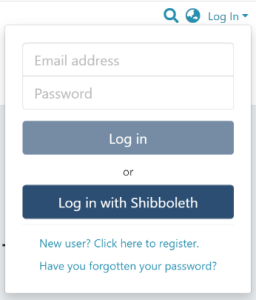
Step 2: There are two ways to initiate the delete collection process. Follow Option 1 or Option 2, then proceed to Step 3.
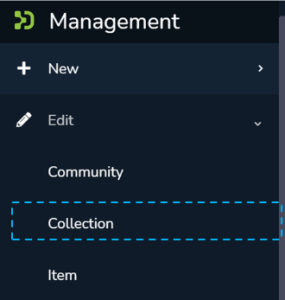
Step 2, Option 1: Go to the target collection using Admin options.
Step A: Rollover your cursor on the ”Edit“ sign.

Step B: Click on “Edit” and click on “Collection” to proceed with the edit collection process.

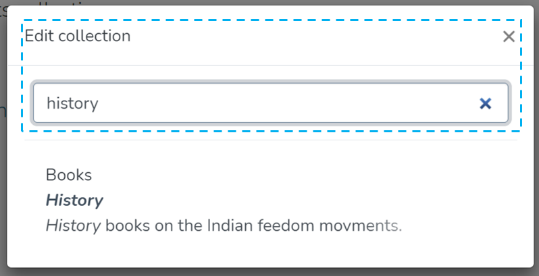
Step C: A pop-up with the list of collections will appear. Type the Collection’s name in the search field you want to delete. A list of collections having typed values will appear upon typing a few letters of the Collection’s title. Click on the Collection to continue with the deletion.
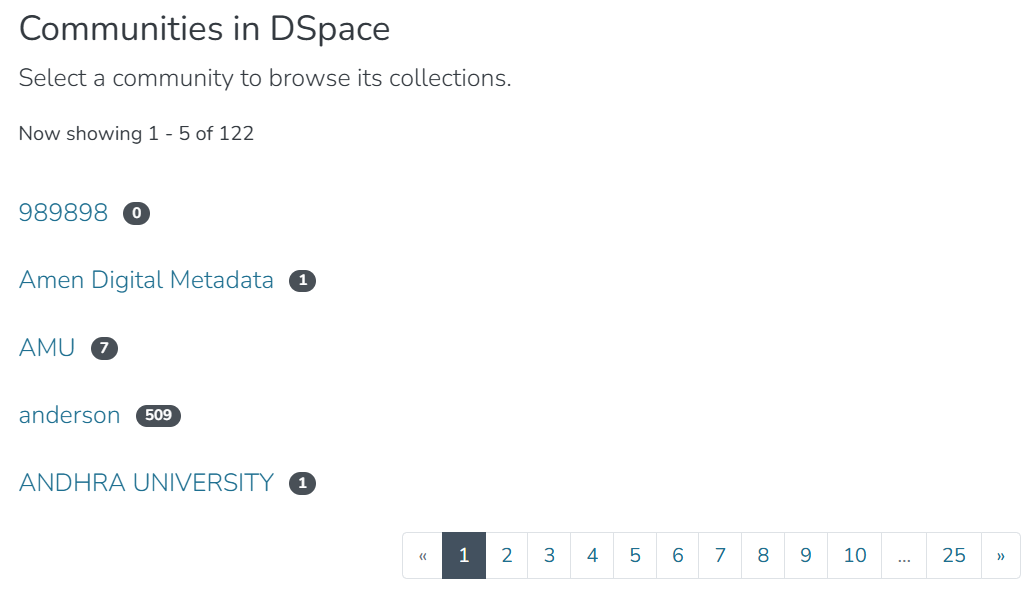
Step 2, Option 2: Navigate to the collection and open the edit collection process.
Step A: Navigate to the collection either by using the list of communities on the homepage, or by clicking "Communities & Collections" on the homepage and browsing the list of communities that appears.

Step B: Once on the collection page, click the "Edit this collection" icon.

Step 3: The application will take the user to the edit collection form. To initiate the collection deletion, click the ‘Delete this collection’ button.

Step 6: Click the 'Confirm' button to continue with the collection deletion or click the 'Cancel' button to return to the previous page.
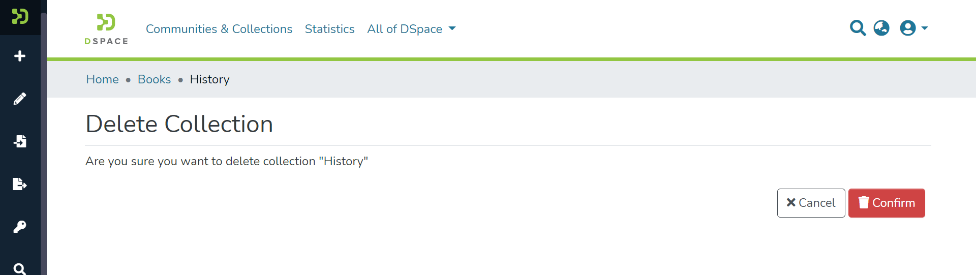
Deleting the collection will also delete any items contained within the collection, even if they are mapped to other collections.
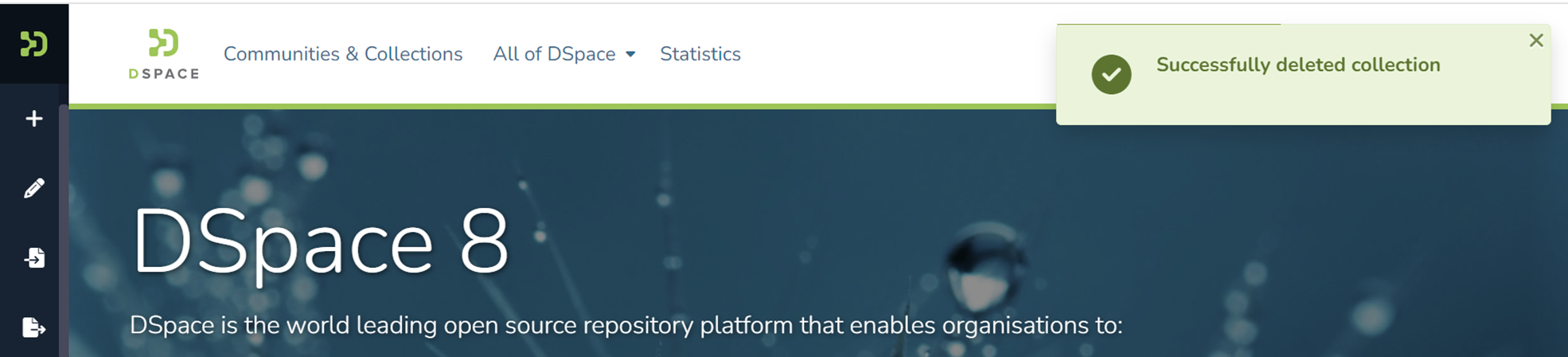
A success prompt confirming the deletion will appear, and the DSpace homepage will open.
Edited and approved by DCAT Documentation Working Group, November 2024.
All content on the LYRASIS Wiki is licensed under the CC BY (Attribution) license , unless otherwise noted.