Contribute to the DSpace Development Fund
The newly established DSpace Development Fund supports the development of new features prioritized by DSpace Governance. For a list of planned features see the fund wiki page.
Audience
Repository Administrator
Community Administrator
Collection Administrator
Delete Collection
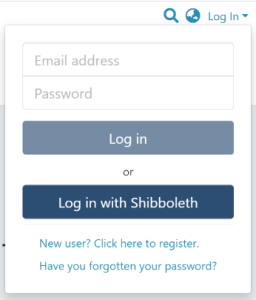
Step 1: Login using your credentials
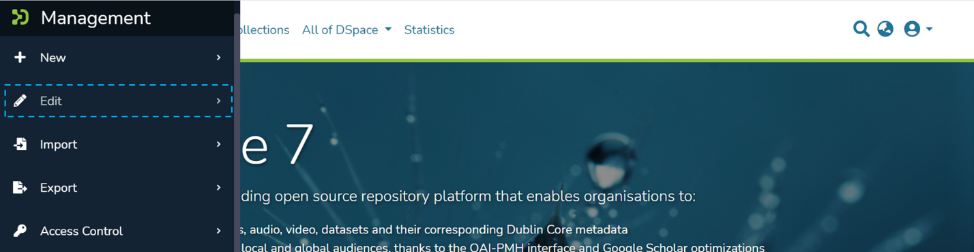
Step 2: There are multiple ways to initiate the delete collection process. One of them is by going to the target collection using Admin options. Rollover your cursor on the”Edit“ sign.

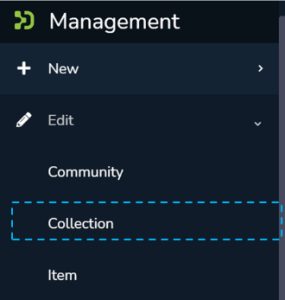
Step 3: Click on “Edit” and click on “Collection” to proceed with the edit collection process.
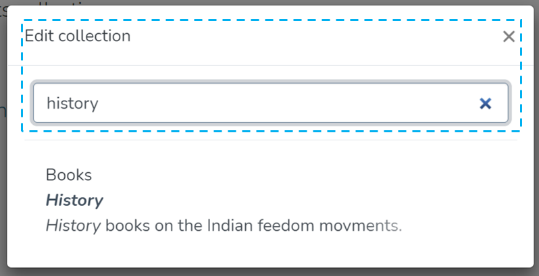
Step 4: A pop-up with the list of collections will appear. Type the Collection’s name in the search field you want to delete. A list of collections having typed values will appear upon typing a few letters of the Collection’s title. Click on the Collection to continue with the deletion.
Step 5: The application will take the user to the edit collection form. To initiate the collection deletion, the user must click the ‘Delete this collection’ button.

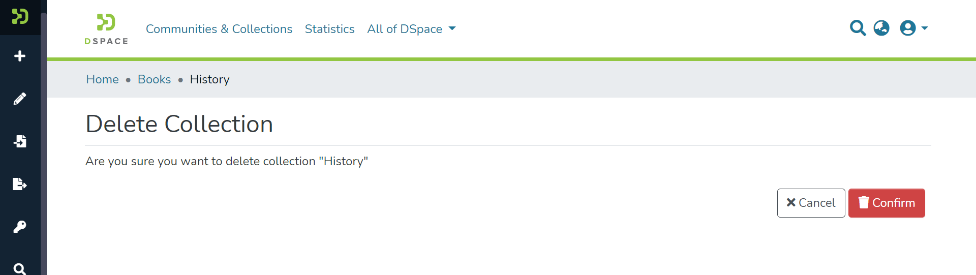
Step 6: Click on the Confirm button to continue with the collection deletion or click on the Cancel button to return to the previous page.
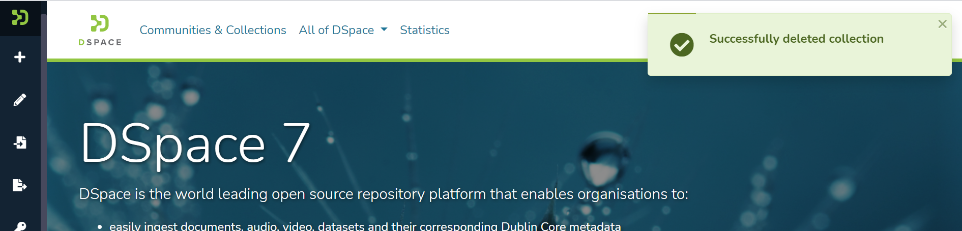
Success prompt confirming the deletion will appear, and the DSpace homepage will open.
Overview
Content Tools
All content on the LYRASIS Wiki is licensed under the CC BY (Attribution) license , unless otherwise noted.