To complement the developments for the COAR Notify protocol COAR Notify Documentation, the Notify Administrative Dashboard has been implemented to monitor the general usage of the COAR Notify protocol across the repository.
The dashboard is accessible to repository administrators only via the menu voice COAR Notify > Dashboard.
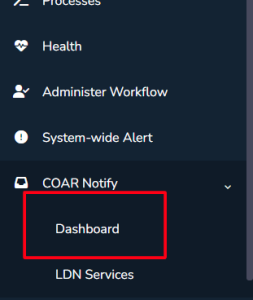
The dashboard is organised in three tabs:
Metrics
Logs/Inbound
Logs/Outbound
The “Metrics” tab displays data about usage of the COAR Notify protocol, showing the number of received (accepted/processed/failure/untrusted) and generated (delivered/queued/queued for retry/failure) LDNs, and the total number of items involved.
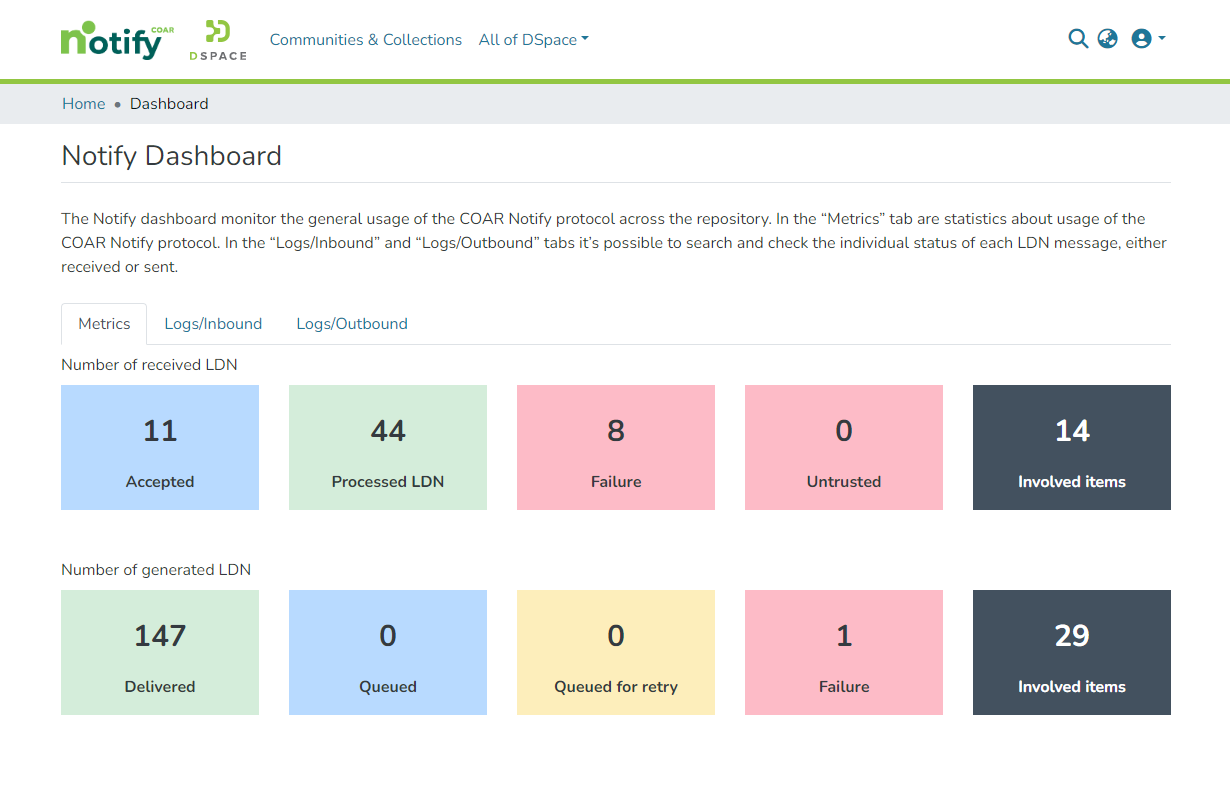
Any LDN Message is considered in this view as long as the Notification is stored.
Each box describes a different status the notifications are
This box displays the number of LDN received as an acceptance to a previous request sent from the repository.
This means We have received an acceptance notification from the external service (Notice this is not the same as receiving the Review/Endorsement or any other object)
so the external service has accepted our previous notification an has replied with a confirmation to the LDN.
When an Acceptance LDN is received as reply to a previously sent notification this counter is increased.
This box displays the number of LDN received and processed correctly (acceptance notifications are included as well since acceptance might be defined as a subset of processed notification)
Notifications in this status have been correctly processed and a corresponding action was triggered
This box displays the number of LDN received but not correctly processed.
This status includes QUEUE_STATUS_FAILED and QUEUE_STATUS_UNMAPPED_ACTION. So any failing notification is reported to be reviewed by the user
This box displays the number of LDN received but not even processed.
Any notification in this status has not even been evaluated since the Service was not recognized or the IP range was not respected
This box displays the number of LDN Sent without any error.
Any notification successfully delivered will increase this counter
This box displays the number of LDN waiting to be sent (LDN is still queued)
Since LDN are not immediately sent to the external service this status is displaying how many items are still queued
This box displays the number of LDN waiting for reprocessing
This means the failing (outgoing) notification has been re-queued to be reprocessed
This box displays the number of Failing LDN
Generally in this case the external service didn't receive the notification (an error code is expected when delivering the LDN)
These boxes are duplicated for each row for Incoming and Outgoing LDN.
They display the total number of items in the repository involved in the workflow process for COAR NOTIFY.
In few words these boxes display the number of items a LDN was receive/generated for
Each box is related to a different discovery configuration as mentioned above
On the angular application we can decide which box has to be displayed, the text color, the background color and the title for each one
The angular configuration involved is found in default-app-config.ts
Here's an example of the angular configuration
notifyMetrics: AdminNotifyMetricsRow[] = [ { ........
......
|
|---|
The above layout configuration allows to configure the whole Dashboard/Metrics Tab
Using AdminNotifyMetricsRow we are allowed to define a custom number of rows (The default is two)
Each Row has title and boxes elements
Each Box object has the following mandatory fields: color, title, config and description and one optional parameter textColor
Each colored box is clickable and behind each box there's a different discovery configuration:
Statuses Boxes will redirect the user to the corresponding log’s tab (either inbound or outbound), showing the LDN messages filtered by the corresponding selected criteria
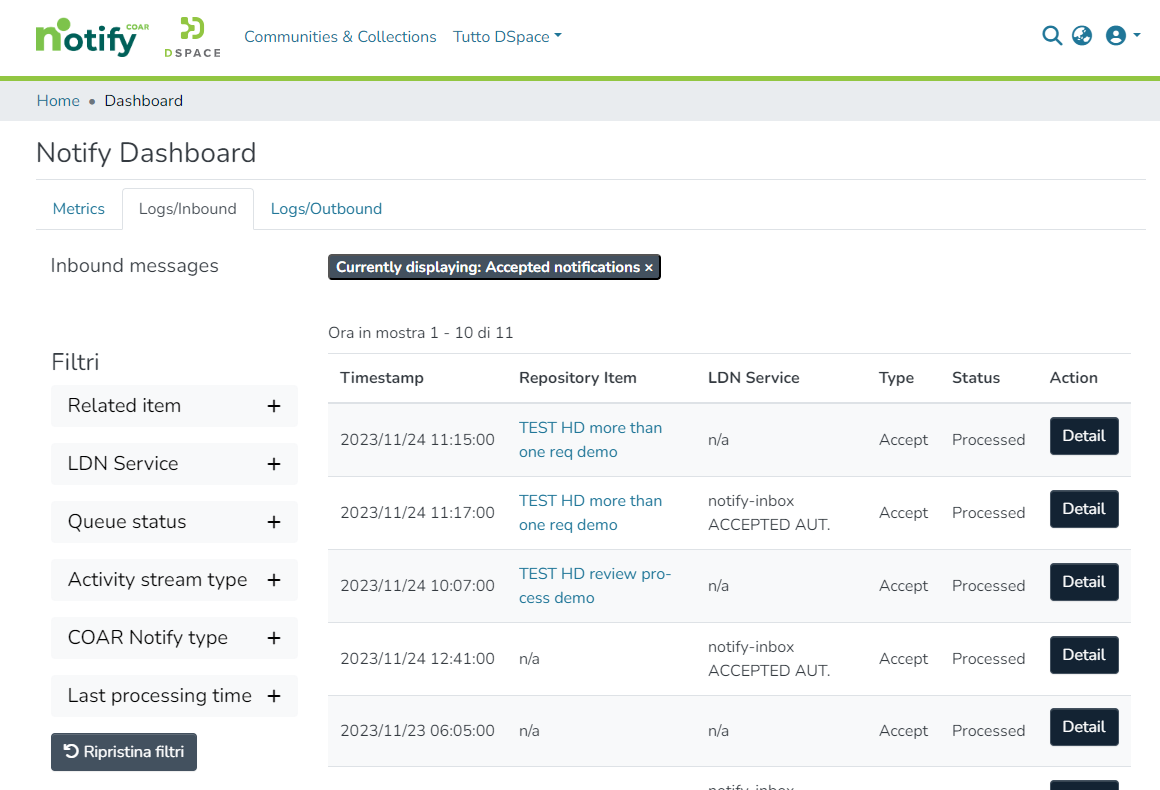
Involved item boxes will redirect the user to the Administrative Search page, where only the involved items, either by incoming or outgoing LDN messages, will be shown in the results list.
Items can than be further filtered also for any COAR Notify metadata (notify.relation.endorsedBy, datacite.relation.isReviewedBy, and datacite.relation.isReferencedBy) using the facets.
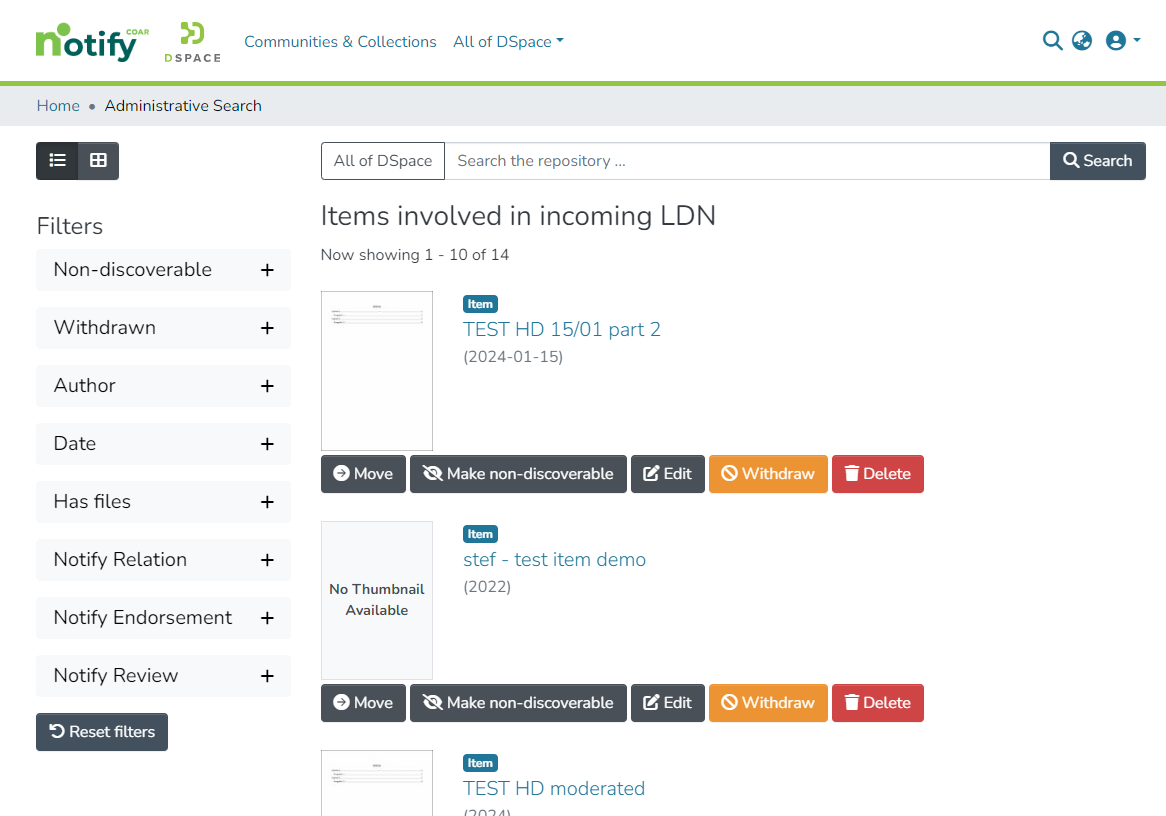
In the “Logs/Inbound” tab it’s possible to search and check the individual status of each LDN message received by the repository.
Logs are listed in a table displaying the following columns:
Timestamp
Repository item
LDN Service
Type
Status
Action
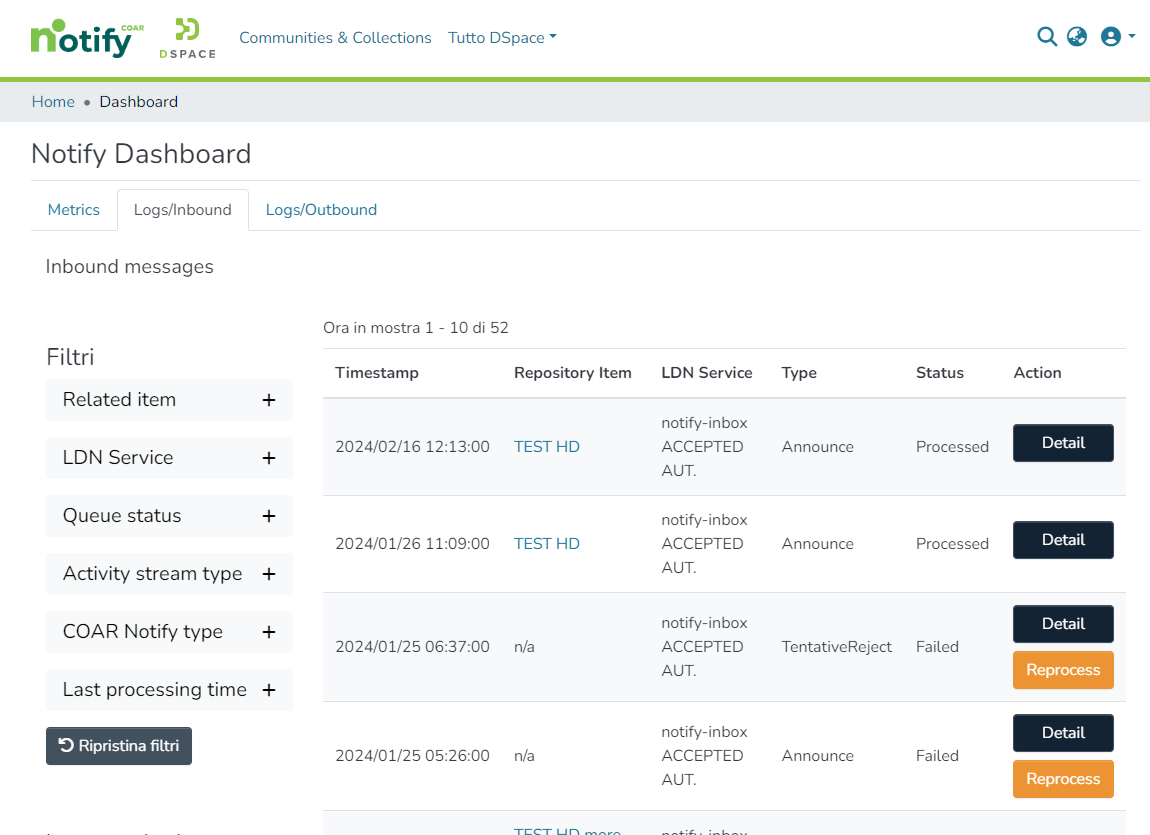
Logs can be scrolled and/or filtered by:
Related item
LDN Service
Queue status
Activity stream type
COAR Notify type
Last processing time
In the logs' table, the value in the “Repository Item” column links to the involved item in the repository.
By clicking on the 'detail' button corresponding to each log, a modal will open displaying the technical information of the received LDN message
and it is also be possible to inspect the JSON notification which might be relevant for some purposes.
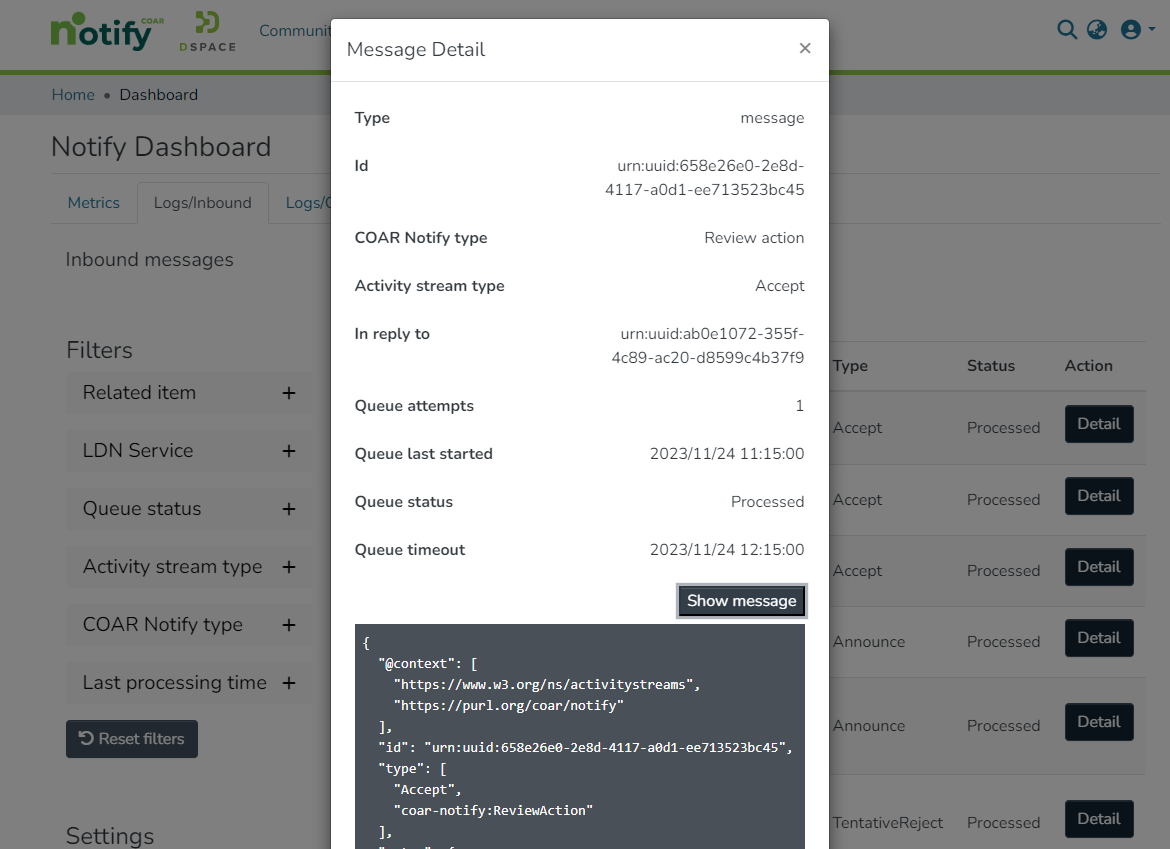
In case of messages with a queue status equal to “untrusted” and “unmapped action”, a second button ”Reprocess” will be displayed.
By clicking this button, a request to reprocess the LDN message is triggered.
This allows administrators to reprocess, for instance, messages received from LDN services that have not yet been registered (once the proper mapping has been added on the related spring config file),
or notification which hadn't been correctly processed the first time.
In case of deleted items, LDN services, etc., “n/a” will be shown in the logs' table in the corresponding "Repository Item" coloumn.
Logs with “Unmapped Action” status don’t display a timestamp, as they have not been processed.
In the “Logs/Outbound” tab it’s possible to search and check the individual status of each LDN message received by the repository.
Logs are listed in a table displaying the following columns:
Timestamp
Repository item
LDN Service
Type
Status
Action
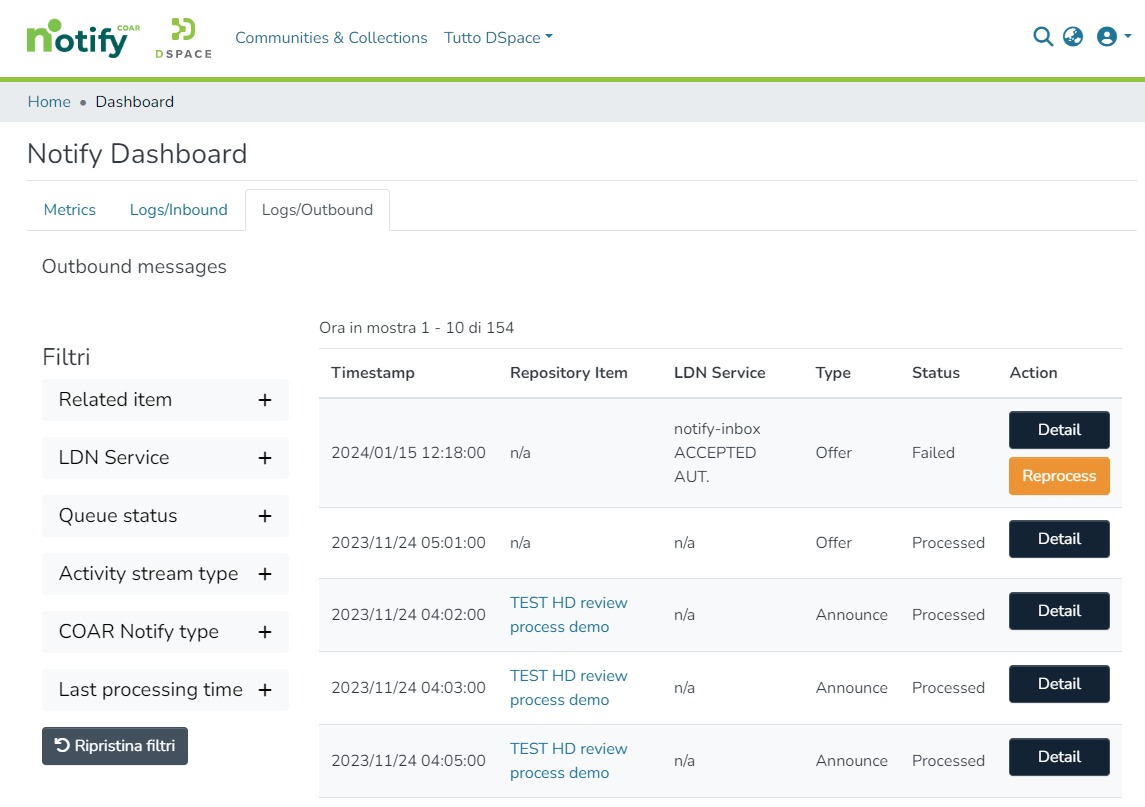
Logs can be scrolled and/or filtered by:
Related item
LDN Service
Queue status
Activity stream type
COAR Notify type
Last processing time
In the logs' table, the value in the “Repository Item” column links to the involved item in the repository.
By clicking on the 'detail' button corresponding to each log, a modal will open displaying the technical information of the received LDN message
and it is also be possible to inspect the JSON notification which might be relevant for some purposes.
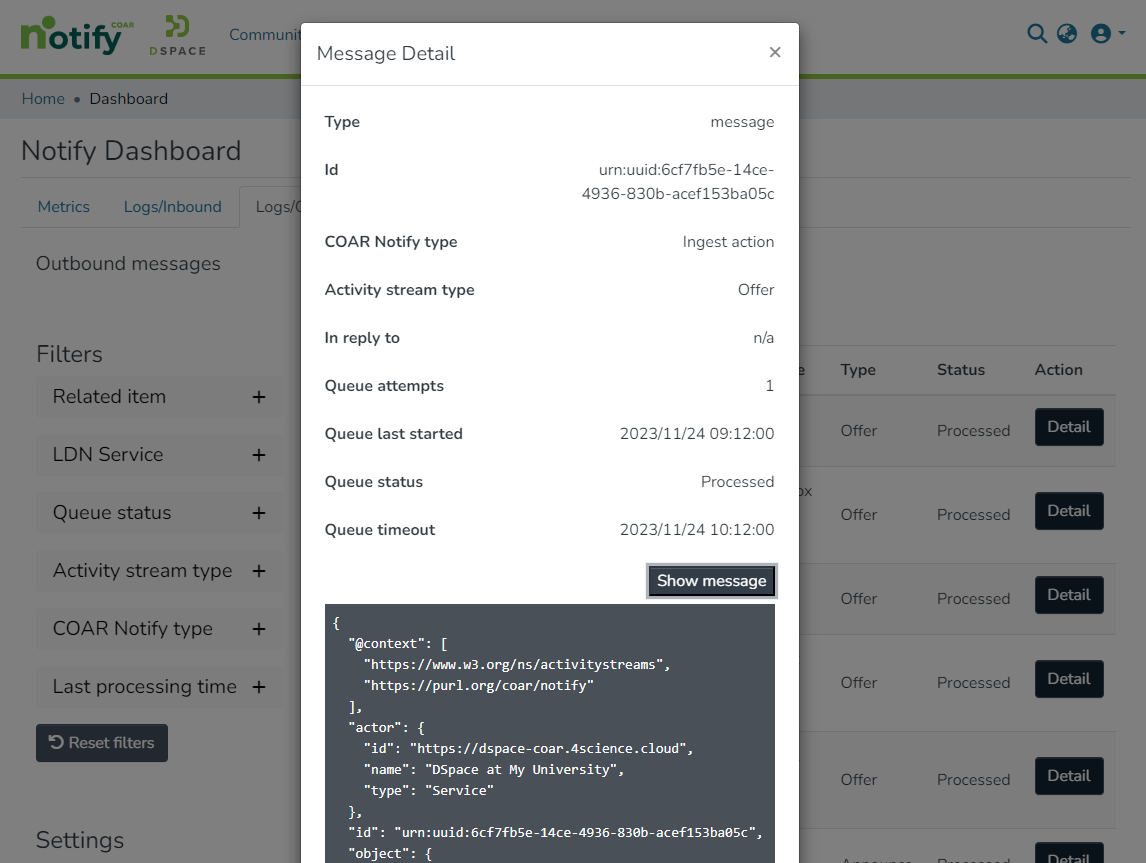
In case of messages with a queue status equal to “failed”, a second button ”Reprocess” will be displayed. By clicking this button, a request to reprocess the message is triggered.
This allows administrators to reprocess messages received from LDN services that have not yet been registered in the repository, or whose data (i.e. service URL and IP range) have not been correctly entered in the LDN service registry.
In case of deleted items, LDN services, etc., “n/a” will be shown in the logs' table.
Logs with “Untrusted” status don’t display a timestamp, as they have not been processed.