This documentation is meant to show how to set up your computer to test DSpace Github Pull Requests (PRs). PRs are codes including proposal for new features or bug corrections.
This page is still being continuously updated and improved. It is a work in progress. |
To start working on PR review and testing, the following applications are needed:
NOTE for Windows 10: Docker Desktop can sometimes become a bit "memory-hungry" when it is running. It's best to either disable the "Start Docker Desktop when you log in" setting (so that it only runs when needed). Alternatively, if you are using the default WSL2 backend, you can create a ".wslconfig" file in your user directory and limit the amount of memory you let Docker use (at least 4-8GB is recommended if you can spare it):
[wsl2] memory=8GB |
Congratulations! You have installed the required software!
This step must be followed after all software listed in step one are installed. For additional details and more up-to-date information on DSpace Docker files and configurations, refer to the documentation on DSpace Github (Docker Compose files for DSpace Backend and Angular Docker Compose files)
This operation is done once. It is must be done before beginning to install either DSpace Backend or Frontend.
| Actions | Command line | Purpose | Software | |
|---|---|---|---|---|
GitHub CLI (gh) authentication |
| Git authentication using github credentials Needed to use Git command. If this is your first time using GitHub CLI (gh), you likely will need to authenticate with it using your GitHub.com login. | Git |
Also possible to use Git Bash:
git version" from Command Prompt or Powershell3-step process (details in table below):
| Actions | Command line | Purpose | Software | |
|---|---|---|---|---|
| Clone the backend codebase |
| Before cloning carefully select your parent folder. Getting all the files needed to run DSpace Backend. This downloads all the code from https://github.com/DSpace/DSpace into a local directory named "DSpace". | Git | |
| Start Docker Desktop | If it is not already running, start Docker Desktop on your machine. It MUST be running for any "docker compose" or "docker" commands to work.
| Docker | ||
| Pull down the latest backend images |
| Pull down the latest backend images from DockerHub. This downloads all the prebuilt Docker images so you don't need to rebuild them locally. | Docker command line | |
Start the Docker DSpace Backend Containers (& automatically install our Entities Test Data) |
| This command creates the 3 Docker containers for the Backend (dspacedb for the database ; dspacesolr for the solr indexes ; dspace for the backend server ; angular for the frontend UI) and then starts them up. Warning: dspacedb is the only Docker container that is not started automatically (the two others, dspacesolr and dspace, are) The backend will be started with the test data and may take a few minutes. It should be completed before moving to the next action. # Wait a few minutes until http://localhost:8080/server/ responds. | Docker command line | |
| Download, install and reindex the test data assetstore (of files) |
| Docker command line | ||
Check system is up and running | DONE! At this point, you should be able to go to http://localhost:8080/server/ and see a backend similar to https://demo.dspace.org/server/
| Web browser (http://localhost:8080/server/ ) The Hal Browser page is displayed |
3 step process (details in table below):
| Actions | Command line | Purpose | Software | |
|---|---|---|---|---|
| Clone the frontend codebase |
| Getting all files needed to run DSpace frontend (Angular) First, clone the frontend codebase using GitHub CLI (gh). This downloads all the code from https://github.com/DSpace/dspace-angular to a local directory named "dspace-angular". You may wish to run this command from the same parent directory where you cloned the backend (just to keep this new "dspace-angular" folder next to the "DSpace" folder where the backend code resides). | Git | |
| Ensure Docker Desktop is running | If it is not already running, start Docker Desktop on your machine. It MUST be running for any "docker compose" or "docker" commands to work. On Windows, if Docker Desktop is running, you'll see the Docker whale logo in your taskbar's notification area.Using Docker, pull down the latest frontend images from DockerHub. This downloads all the prebuilt Docker images so you don't need to rebuild them locally. | |||
| Pull down the latest frontend images |
| Using Docker, pull down the latest frontend images from DockerHub. This downloads all the prebuilt Docker images so you don't need to rebuild them locally. | Docker command line | |
Start Docker Container for DSpace frontend/UI |
| This command will create the Docker Container for the Frontend and then start it up. | Docker command line | |
| Check UI is up and running |
| Web Browser (http://localhost:4000/) DSpace front page is displayed. |
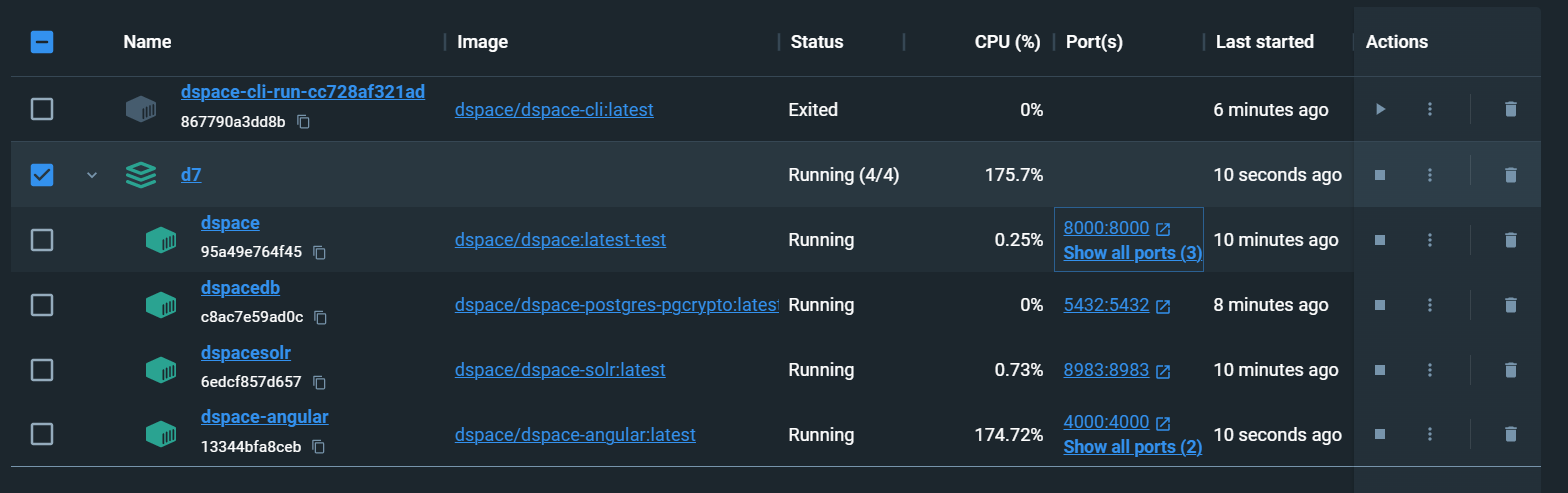
Your Docker Desktop Containers page should look like the image below, with the d7 project containing at least 4 containers: dspacedb for the database ; dspacesolr for the solr indexes ; dspace for the backend server ; angular for the frontend UI.
TODO: ALSO ADD PRINT SCREEN OF UI AND BACKEND
Once you start the containers either through command line or Docker UI, the following URLs should be active.
If you are less technical, or just getting started, we recommend beginning your testing (or code review) with Pull Requests that contain the "1 Approval" label. These are smaller Pull Requests that need a very quick test or review (usually a small bug fix or improvement).
You are welcome to test any open pull request. Even if the pull request is already assigned to other testers, it can help speed up its completion/acceptance if others also test it.
We recommend testing whichever pull requests are of interest to you. You may find one relating to a bug that you'd also seen, or something that sounds easy for you to test, etc. The choice is up to you.
Things important to consider before selecting a issue to test:
For testing:
If the PR needs a specific configuration, it can be change: recommendation is to use a local.cfg containing the config value for the test. i.e, if the feature change in the PR use emails, it is necessary to configure SMTP using you SMTP reference.
| Testing a Frontend PR | Testing a Backend PR | |
|---|---|---|
| Move to relevant directory | dspace-angular | DSpace |
| Checkout the PR code | Find the number of the Pull Request
| Find the number of the Pull Request
|
| Rebuild based on that PR's code |
Note: Build duration (Angular): 3-4 minutes with a good bandwith/connexion This will create a new Docker Image including the PR code. |
Note: Build duration (backend): environ 5-10 minutes with a good bandwith/connexion This will create a new Docker Image including the PR code. |
| Start services needed | Frontend can be start using command line or Docker Software UI. Commandline: Ensure you are positioned in dSpace-angular folder (cd command to dspace-angular) Run following command: This command will start the container using the new Docker image created. | Backend can be start using command line or Docker Software UI. Commandline: Ensure you are positioned in DSpace folder (cd to DSpace if not) Run following command: This command will start the container using the new Docker image created. |
Once you are ready to check the PRs: open Dev tool of you preferred browser
If an error occurs, check the log, either backend or frontend log can be accessed using Docker by clicking on the containers Name (i.e: dspace-angular or dspacedb, etc.)
The PR's description should describe how to test it and what you should see.