All Versions
DSpace Documentation
Unreleased Documentation
This documentation is unreleased and still in development. It may describe features which are not yet released in DSpace.
Looking for another version? See all documentation
DSpace uses a hierarchy of Communities, Collections, and Items. Collections are created within Communities and contain Items. Use these instructions to create a new Collection within an existing Community. Once the Collection exists, Items can be added to it.
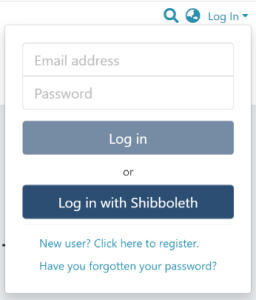
Step 1: Login using your credentials
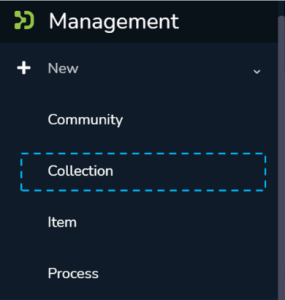
Step 2: Move your cursor over the “+” sign

Step 3: Click on “New” and click on “Collection” to proceed with the collection creation process.

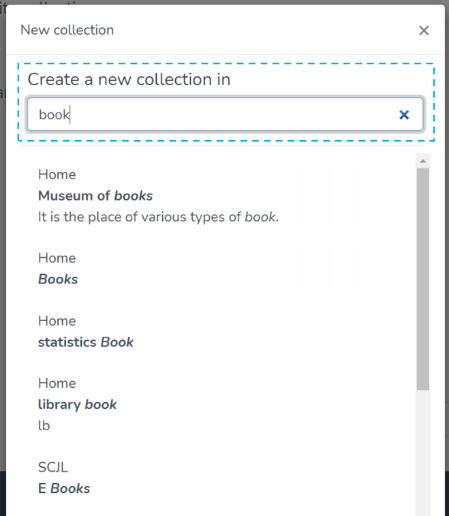
Step 4: A pop-up window showing a list of communities will appear. Type the community’s name in the search field where you want to add this collection. Upon typing a few letters of the community’s name, a list of communities having those letters or words will appear. Click on the community name to initiate collection creation.
Step 5: The application will take the user to the create collection form to populate information regarding the collection. Please find below the description of this form.
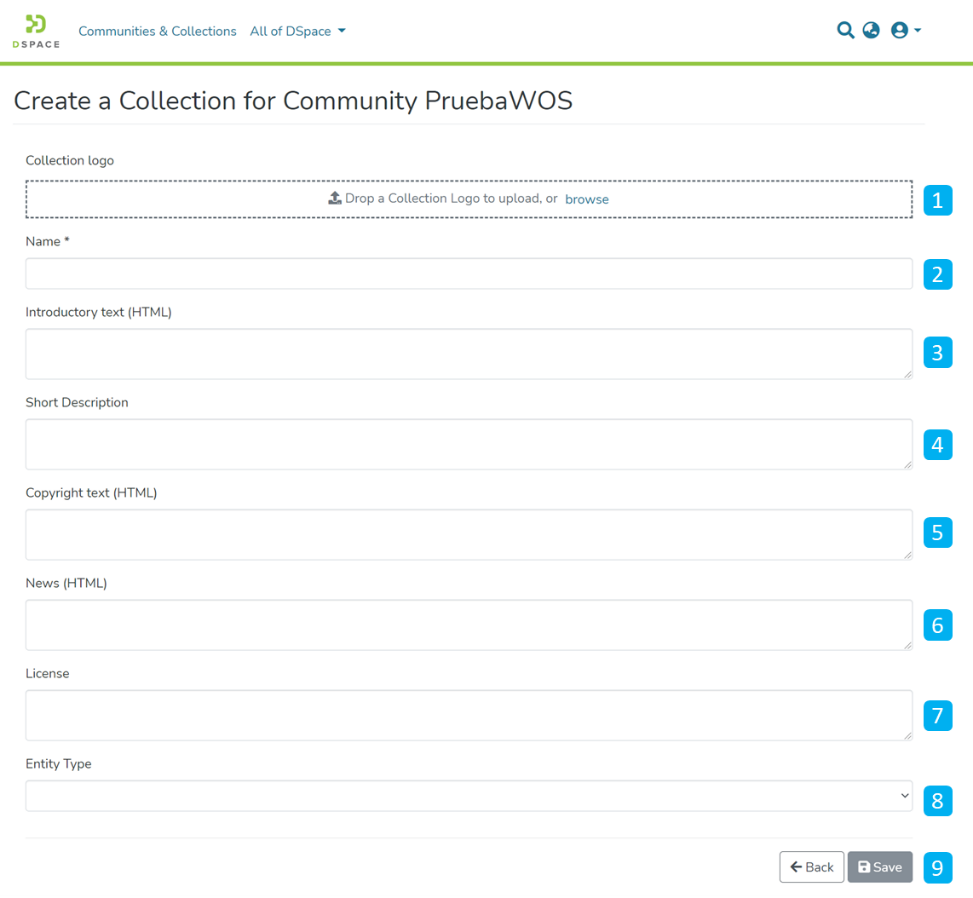
Fields marked with (HTML) support HTML tags-based formatting.
- Collection logo – Click on the ‘browse’ link to select an image file user wants to add as the collection’s logo. It is advisable to maintain uniform dimensions of the logo across the repository.
- Name – Enter the collection’s name here. It is the only mandatory field, as indicated by the ‘*.’
- Introductory text (HTML) – Users can enter introductory text providing an overview of the contents stored in this collection. Users can utilize HTML tags to format the text or continue entering the plain text content.
- Short Description – This field can have a one-liner description of the collection that appears with the collection name on the community homepage.
- Copyright text (HTML) – Users can enter copyrights related information here. Users can utilize HTML tags to format the text or continue entering the plain text content.
- News (HTML) – Enter news about this collection. Users can update this by going to this section via edit collection regularly. Users can utilize HTML tags to format the text or continue entering the plain text content.
- License – Add license-related information here.
- Entity Type – Select Entity from the drop-down that must be uploaded in the collection.
- Action Buttons – Users can click on the appropriate button as desired. Clicking on the Save button will add the collection to the repository.
Step 6: Click on the ‘Save’ button to complete the Collection creation process. A success prompt will pop up upon collection creation, and the application will automatically open the collection homepage.
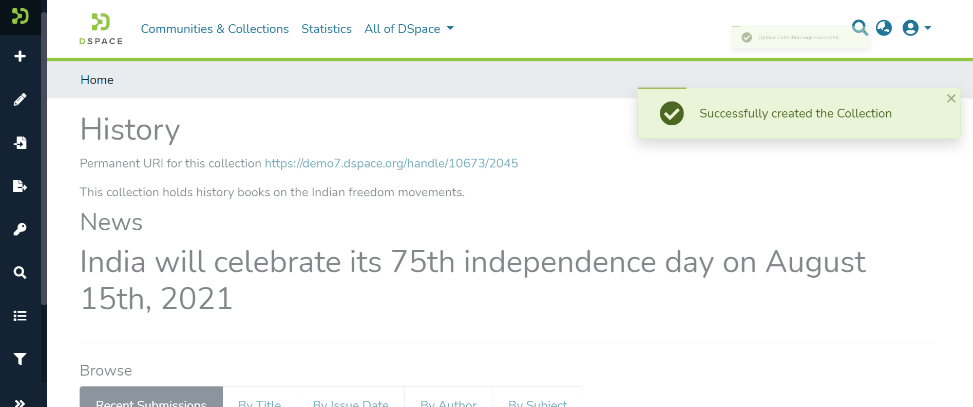
Success prompt upon collection creation
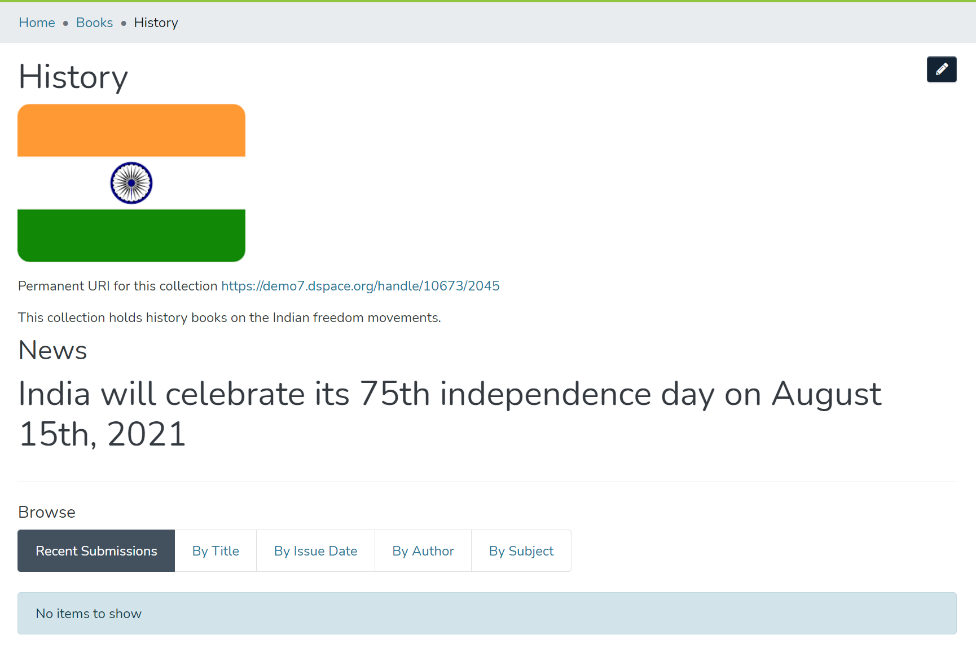
Collection homepage
Edited and approved by DCAT Documentation Working Group, November 2024.
All content on the LYRASIS Wiki is licensed under the CC BY (Attribution) license , unless otherwise noted.