All Versions
DSpace Documentation
Contribute to the DSpace Development Fund
The newly established DSpace Development Fund supports the development of new features prioritized by DSpace Governance. For a list of planned features see the fund wiki page.
User groups in DSpace are meant for creating a group of E-People. These groups can be assigned access rights to allow users to perform multiple activities or manage content access in the repository.
This section provides steps to add or update a User group in the application.
This process is for users having System and Community Administrator rights. As these user profiles can add and manage E People.
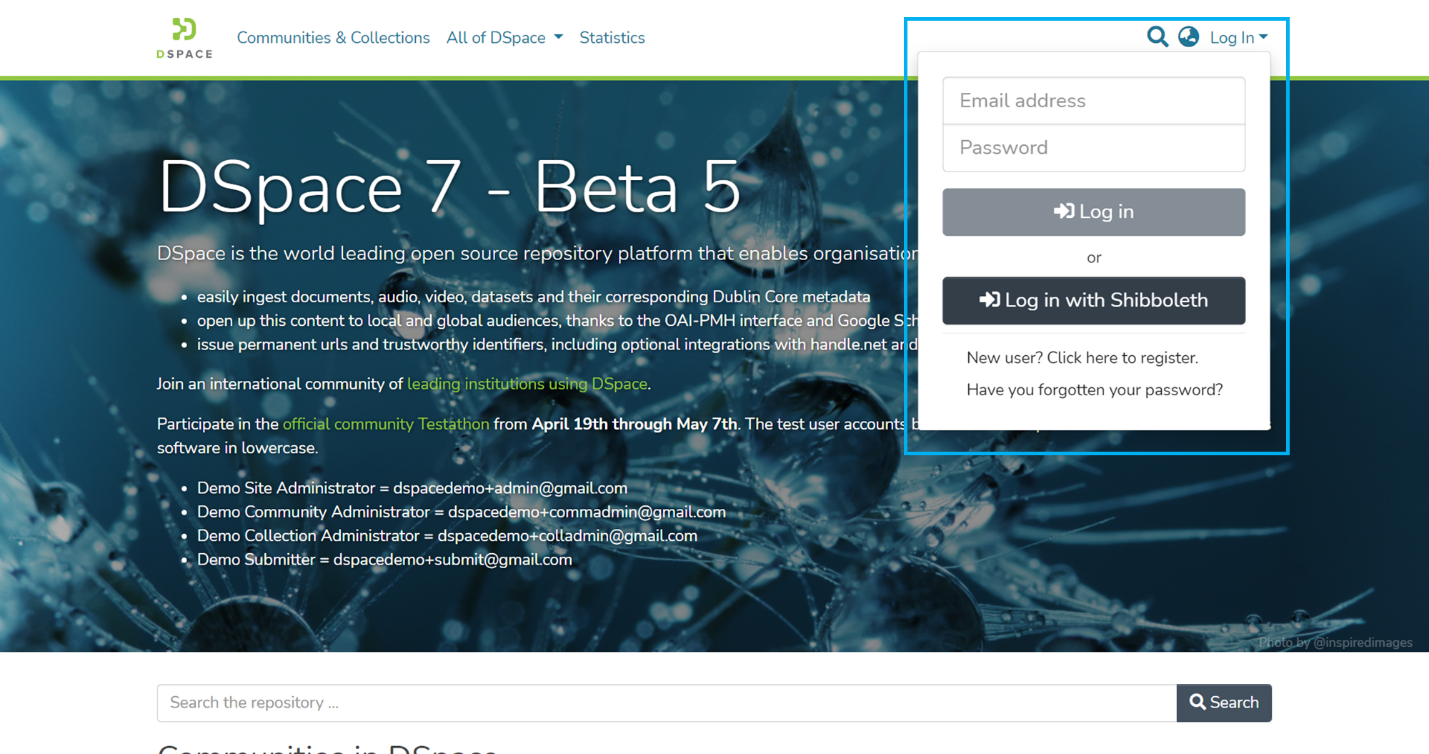
Step 1: Click on the "Log In" link at the top right corner of the DSpace's homepage, and the pop-up will open, as illustrated below the screen.
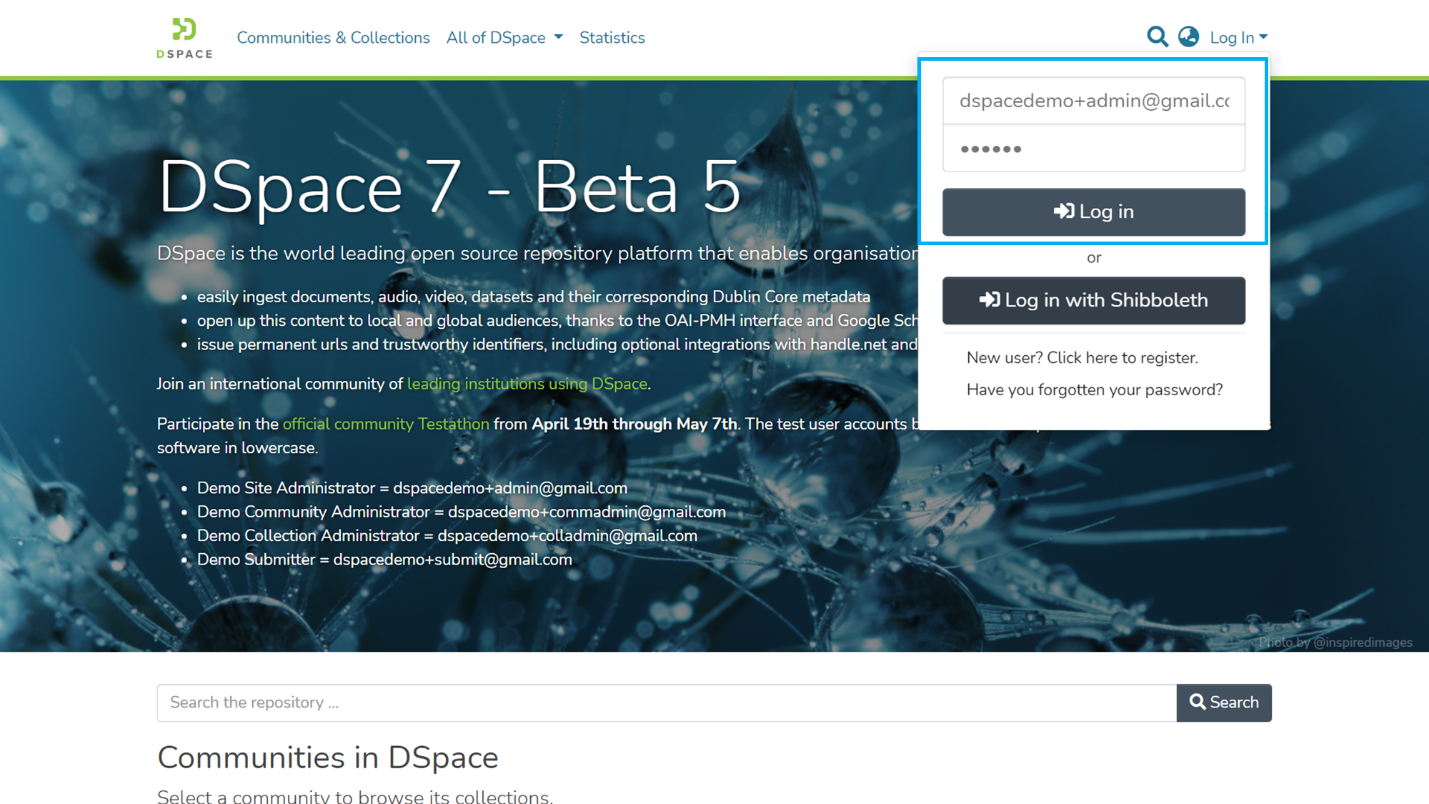
Step 2: Enter your user id and password and click on the "Log in" button to enter into DSpace.
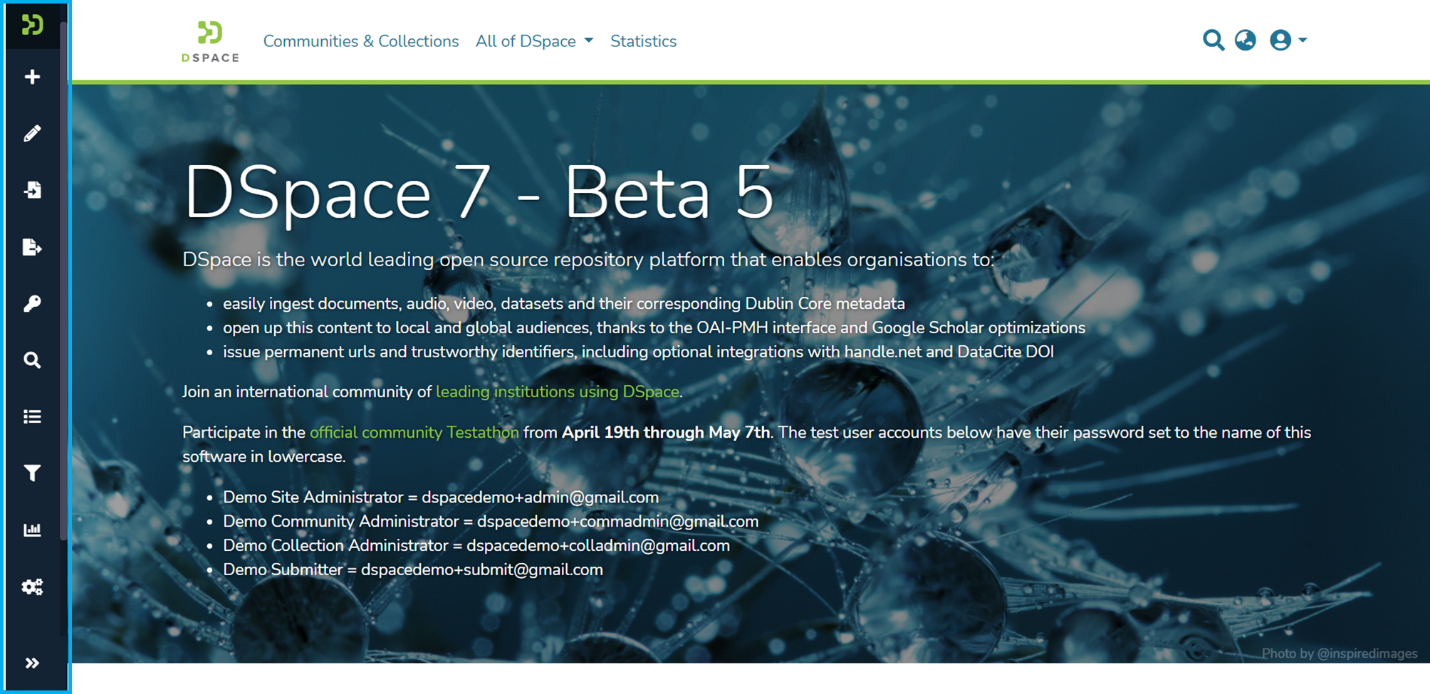
Step 3: Users with administrative rights will see the admin menu on the left-hand side of the screen, as shown in the below illustration.
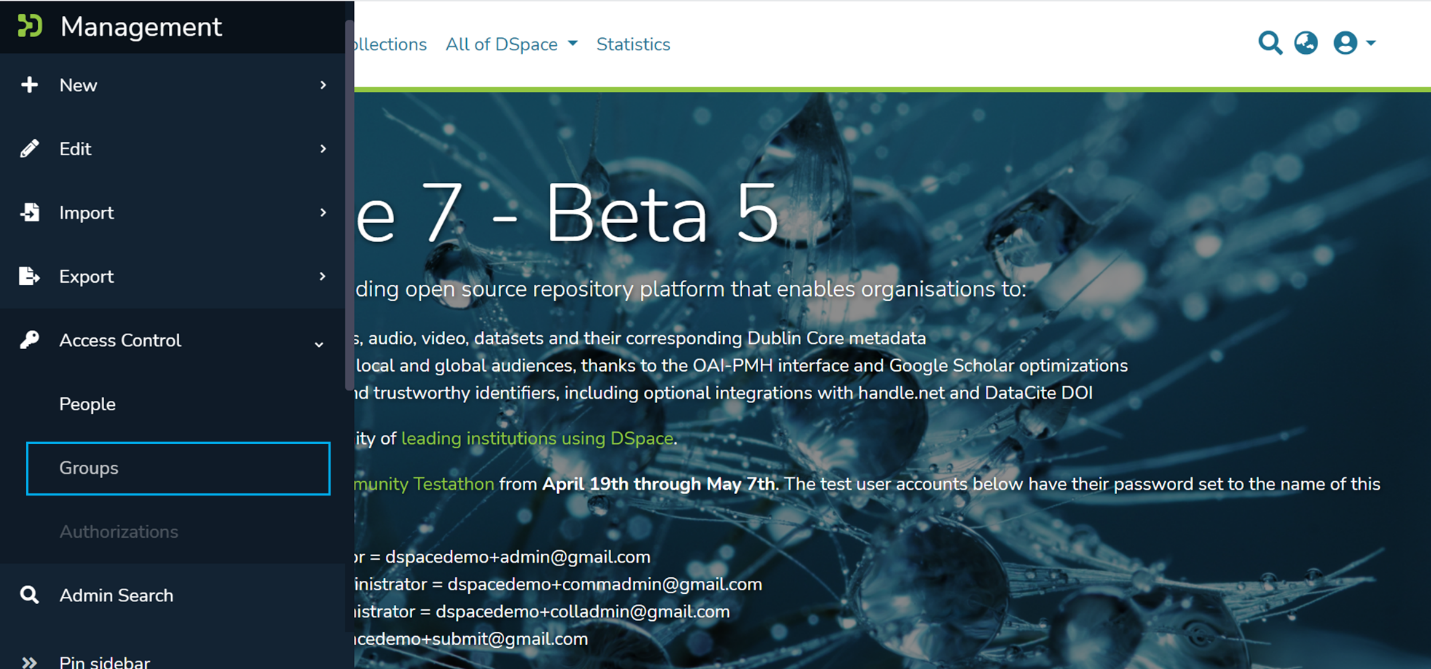
Step 4: Rollover your cursor over the administration menu, click on "Access Control," and click on the "Groups" link.
Step 5: Click on the "Add Group" button to create a Group.
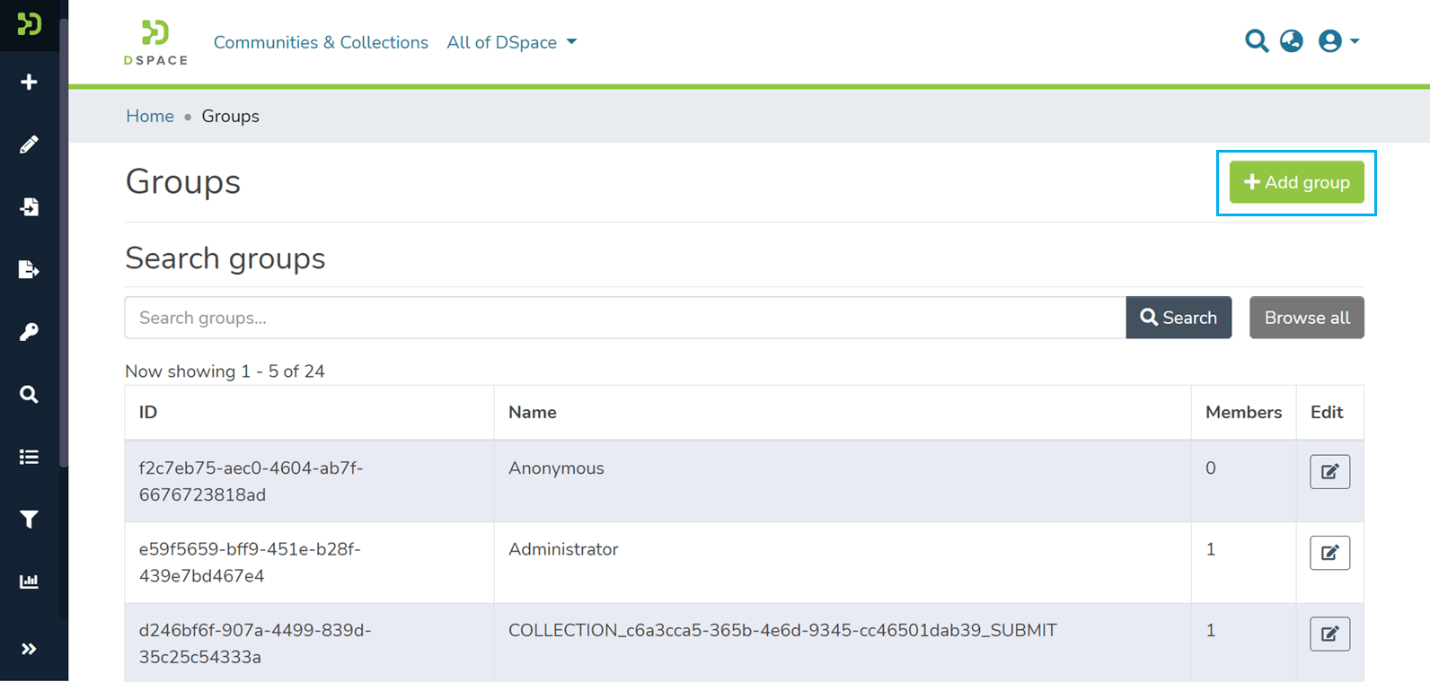
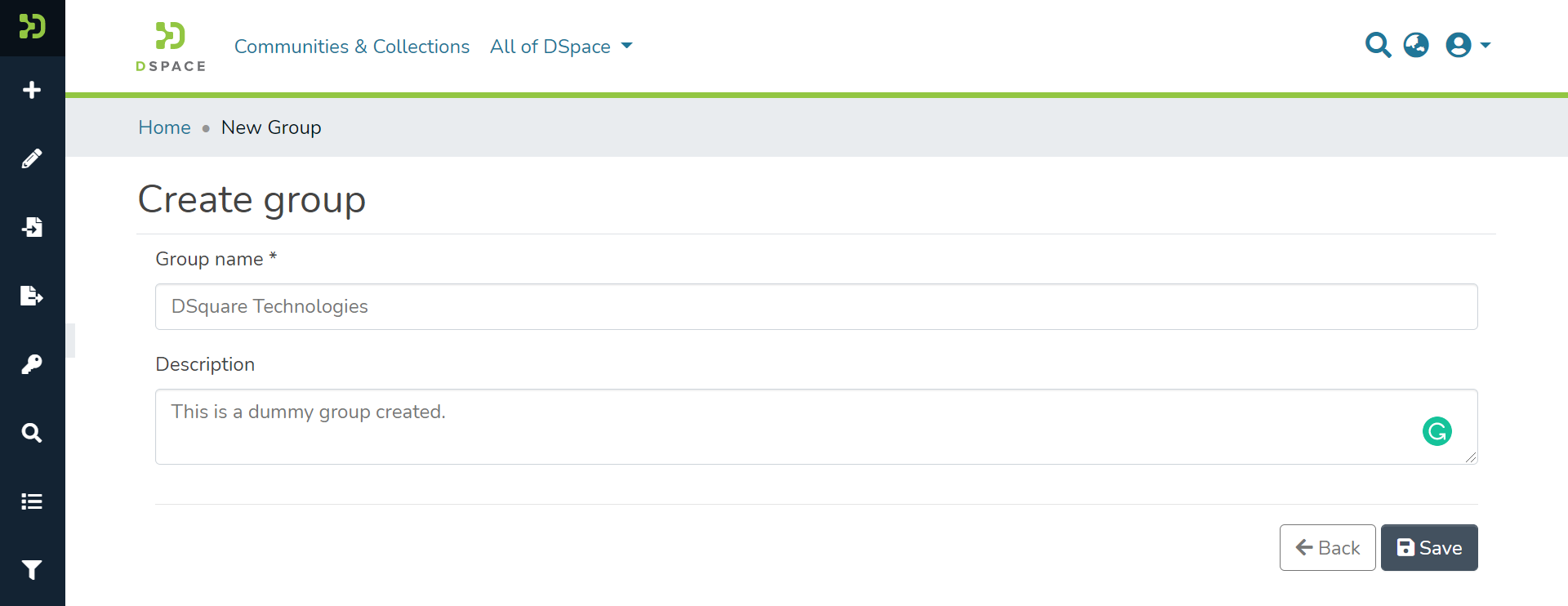
Step 6: The "Group Name" is compulsory. To benefit a broader user base, a description of the Group is a good practice.
The "Save" button will get activated upon entering the group name.
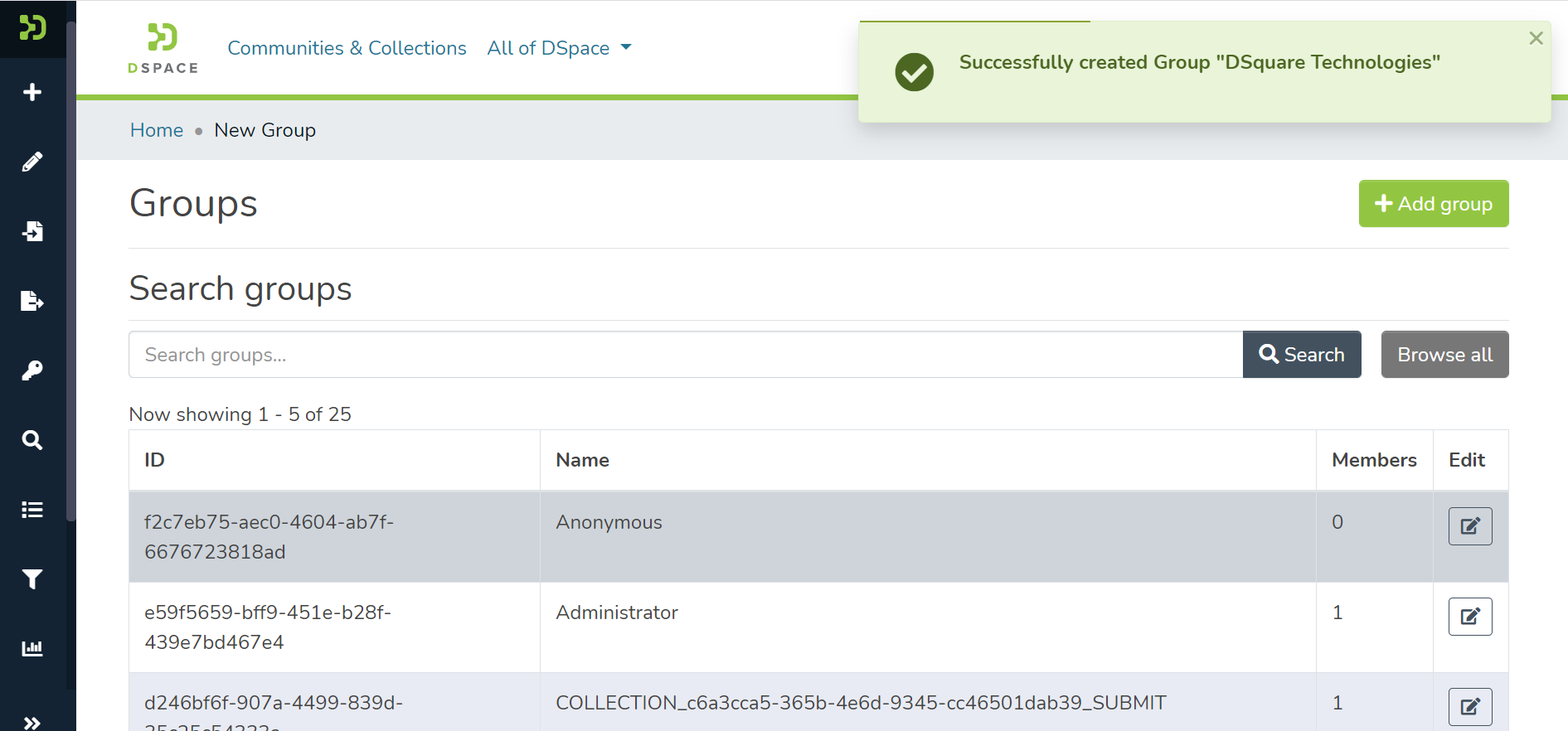
Step 7: Upon successfully adding Group in DSpace, you will see a success prompt on the screen.
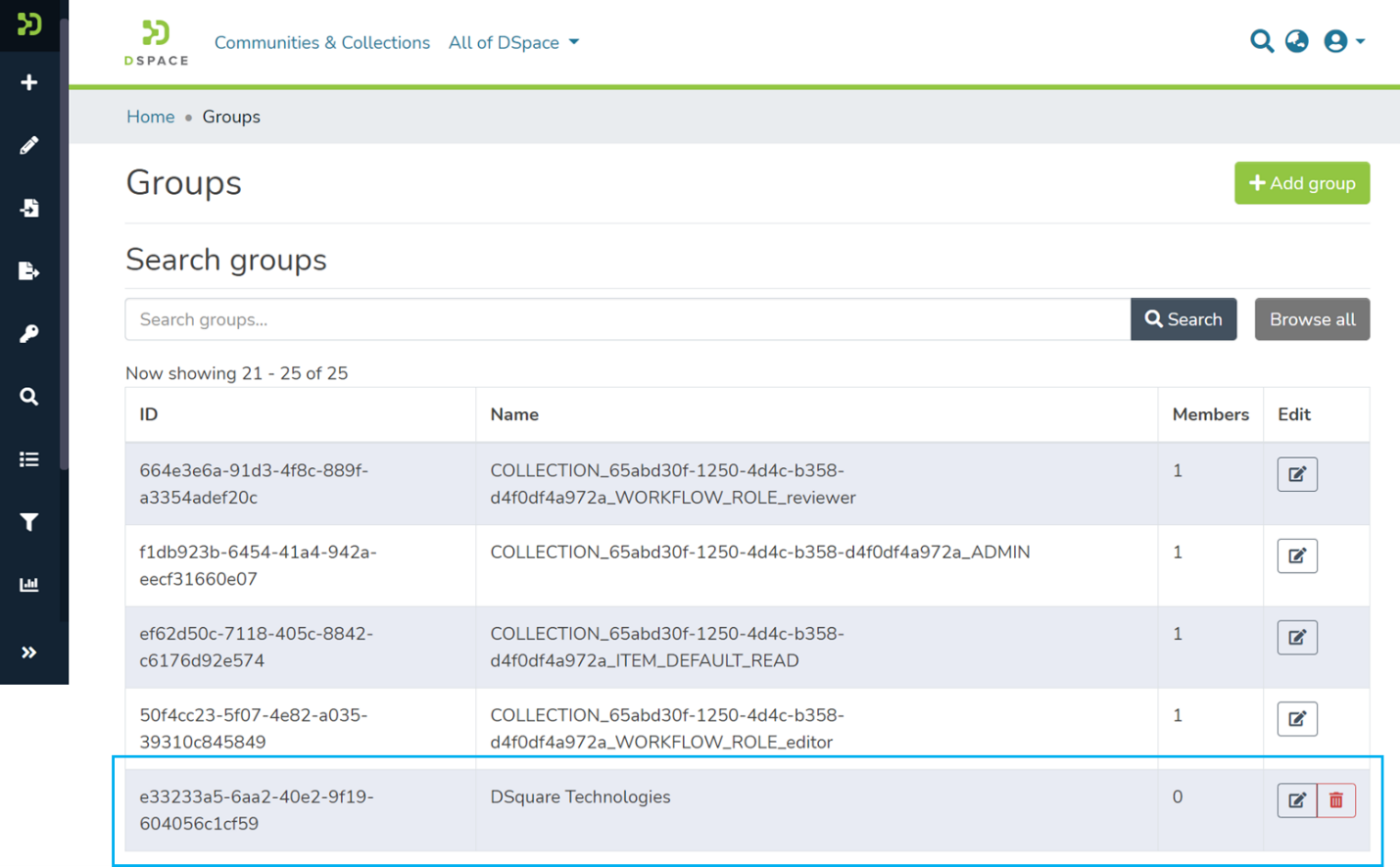
Step 8: The Group created will appear in the Group's list as highlighted below.
The System, Community, and Collection administrator profiles can update user group(s). These users can perform the following activities:
Step 1: Click on the "Log In" link at the top right corner of the DSpace's homepage, and the pop-up will open, as illustrated below the screen.
Step 2: Enter your user id and password and click on the "Log in" button to enter into DSpace.
Step 3: Users with administrative rights will see the admin menu on the left-hand side of the screen, as shown in the below illustration.
Step 4: Rollover your cursor over the administration menu, click on "Access Control," and click on the "Groups" link.
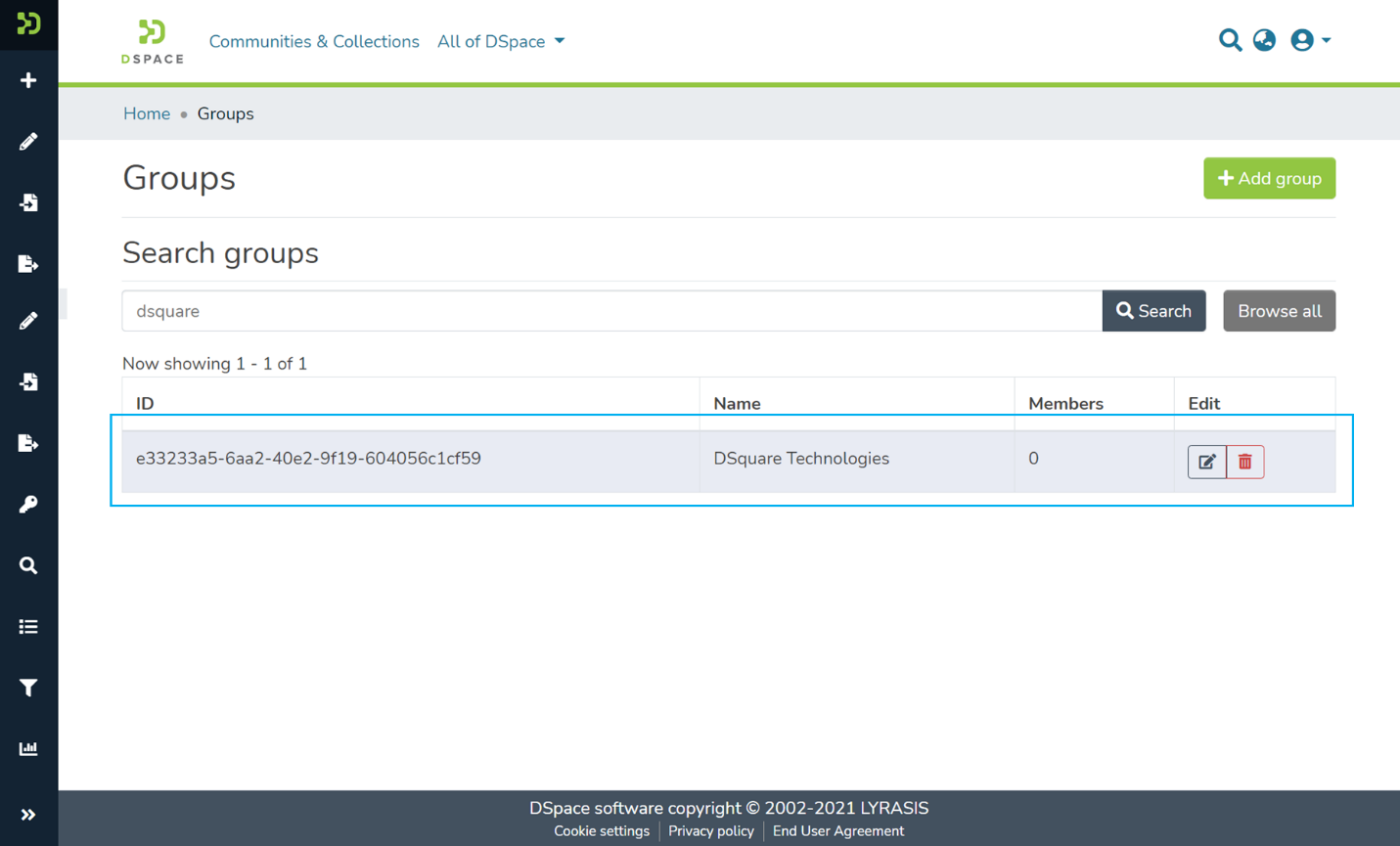
Step 5: Users can find the Group required to be edited or deleted by scrolling down the Groups list or entering Group's metadata in the search field on the group page. Please see the illustration below showing an example.
The user group table shows the following details
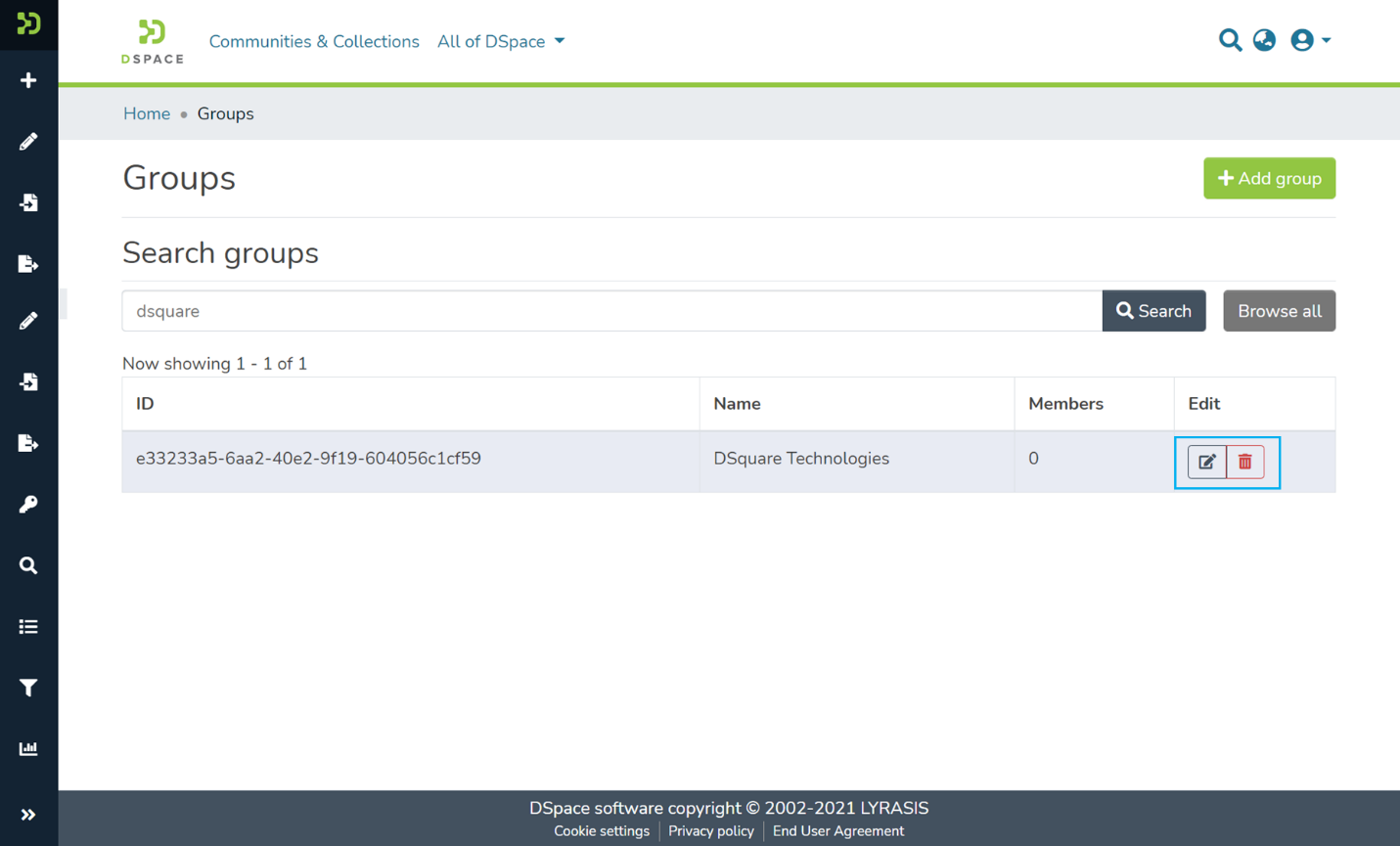
Step 6: Click on the
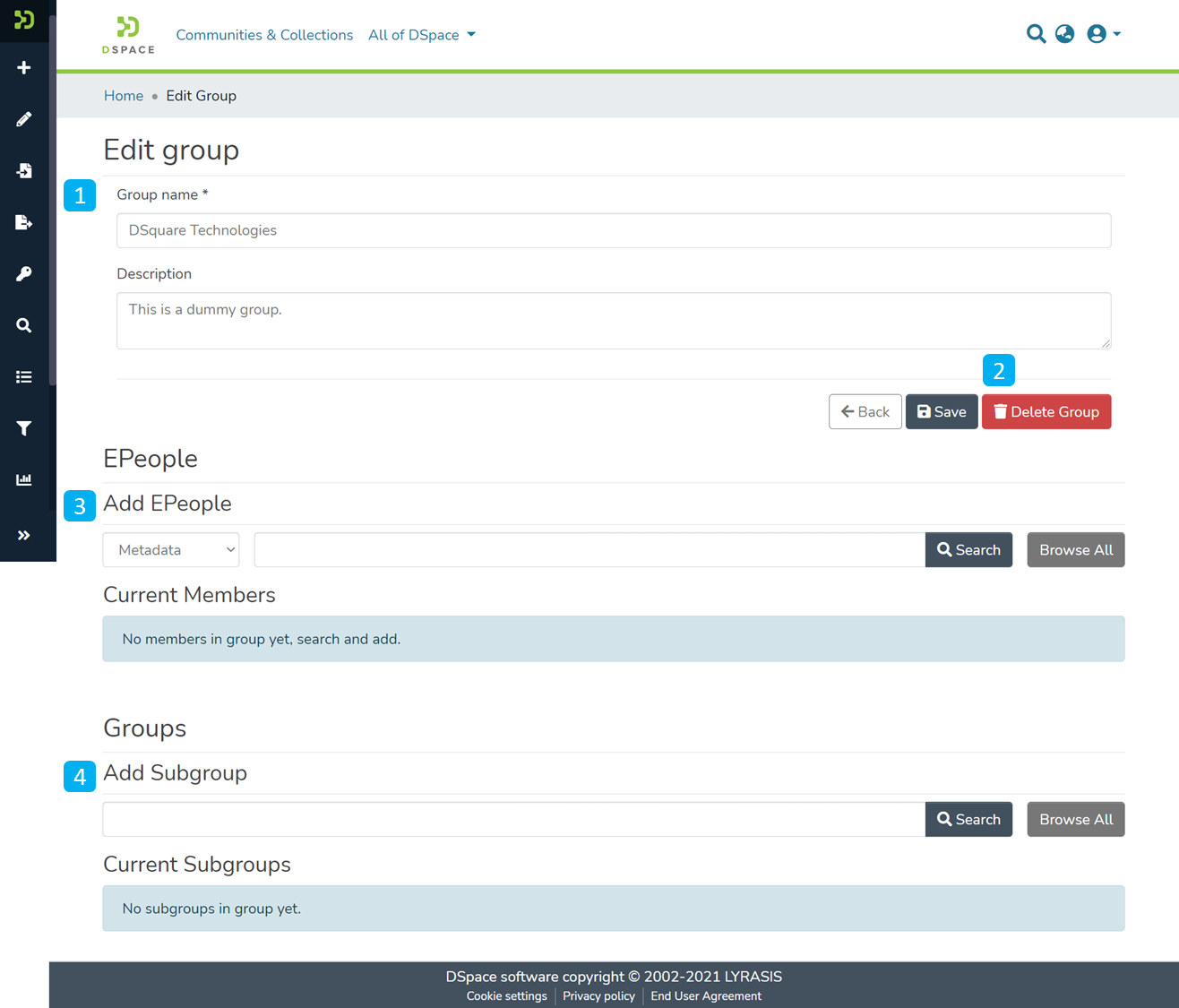
Step 7: You can make the following updates on the Edit group page
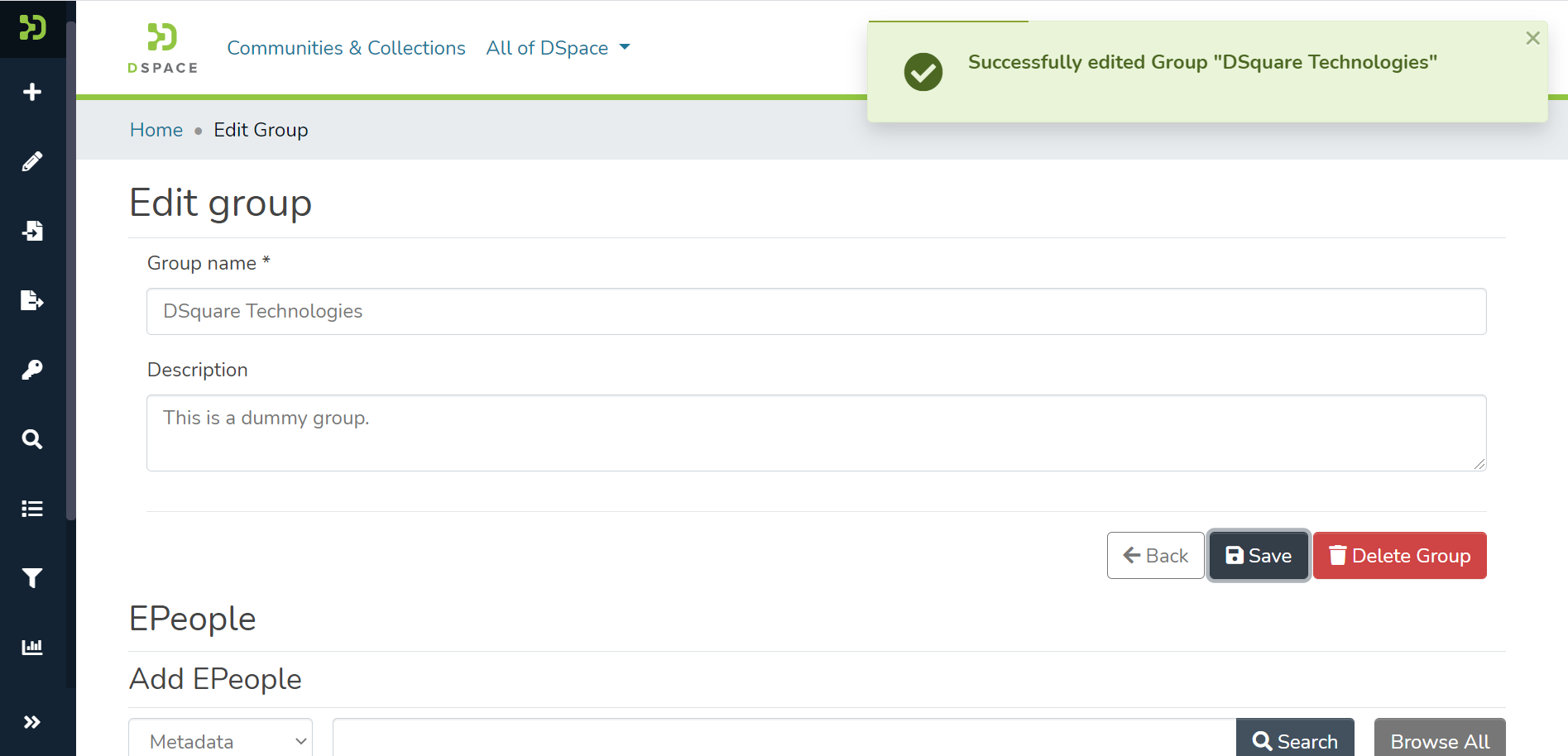
Step 8: Update the group name and description to update the group details and click on the "Save" button.
Step 9: A success prompt will appear, confirming a successful update as displayed below.
Step 10: Click on the "Delete Group" button to permanently delete the Group from DSpace.
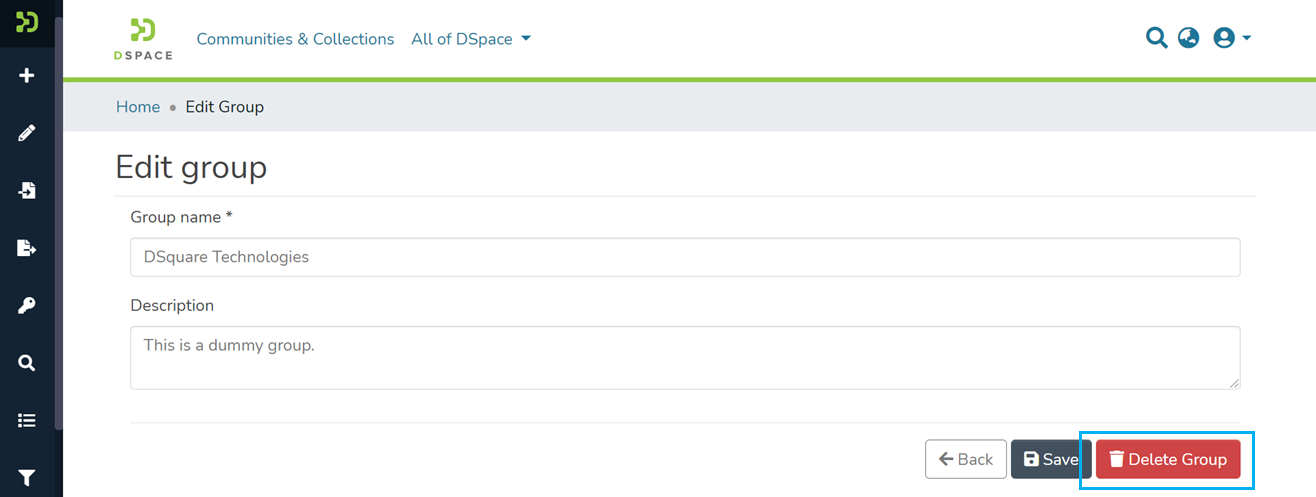
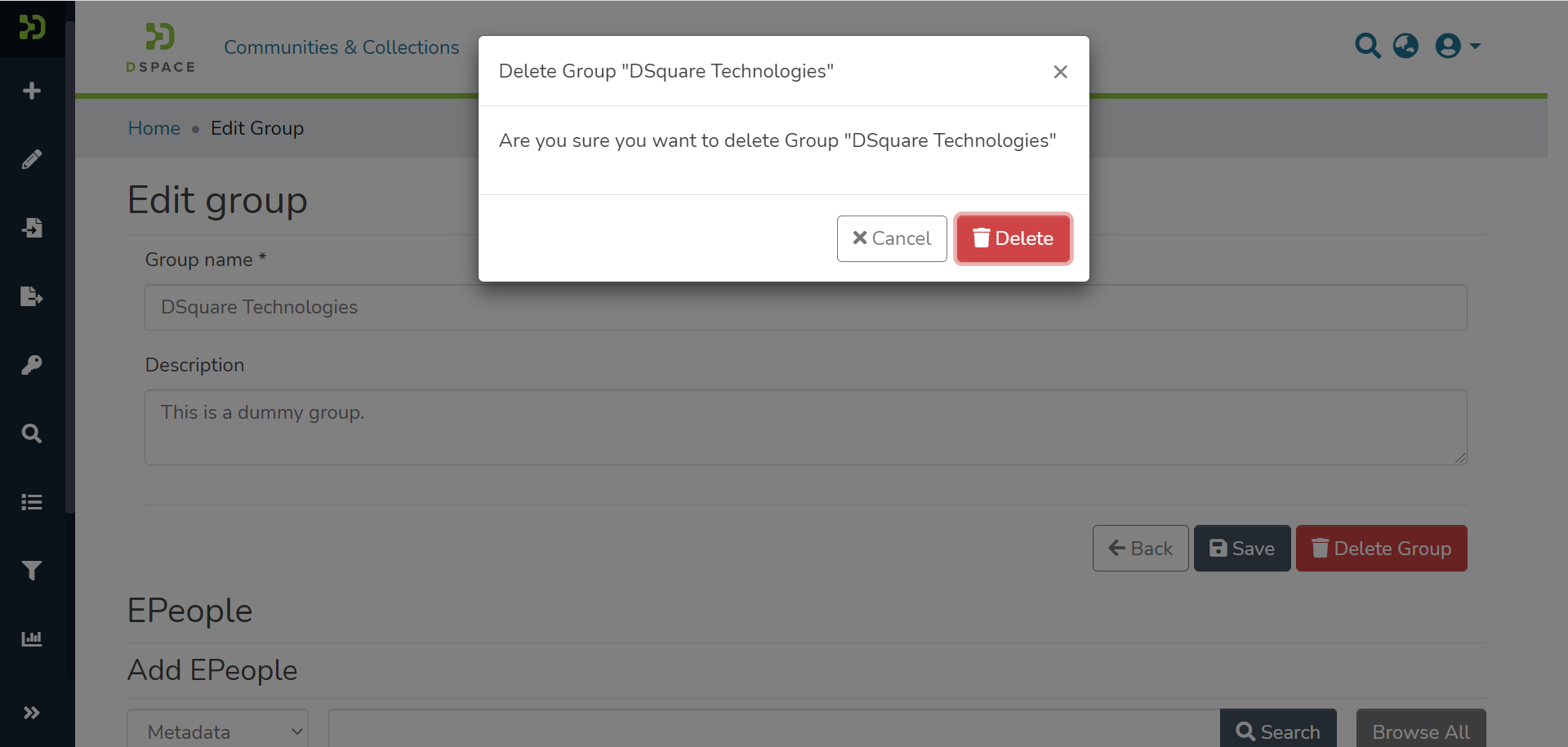
Step 11: DSpace will show you a confirmation prompt to re-assess your decision of deleting the Group. Click on "Delete" if you want to continue, or click "Cancel" to return.
Please note that the Group, once deleted, can not be recovered.
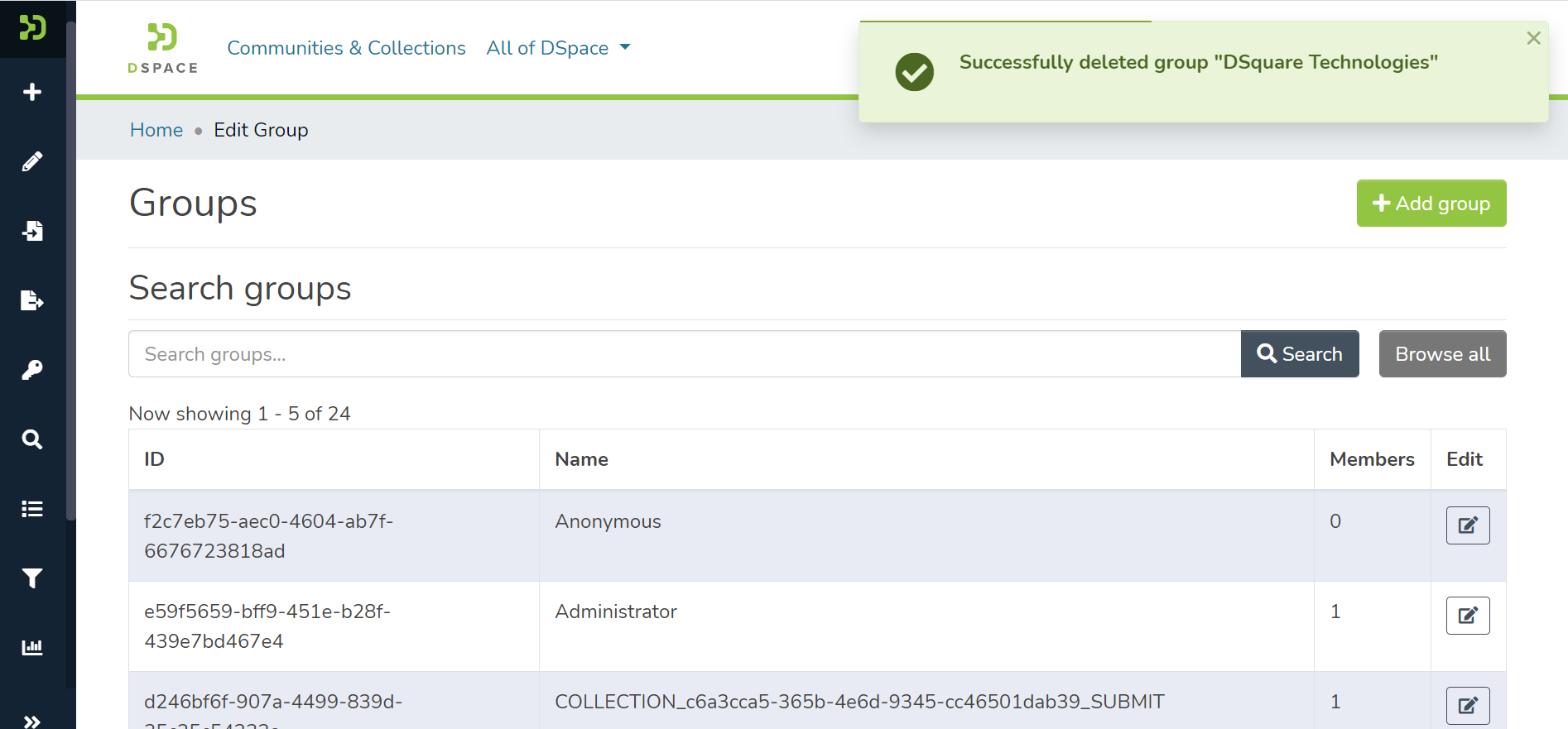
Step 12: Users will see a success prompt confirming the user group deletion, as demonstrated below.
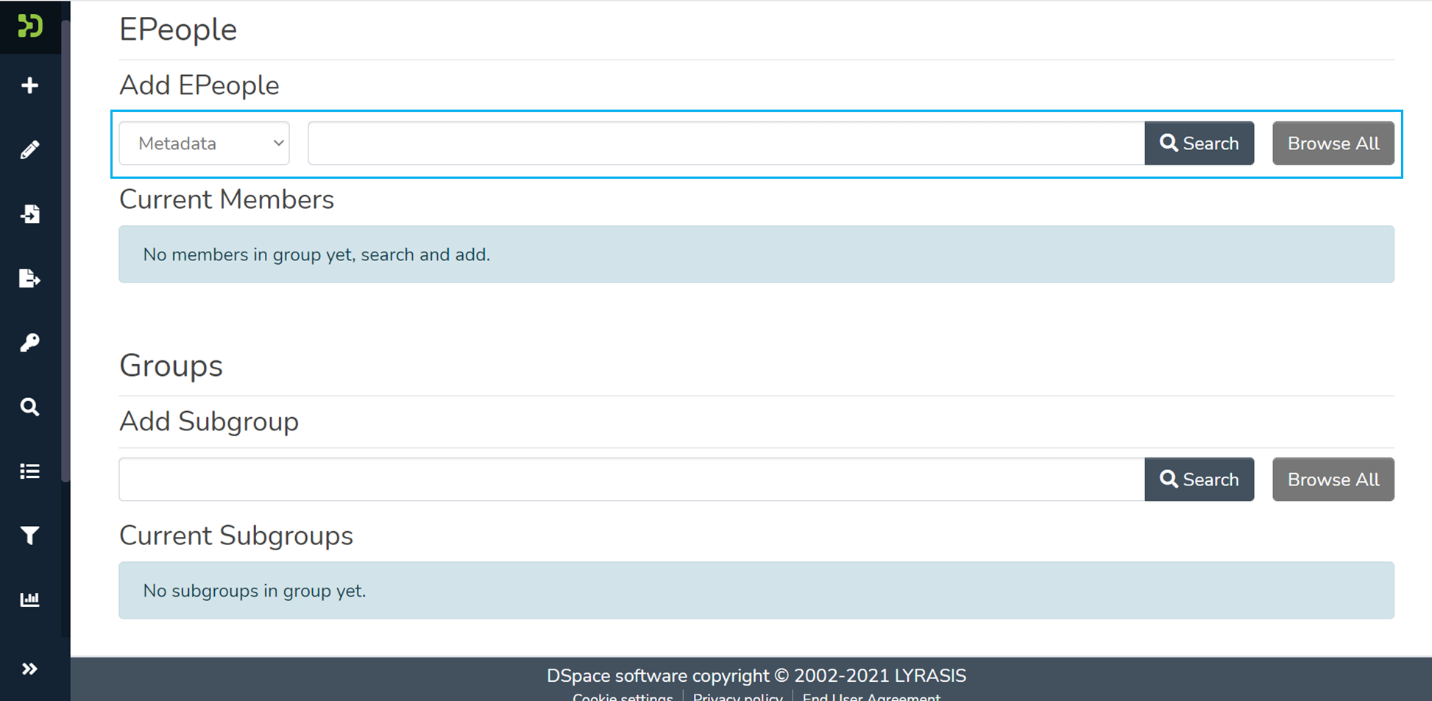
Step 13: Scroll down to the Epeople section to find the user(s). Use metadata values to search Epeople and click the "Search" button, or click the "Browse All" button to list EPeople.
Step 14: Click on the add button '+' next to each user name to add that user as a group member.
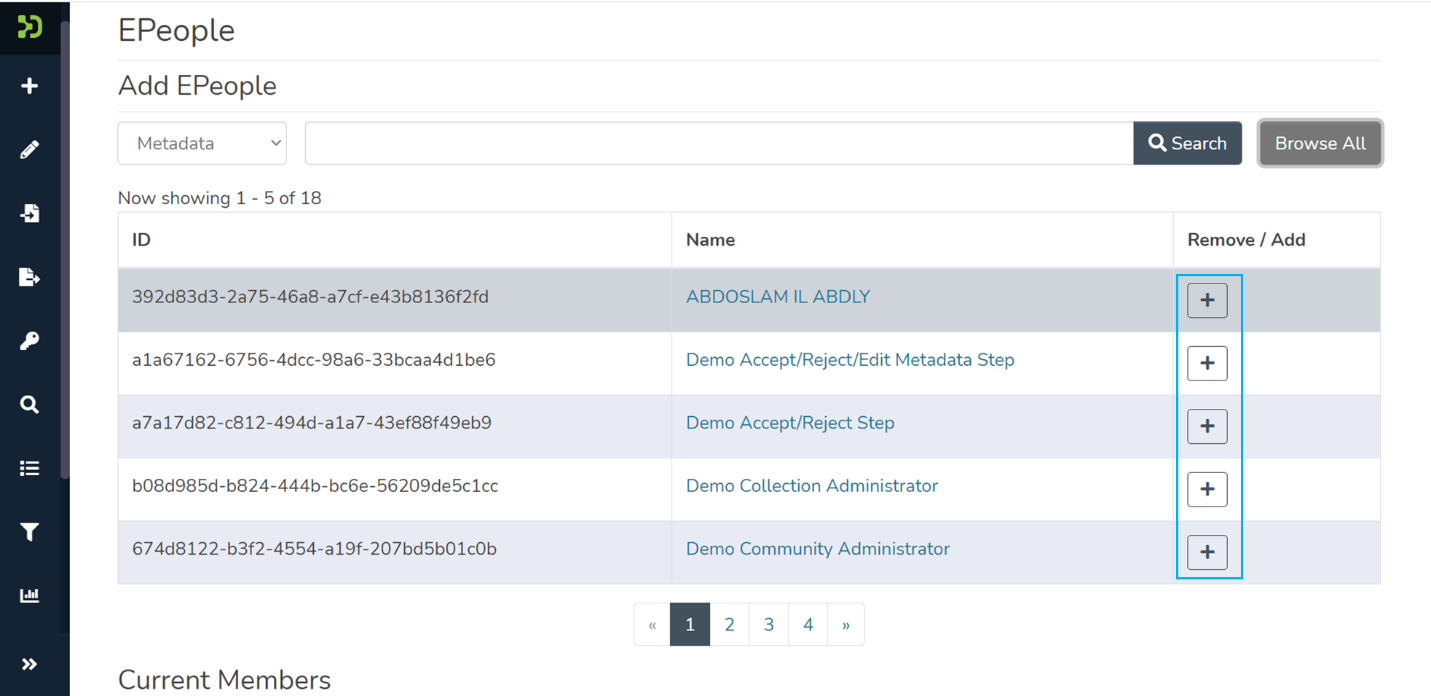
Step 15: A prompt will appear confirming the addition of users to the Group. As illustrated below, the "Delete" button will appear next to the user names.
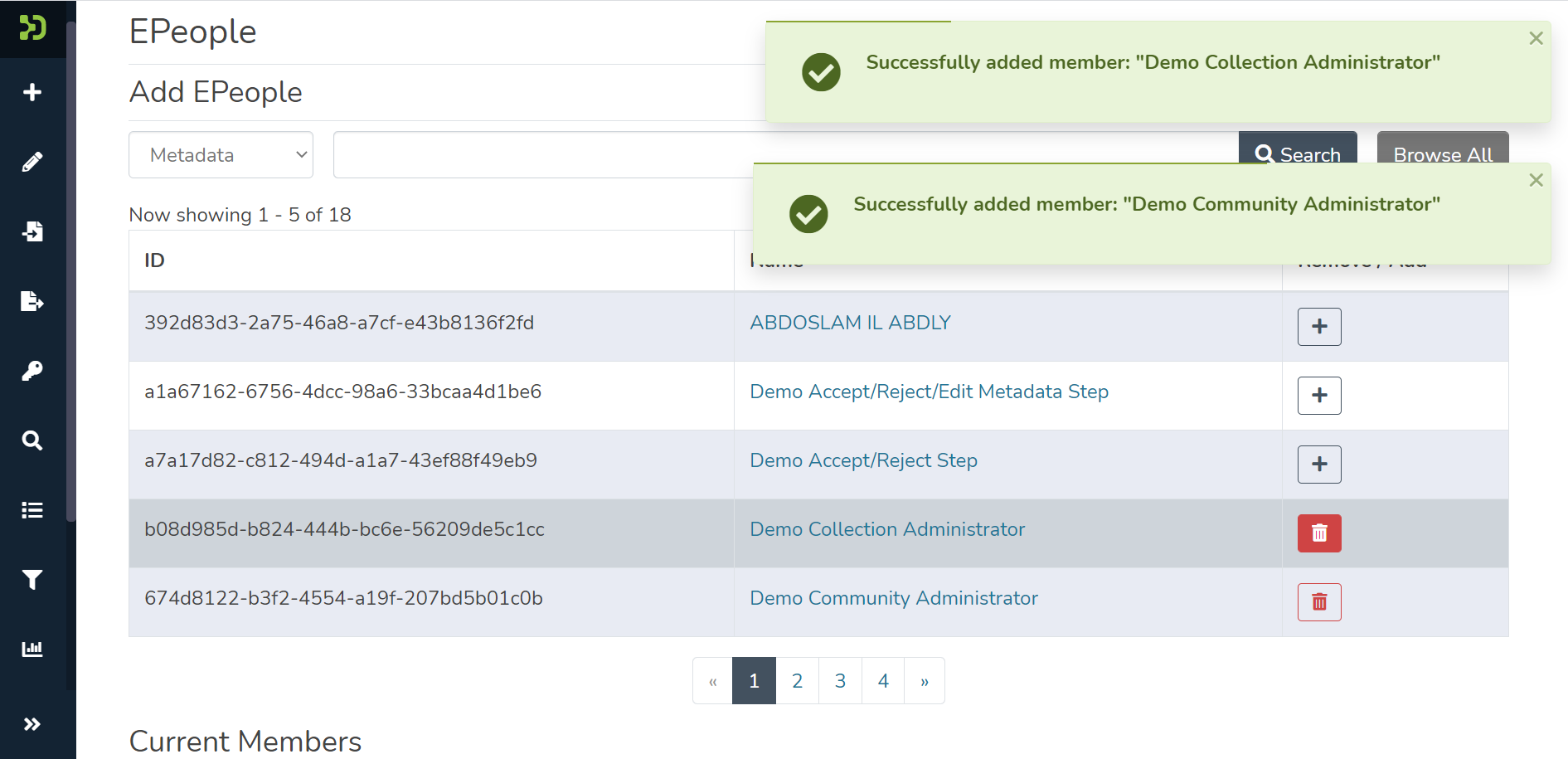
Success prompt confirming user added as members
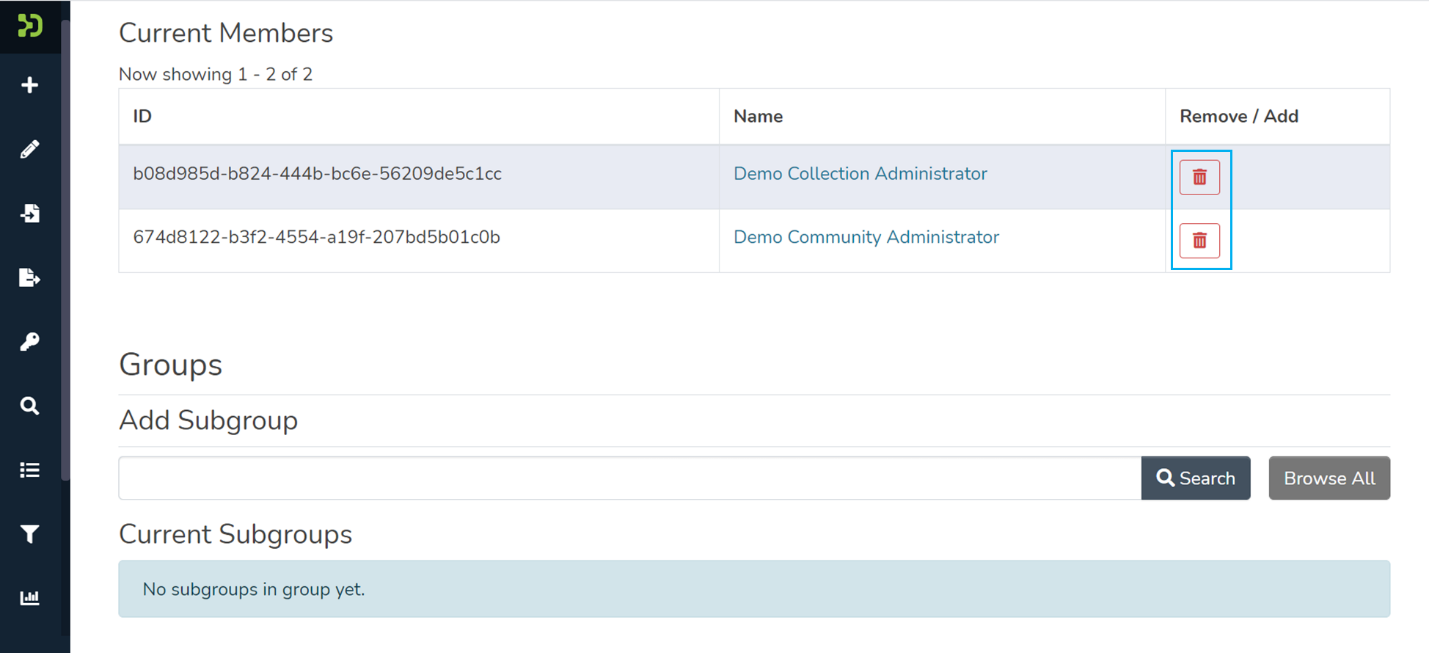
Users appearing as Members under the Current Members section
Step 16: Scroll down to the Group section to find the Group (s). Enter a group name and click the "Search" button, or click the "Browse All" button to list groups.
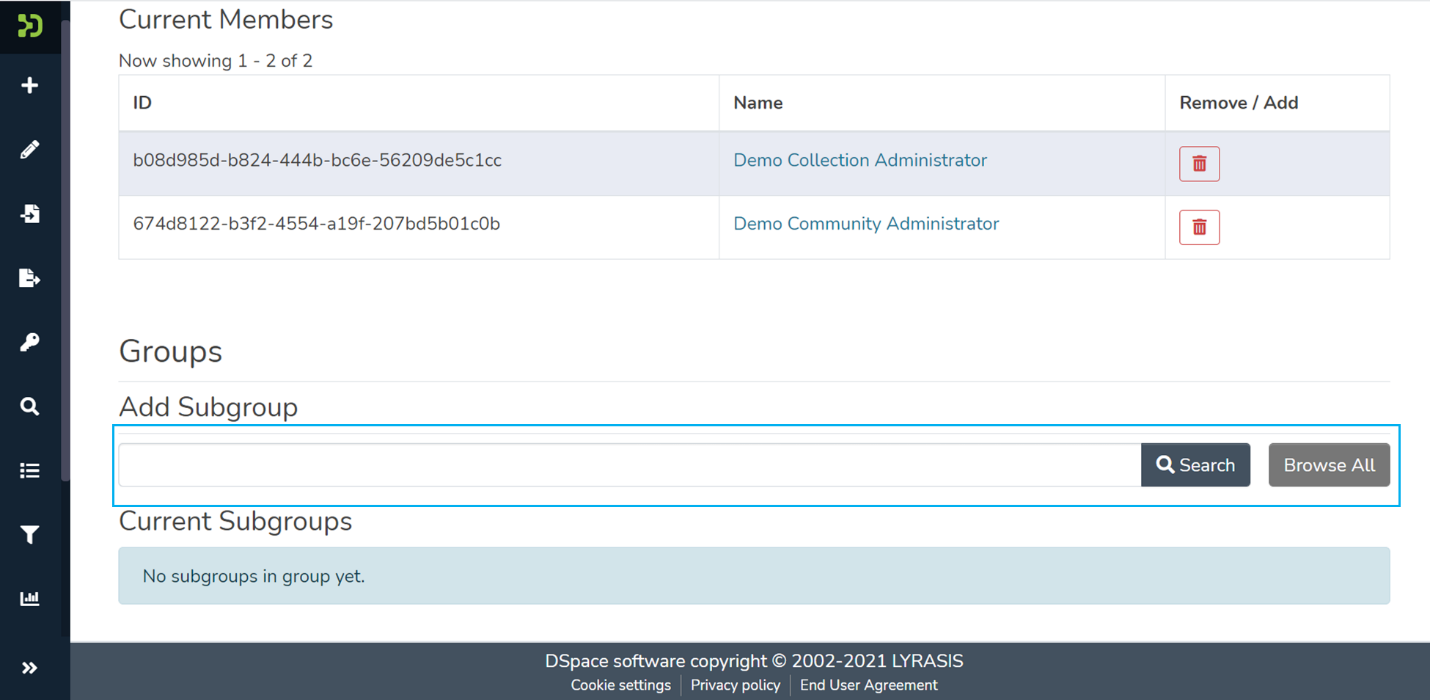
Step 17: Click on the add button '+' next to each group name to add it as a sub-group.
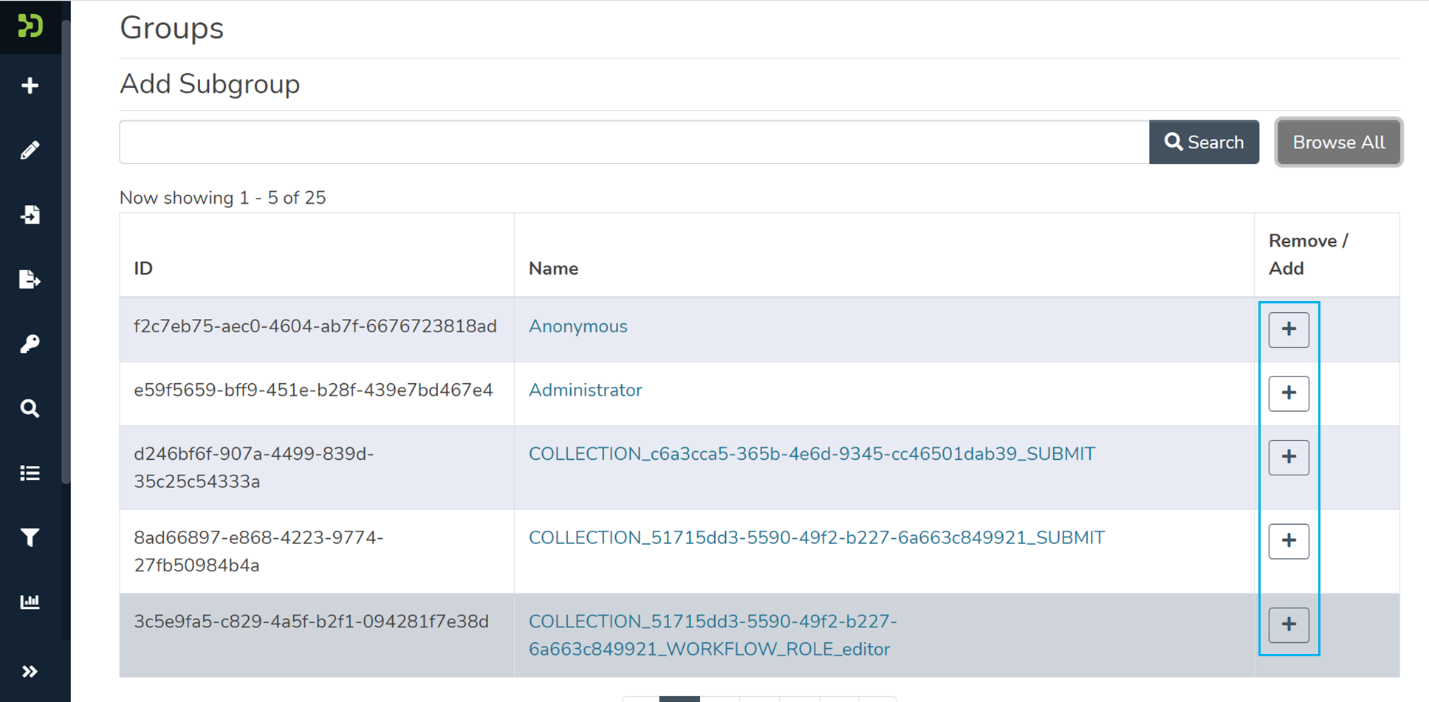
Step 18: A prompt will appear to confirm a subgroup in the Group. As illustrated below, the "Delete" button will appear next to the group names.
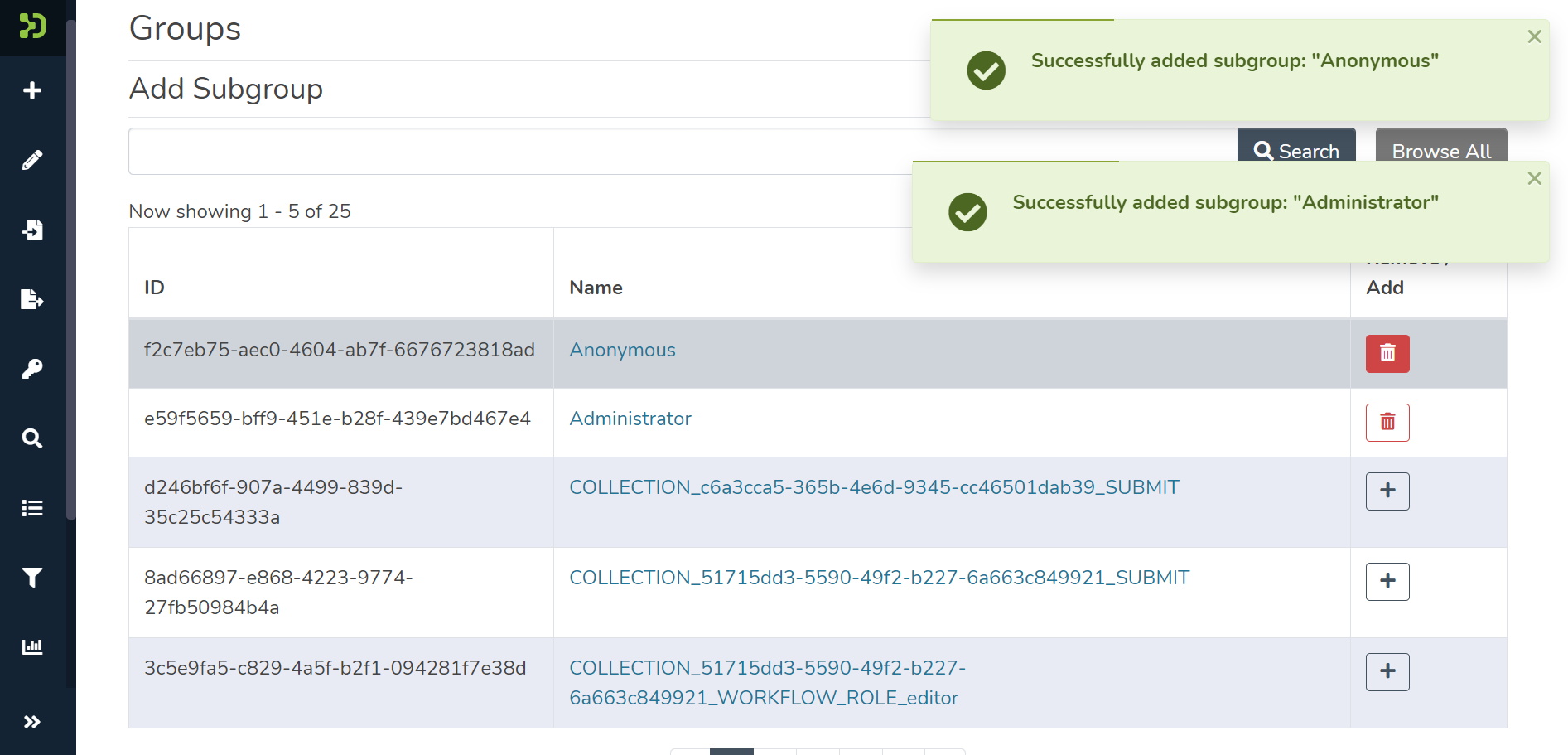
Success prompt confirming groups added as subgroups
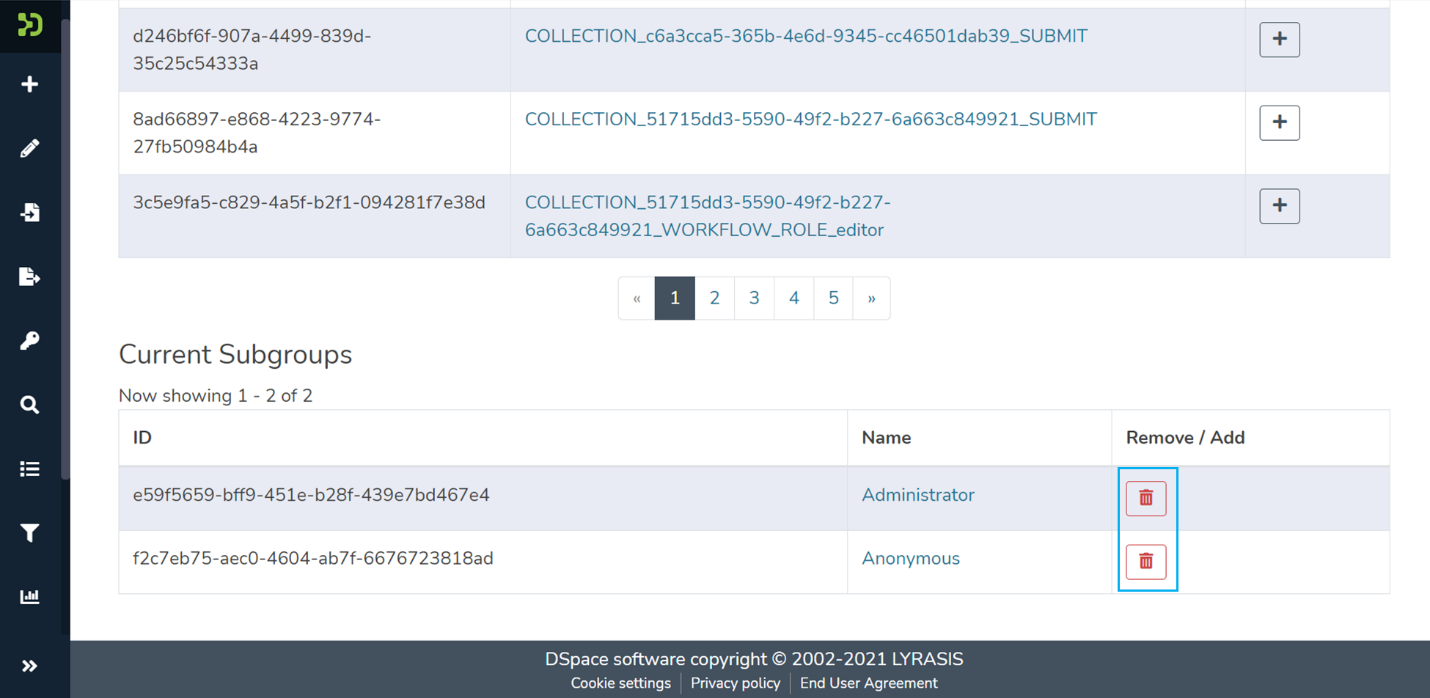
Groups appearing as subgroups under the Current Subgroups section
All content on the LYRASIS Wiki is licensed under the CC BY (Attribution) license , unless otherwise noted.