All Versions
DSpace Documentation
Contribute to the DSpace Development Fund
The newly established DSpace Development Fund supports the development of new features prioritized by DSpace Governance. For a list of planned features see the fund wiki page.
Items live in one collection but can be mapped to additional collections. The item page will display all of the collections the item lives in or is mapped to. The item will appear in the lists of items in each collection it lives in or is mapped to.
This process describes how to map items to collections and how to manage existing mappings.
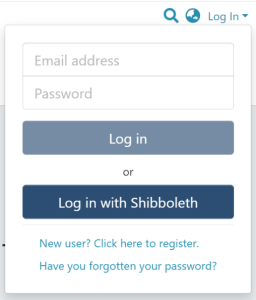
Step 1: Login using your DSpace credentials.
Step 2: Go to the item you want to edit.
Users can reach an item through multiple methods, including those listed below:
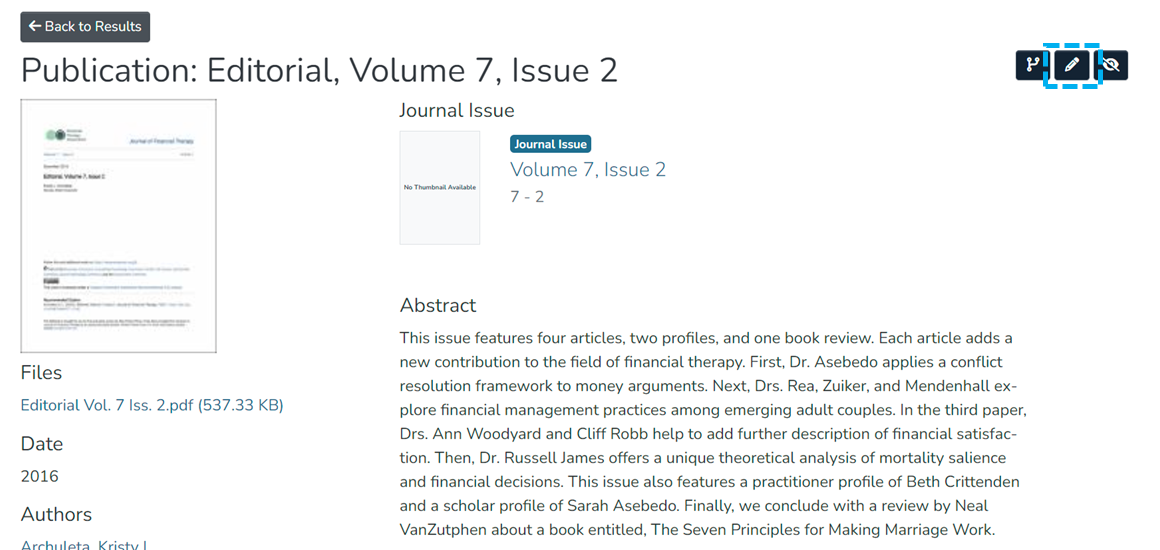
Step 3: Click the "Edit" button as highlighted on the screen below. This button will appear to any user who has edit rights on the target item.
Step 4: Click the "Collection Mapper" tab.
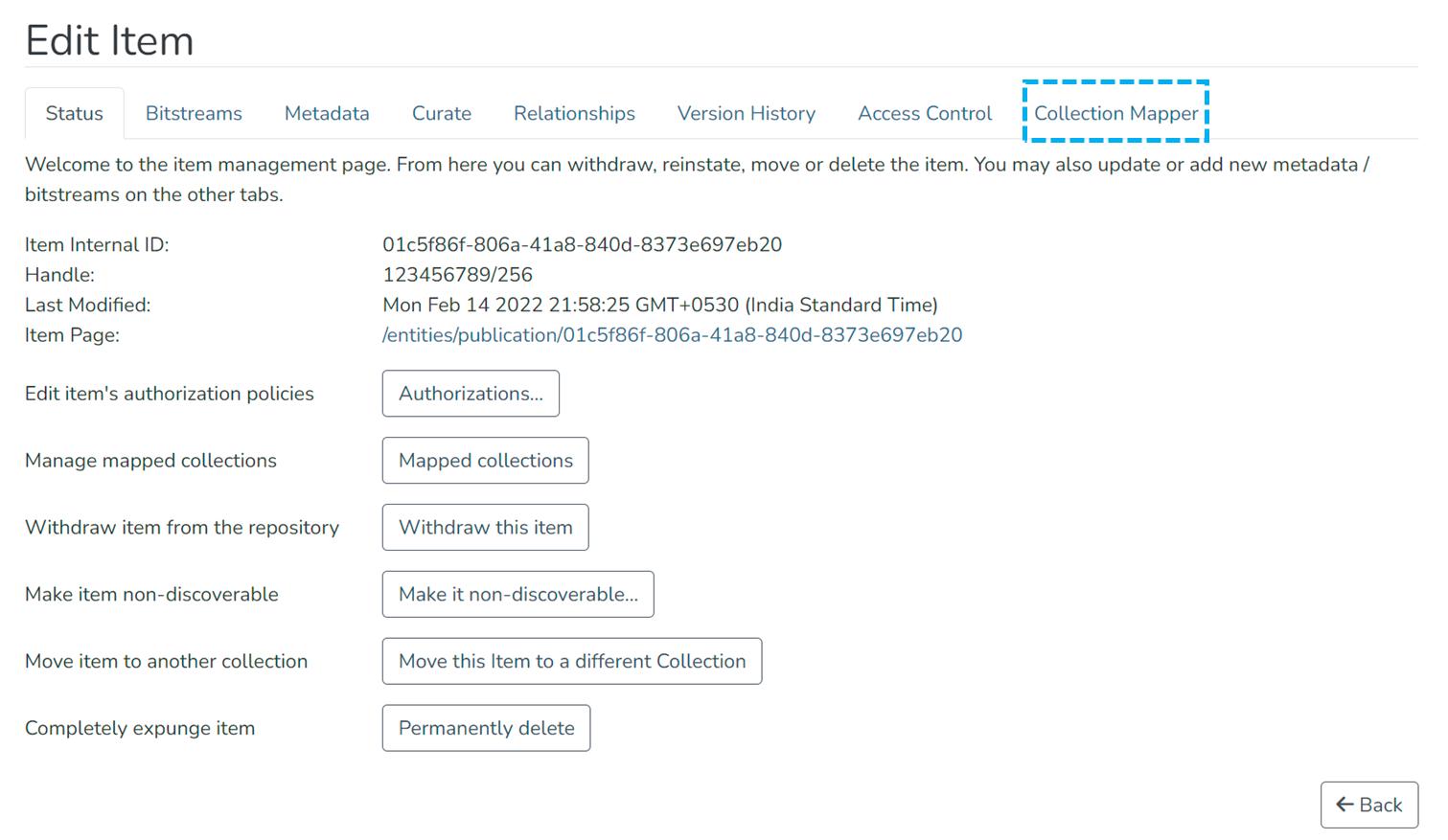
Users can perform multiple functions in the Collection Mapper tab. These are:
- Map the item to a new collection.
- Manage existing collections the item is mapped to.
Step 1: Click on the “Map new collections” tab.
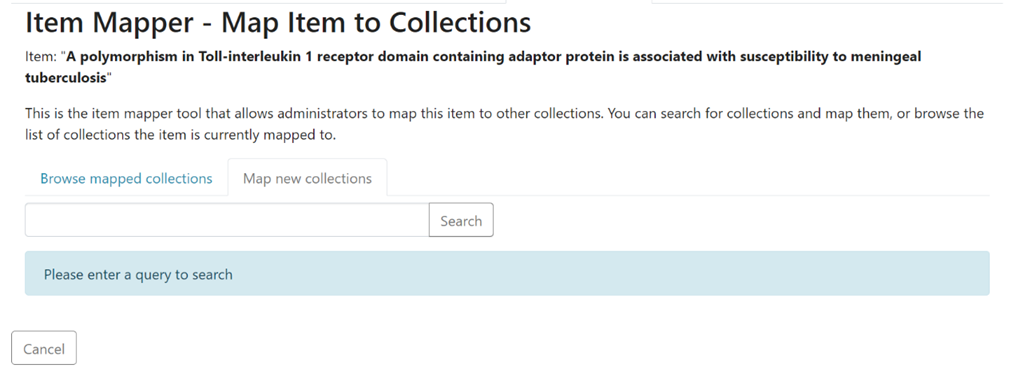
Step 2: Enter the name of the collection you want to map this Item to and click on the “Search” button.
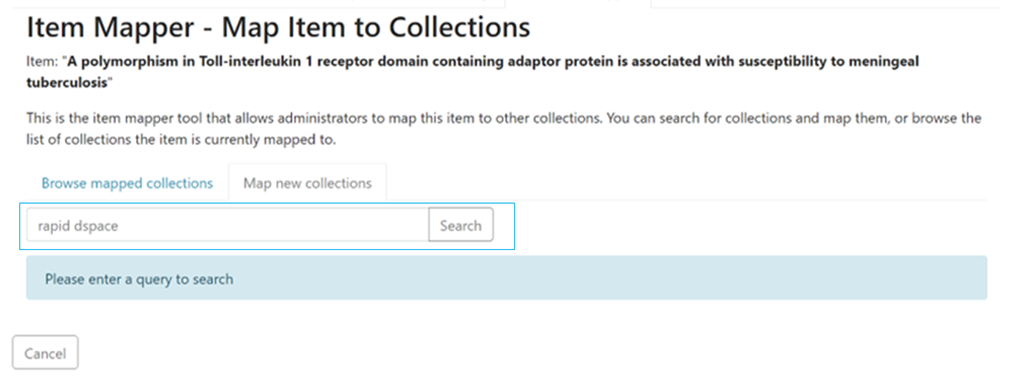
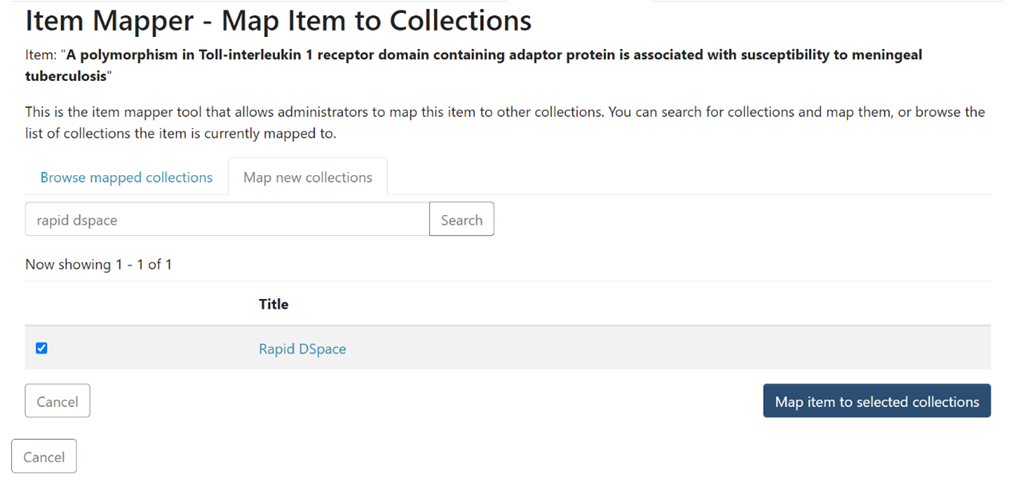
Step 3: Click the checkbox on the left of the target collection to select it. Click the “Map item to selected collections” button to complete mapping, or use the “Cancel” button to cancel the operation.
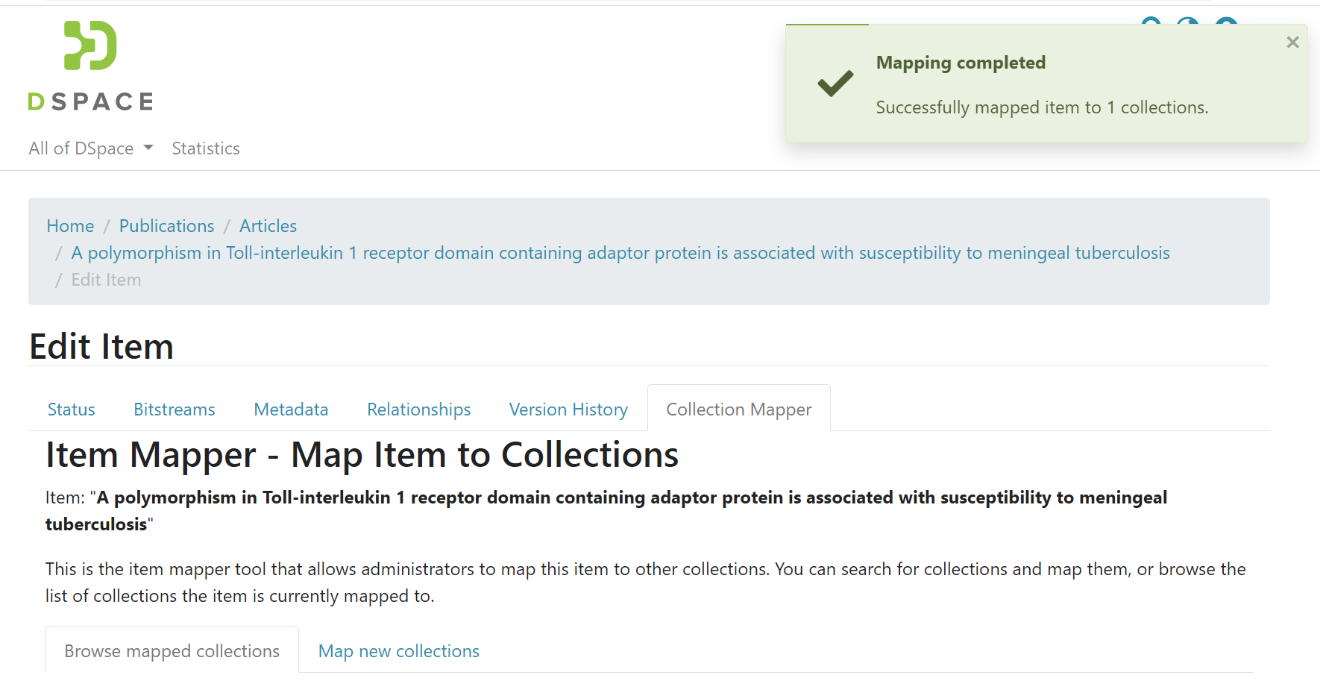
A success prompt confirming the collection mapping will appear. The selected collection will appear under the “Browse mapped collections” tab.
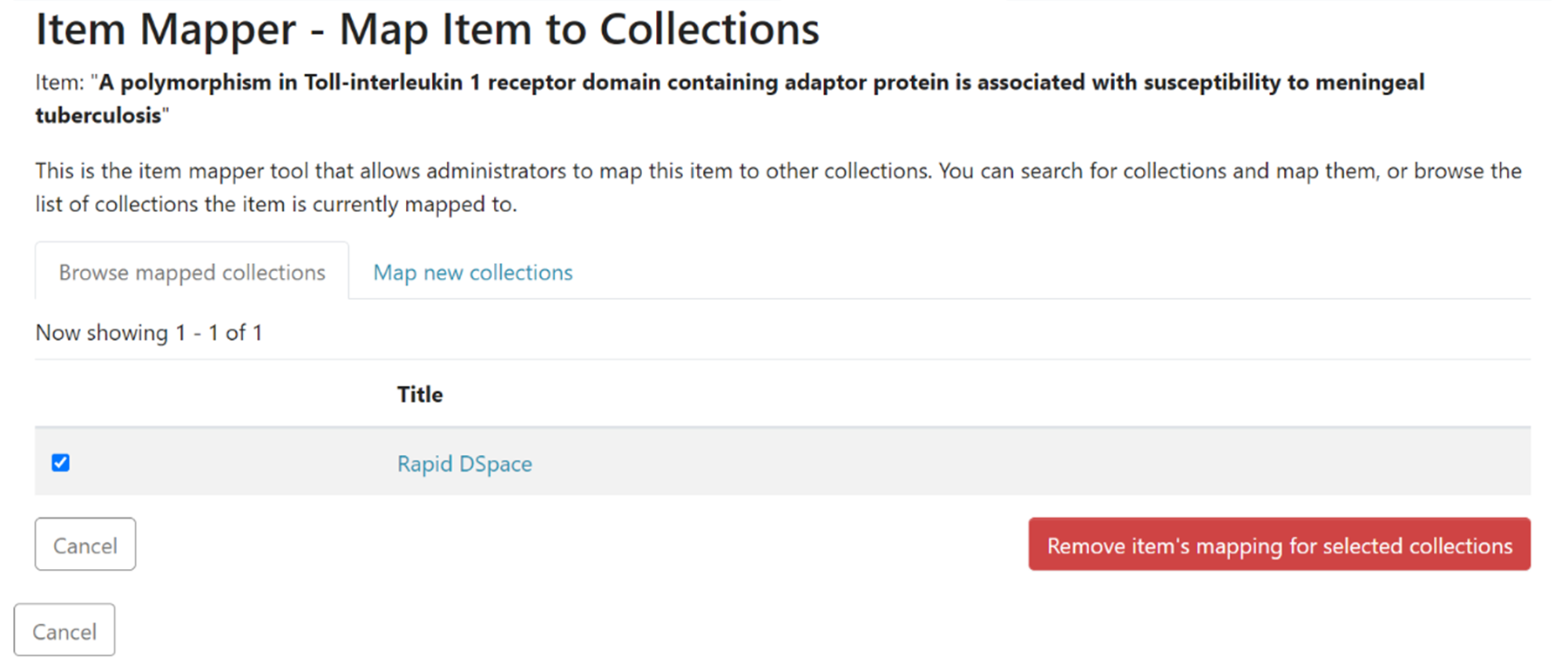
Step 1: On the “Browse mapped collections” tab, to delete an existing collection the item is mapped to, click the checkbox on the left of the collection name to select it.
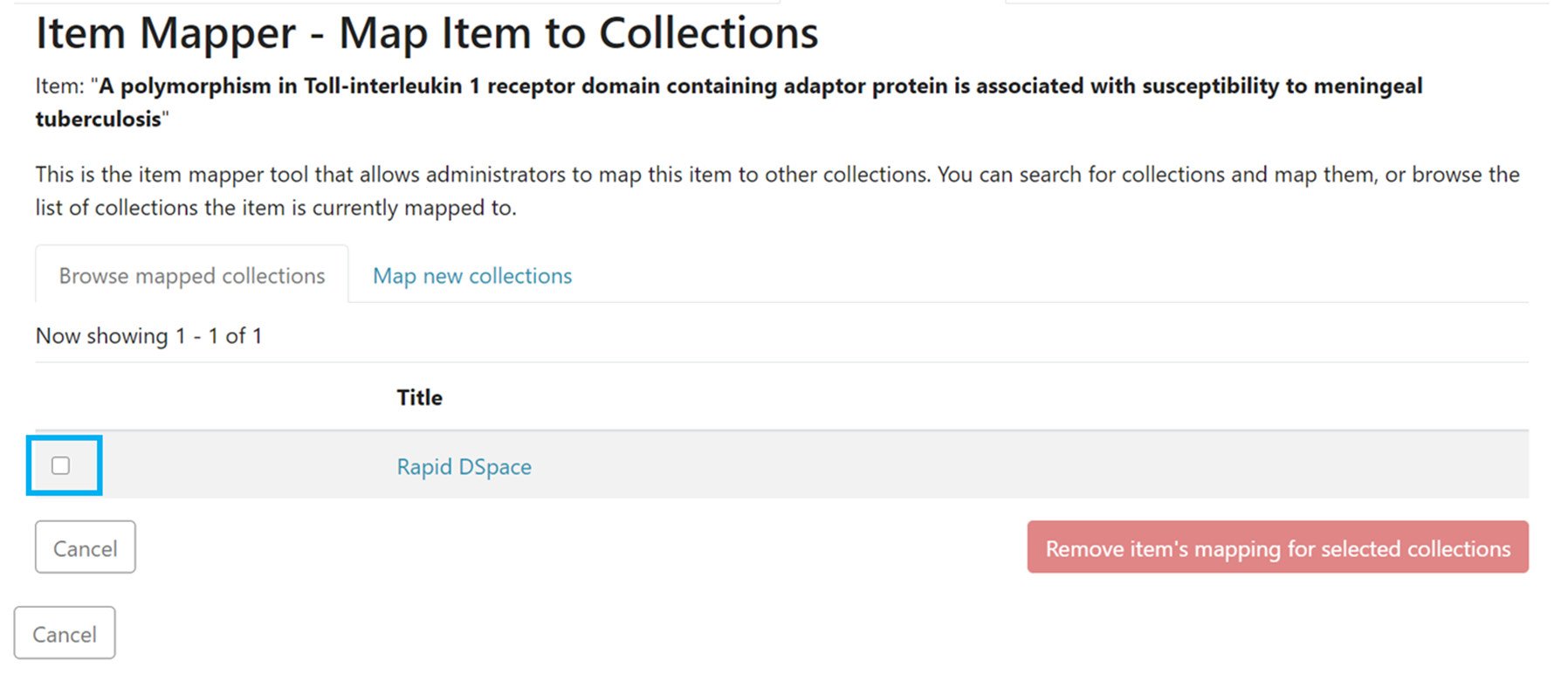
The "Remove item's mapping for selected collections" button will activate upon selecting the collection.
Step 2: Click on “Remove item’s mapping for selected collections” to unmap selected collection(s) or click “Cancel” to cancel the operation.
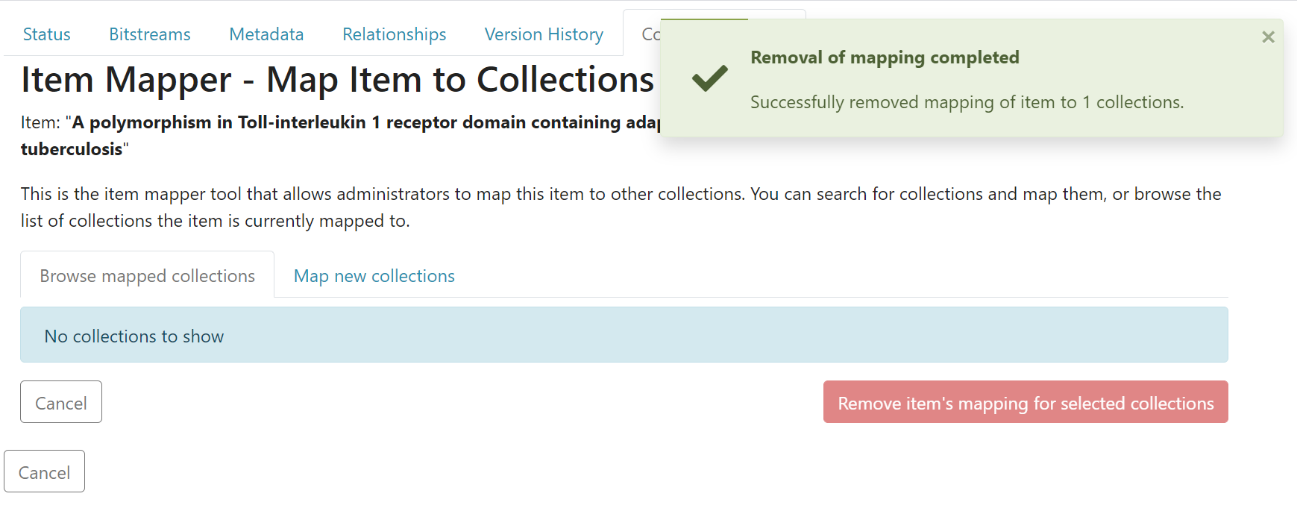
A prompt confirming the successful unmapping of the collection will appear. The selected collection will disappear from the list in the “Browse mapped collections” tab.
Edited and approved by DCAT Documentation Working Group, December 2024.
All content on the LYRASIS Wiki is licensed under the CC BY (Attribution) license , unless otherwise noted.