All Versions
DSpace Documentation
| Table of Contents |
|---|
This integration allows DSpace to track and record UsageEvents with Matomo Analytics, leveraging its capabilities for enhanced tracking and analysis.
There are two main parts of this development, the rest part is responsible for tracking Bitstream downloads, and links them with the angular integration that is responsible of sending the events for the site navigation, Item view and search.
On the first navigation you will be notified about cookies, once opened up to customize them, you can choose which cookies are going to be installed
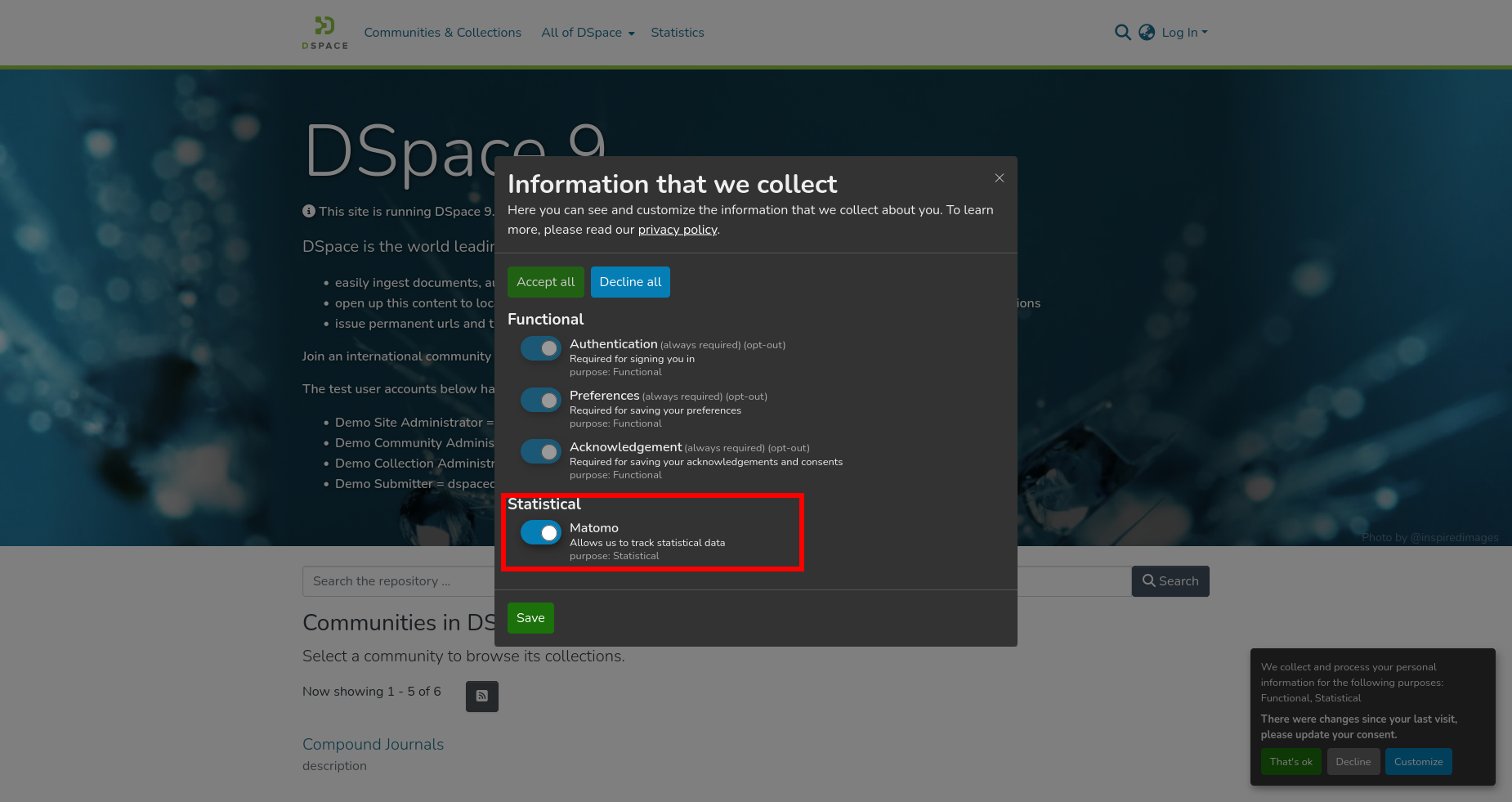 The integration would track these actions:
Take a look at this tracked event:
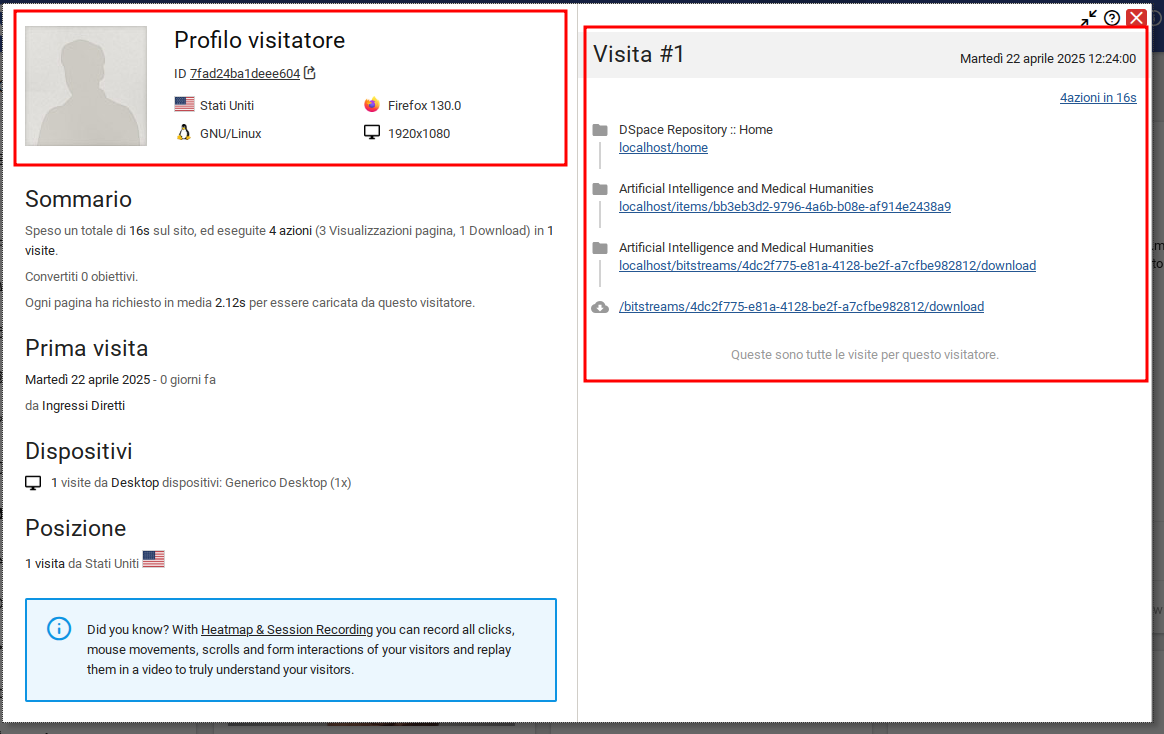
Here you can see that the user ( profiled on the left side ) has been involved into page navigations and then downloaded a bitstream.
Then performed a search by "dspace" keyword, as you can see here:
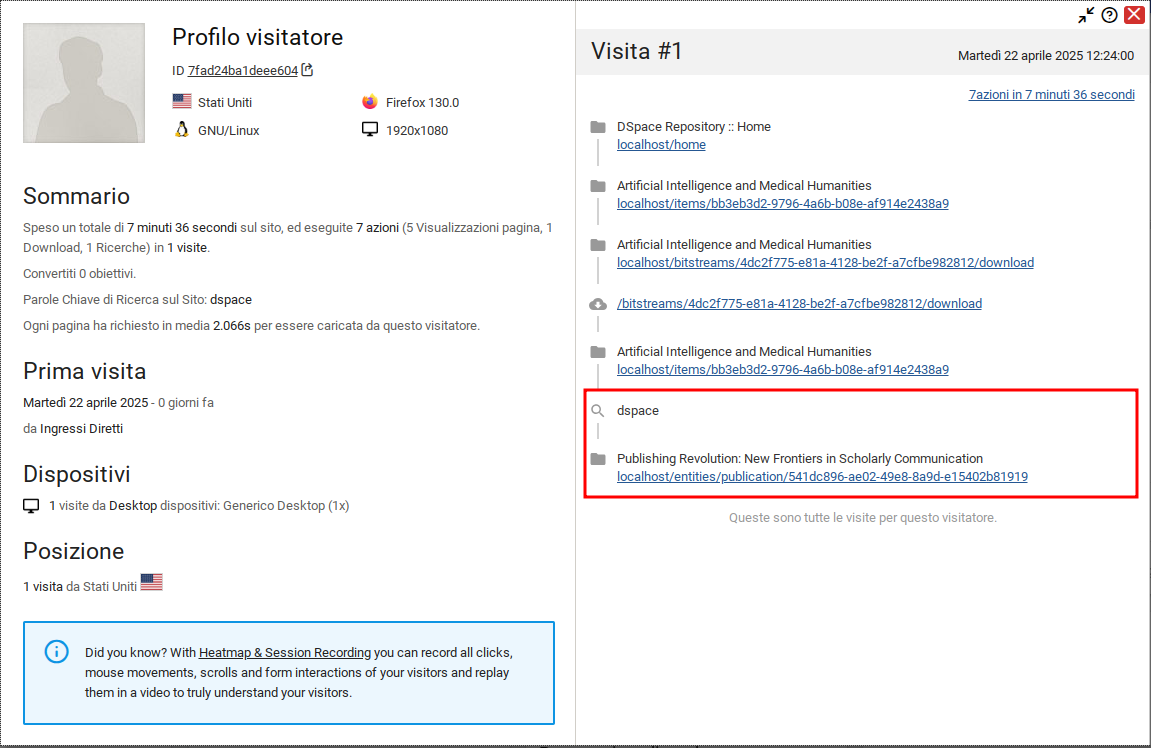
So, generally once the cookies have been set on the user's browser all the interactions of that user within the system will be tracked. You can see all those interactions by opening the matomo dashboard ( by default if you're using the docker configuration would be matomo-dashboard )
The configuration can be checked inside the file matomo.cfg
| Code Block | ||||||
|---|---|---|---|---|---|---|
| ||||||
#---------------------------------------------------------------#
#----------------MATOMO TRACKER CONFIGURATION-------------------#
#---------------------------------------------------------------#

# Enables matomo integration mapped inside the MatomoEventListener
matomo.enabled = false
# Configured `siteid` inside the matomo dashboard
matomo.request.siteid = 1
# Configured tracker.url that will be used by the Angular application
matomo.tracker.url = http://localhost:8081
# Specifies bitstream's bundle that will be tracked ( default is ORIGINAL )
# Add 'none' to disable the tracking for bitstreams
# matomo.track.bundles = ORIGINAL

#---------------------------------------------------------------#
#----------------MATOMO CLIENTS CONFIGURATION-------------------#
#---------------------------------------------------------------#
#  Here you will configure settings of beans that will be used  #
#  as client inside matomo.xml                                  #
#                                                               #
#################################################################

#---------------------------------------------------------------#
#----------------DEFAULT CLIENT CONFIGURATION-------------------#
#---------------------------------------------------------------#
# The tracking endpoint of matomo
matomo.default-client.baseurl = ${matomo.tracker.url}/matomo.php
# The auth-token configured inside the matomo instance should have the pattern [a-f0-9]{32}
# matomo.default-client.token = e6c21371cd97bebe45e8e729edfb202c

#---------------------------------------------------------------#
#------------------ASYNC CLIENT CONFIGURATION-------------------#
#---------------------------------------------------------------#
# The tracking endpoint of matomo
matomo.async-client.baseurl = ${matomo.tracker.url}/matomo.php
# The auth-token configured inside the matomo instance should have the pattern [a-f0-9]{32}
# matomo.async-client.token = e6c21371cd97bebe45e8e729edfb202c |
The main configuration to enable the all the features is matomo.enabled that must be set to true.
Once enabled, you should check also the matomo.siteId and the matomo.tracker.url, both of them must be aligned with your current installation. By default they're set to a local instance started with the docker-compose-matomo file.
If you need to customize something you can have a look to the bean definitions inside matomo.xml file:
| Code Block | ||||||||
|---|---|---|---|---|---|---|---|---|
| ||||||||
    <bean id="matomoRequestDetailsBuilder" class="org.dspace.matomo.model.MatomoRequestDetailsBuilder">
        <constructor-arg name="enrichers">
            <list>
                <bean id="userAgentEnricher" class="org.dspace.matomo.factory.MatomoRequestDetailsEnricherFactory" factory-method="userAgentEnricher"/>
                <bean id="actionNameEnricher" class="org.dspace.matomo.factory.MatomoRequestDetailsEnricherFactory" factory-method="actionNameEnricher"/>
                <bean id="urlEnricher" class="org.dspace.matomo.factory.MatomoRequestDetailsEnricherFactory" factory-method="urlEnricher"/>
                <bean id="downloadEnricher" class="org.dspace.matomo.factory.MatomoRequestDetailsEnricherFactory" factory-method="downloadEnricher"/>
                <bean id="trackerIdEnricher" class="org.dspace.matomo.factory.MatomoRequestDetailsEnricherFactory" factory-method="trackerIdentifierEnricher"/>
                <!-- As of now these cookie enrichers are not working, because we are not treating cross-domain Matomo Cookies -->
<!--
                <bean id="cookieIdEnricher" class="org.dspace.matomo.factory.MatomoRequestCookieIdentifierEnricher"/>
                <bean id="cookieSessionEnricher" class="org.dspace.matomo.factory.MatomoRequestCookieSessionEnricher"/>
                <bean id="customVariablesEnricher" class="org.dspace.matomo.factory.MatomoRequestCustomVariablesEnricher"/>
                <bean id="customCookiesEnricher" class="org.dspace.matomo.factory.MatomoRequestCustomCookiesEnricher">
                        <constructor-arg name="customCookies" value="${matomo.request.customcookies.cookie-name}"/>
                </bean>
-->
                <!-- These two enrichers requires a valid token set on the client -->
<!--                <bean id="ipEnricher" class="org.dspace.matomo.factory.MatomoRequestIpAddressEnricher"/>-->
<!--                <bean id="requestCountryEnricher" class="org.dspace.matomo.factory.MatomoRequestCountryEnricher"/>-->
            </list>
        </constructor-arg>
        <constructor-arg name="siteId" value="${matomo.request.siteid}"/>
</bean> |
This first portion specifies how the request should be composed, depending on the enrichers configured, and also identifies the siteId to be used.
Each ViewEvent received on the REST side would be parsed and then sent to the matomo tracker by using the following components:
| Code Block | ||||||||
|---|---|---|---|---|---|---|---|---|
| ||||||||
    <bean id="matomoAsyncClient" class="org.dspace.matomo.client.MatomoAsyncClientImpl">
        <constructor-arg name="baseUrl" value="${matomo.async-client.baseurl}"/>
        <!-- Optional, so the default value will be null -->
        <constructor-arg name="token" value="${matomo.async-client.token:}"/>
        <constructor-arg name="matomoRequestBuilder" ref="matomoRequestBuilder"/>
        <constructor-arg name="matomoResponseReader" ref="matomoResponseReader"/>
    </bean>

    <!-- This Sync event handler tracks each view event using the async client that is non-blocking -->
    <!--
        You can use any combination of EventHandler / MatomoClient, all the options available are listed down here
        but commented, you can choose the one you prefer.
    -->
    <bean id="matomoSyncEventHandler" class="org.dspace.matomo.MatomoSyncEventHandler">
        <constructor-arg name="matomoClient" ref="matomoAsyncClient"/>
        <constructor-arg name="builder" ref="matomoRequestDetailsBuilder"/>
</bean> |
| Code Block | ||||||
|---|---|---|---|---|---|---|
| ||||||
    <!-- Matomo events recording -->
    <bean class="org.dspace.matomo.MatomoEventListener">
        <property name="eventService" ref="org.dspace.services.EventService"/>
</bean> |
Each event is intercepted by the MatomoEventListener and processed by the MatomoSyncEventHandler that generates a proper request using the configured enrichers ( MatomoRequestDetailsBuilder ) and sends them to the matomo tracker using the MatomoAsyncClientImpl
If you would like to try it out, you must start the docker instance of dspace and matomo using the proper docker-compose commands.
If you need to setup a dspace from scratch, you must build the Dockerfile with the command:
| Code Block | ||||||
|---|---|---|---|---|---|---|
| ||||||
docker build -t dspace:latest . |
Then, you must ingest it with some data by running the command:
| Code Block | ||||||
|---|---|---|---|---|---|---|
| ||||||
docker compose -p d9 -f docker-compose.yml -f dspace/src/main/docker-compose/db.entities.yml up -d |
So, finally you can startup all together with the Matomo container that uses the port 8081 to expose its API and User Interface.
| Code Block | ||||||
|---|---|---|---|---|---|---|
| ||||||
docker compose -p d9 -f docker-compose.yml -f dspace/src/main/docker-compose/docker-compose-matomo.yml up -d |
Once started you can complete the Matomo configuration directly from the Matomo Home Page.
You need to:
matomo.request.siteId on matomo.cfg)You need to set check these properties inside the matomo.cfg file:
| Code Block | ||||||
|---|---|---|---|---|---|---|
| ||||||
    # Enables matomo integration mapped inside the MatomoEventListener
    matomo.enabled = true
    # Configured `siteid` inside the matomo dashboard
    matomo.request.siteid = 1
    # The tracking endpoint of matomo
matomo.async-client.baseurl = http://localhost:8081/matomo.php |
Startup / Restart DSpace and try to download a bitstream that has been placed inside the ORIGINAL bundle ( default bundle configured for Matomo integration )
You should see a mapped request inside your Matomo dashboard with the bitstream details - Matomo-Docker-Dashboard
On the angular side there is a configuration that you would need to apply to your yml file:
| Code Block | ||||||
|---|---|---|---|---|---|---|
| ||||||
matomo:
  siteId: 1
trackerUrl: 'http://localhost:8081' |
The siteId and the trackerUrl must be compatible with the one set on the REST side, since they need to communicate with the same matomo instance.
If you start the env using docker, those two addresses are differente because internally the docker matomo container has a different address.