Contribute to the DSpace Development Fund
The newly established DSpace Development Fund supports the development of new features prioritized by DSpace Governance. For a list of planned features see the fund wiki page.
Scope and Use Case
DSpace provides a feature of exporting the metadata of all items within a collection or community into CSV format. Users can utilize this CSV file for multiple purposes like creating ad-hoc reports, importing metadata into other systems, or for any use case as per its requirements. Use these instructions to export the metadata of all items within a single collection or community.
Audience
- Repository Administrator
Exporting a collection
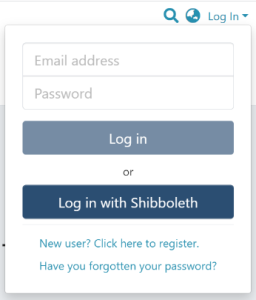
Step 1: Go to the DSpace home page and click on the “Log In” link, often in the top right corner, as illustrated below.
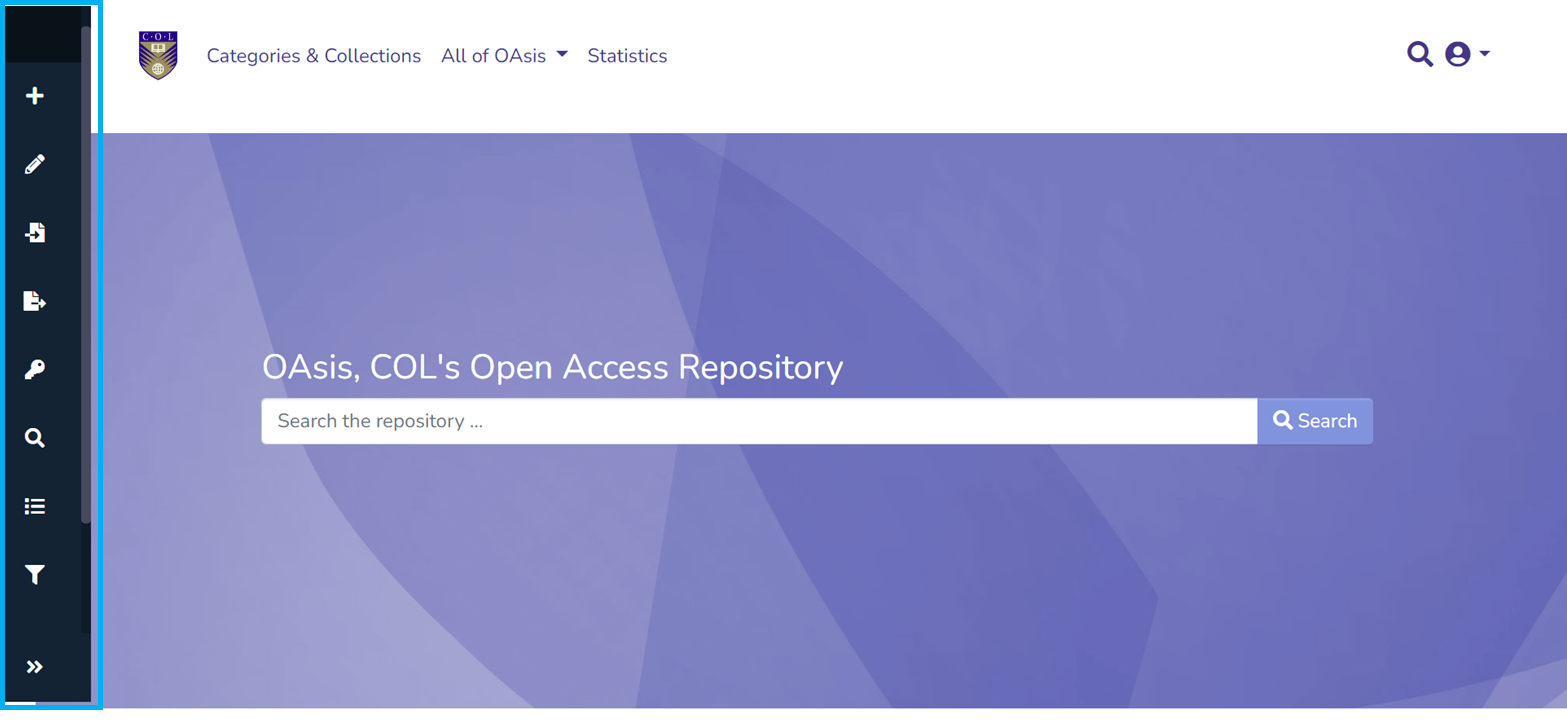
Step 2: Locate the admin menu, on the left-hand side of the screen in the illustration below.
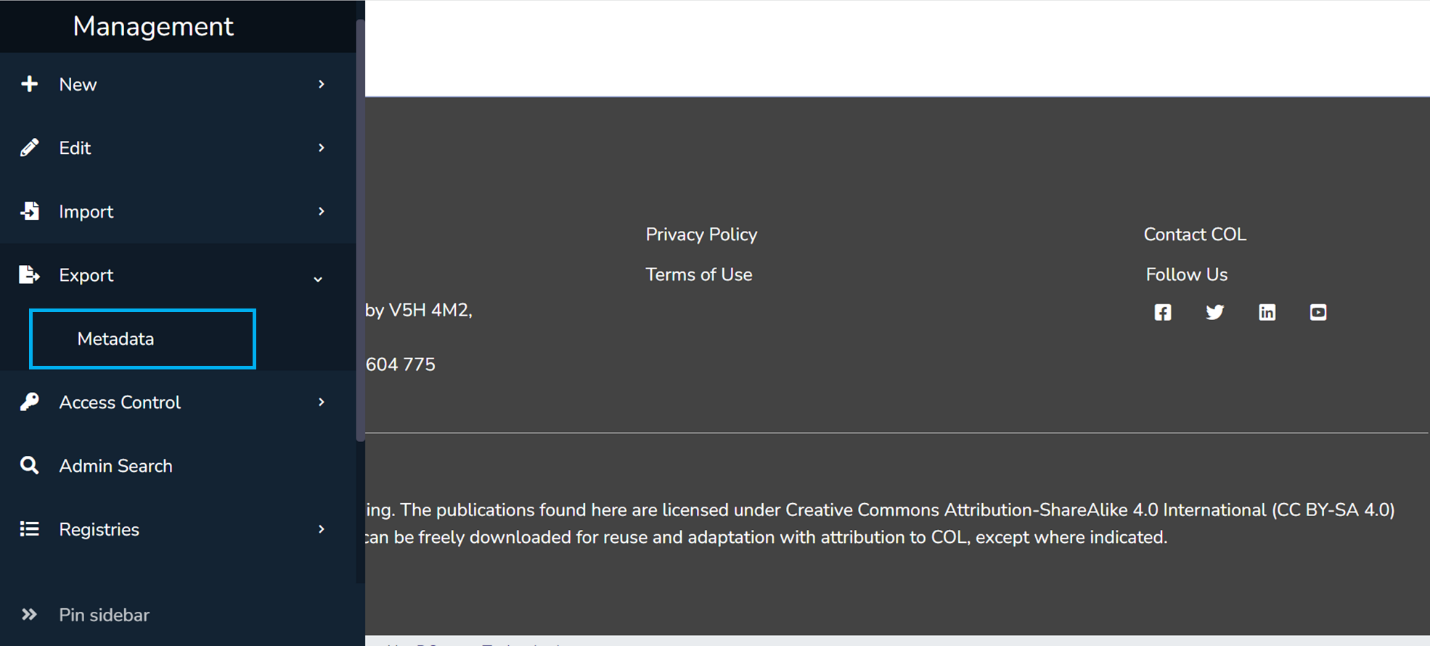
Step 3: Move your cursor over the "Export" menu and click on "Metadata."
Step 4: Type the collection or community name in the textbox and click on the target collection or community from the list appearing in the popup.
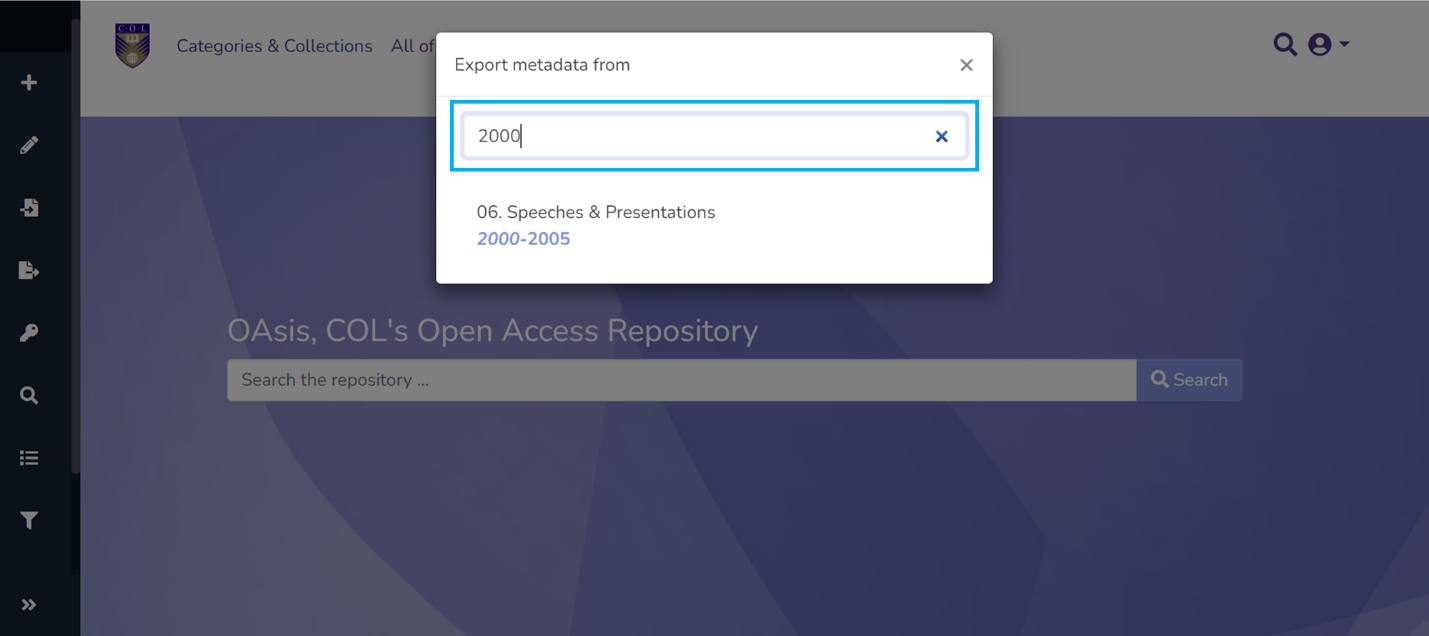
Note: If a user is on the collection or community page they wish to export metadata from when they access the admin menu in Step 2, that collection or community will appear at the top of the list without typing anything.
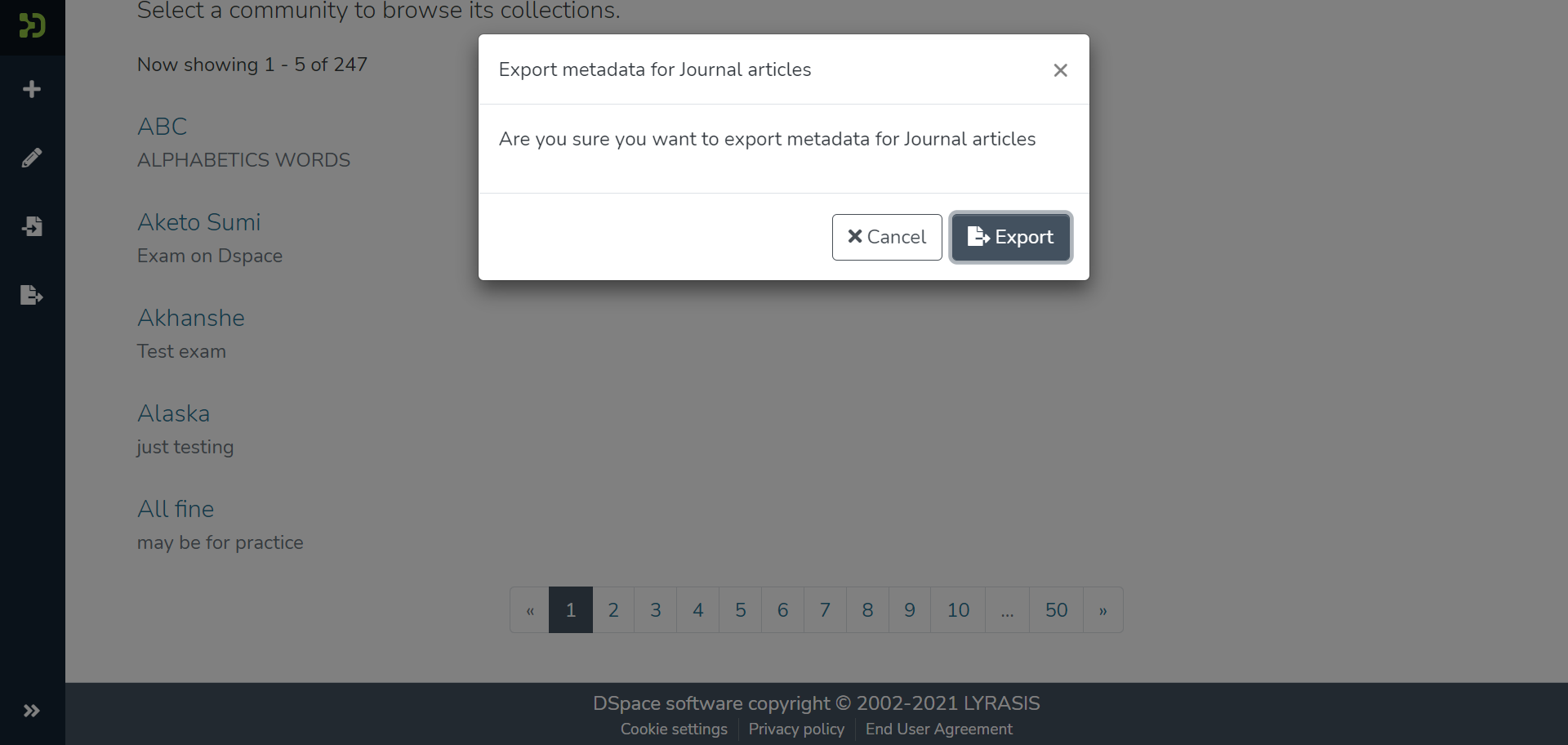
Step 5: Click the “Export” button in the popup to continue with the metadata export or click the “Cancel” button to cancel the process.
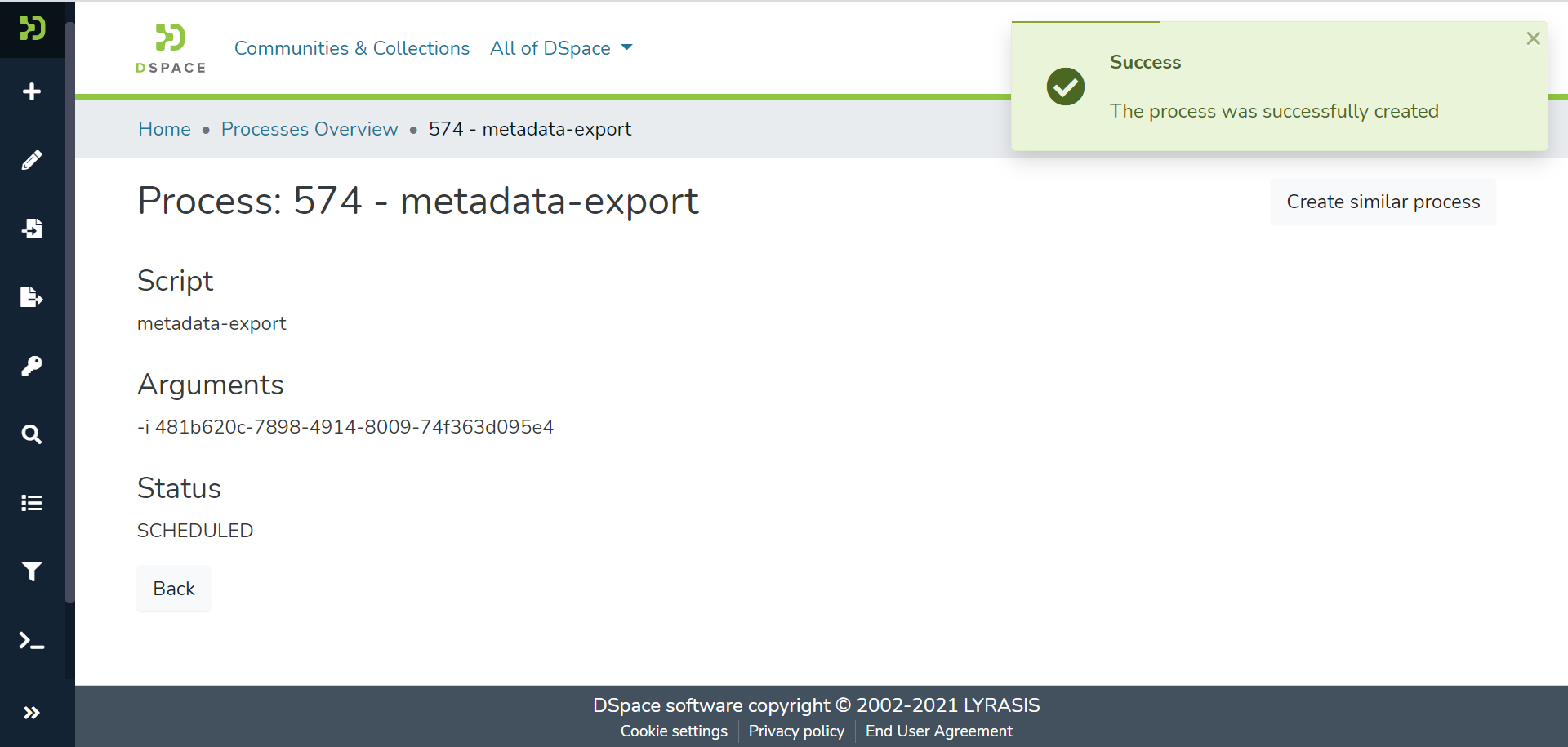
Users will see the success prompt confirming the creation of the export process upon successful completion of the process, or else the application will show the failure promptly.
Step 6: Users will be redirected to the metadata export page with a csv download link, as highlighted in the screenshot below. If the download link does not appear right away, refresh the page.
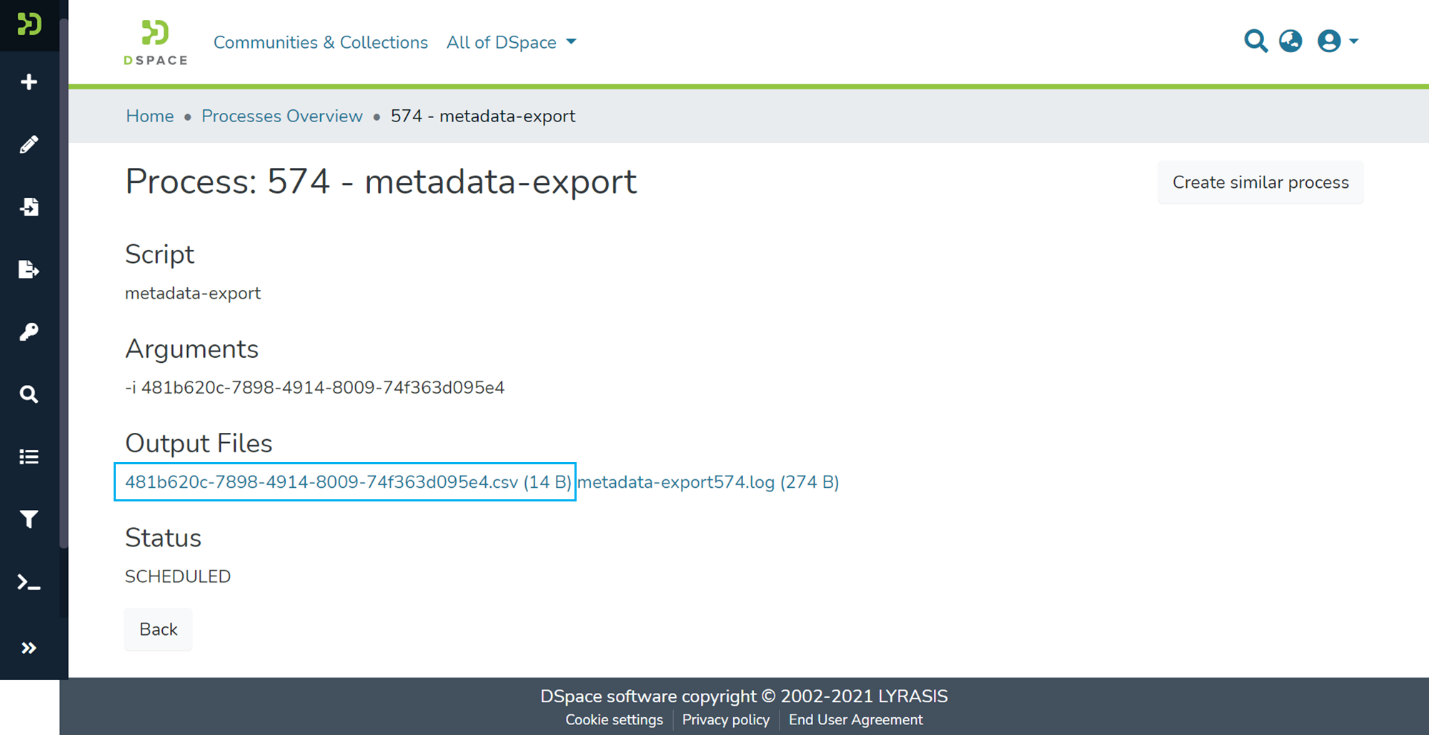
Users can perform the following actions on this page:
- Click on the CSV file link to download the metadata CSV. This file contains metadata of all items stored in the exported collection or community.
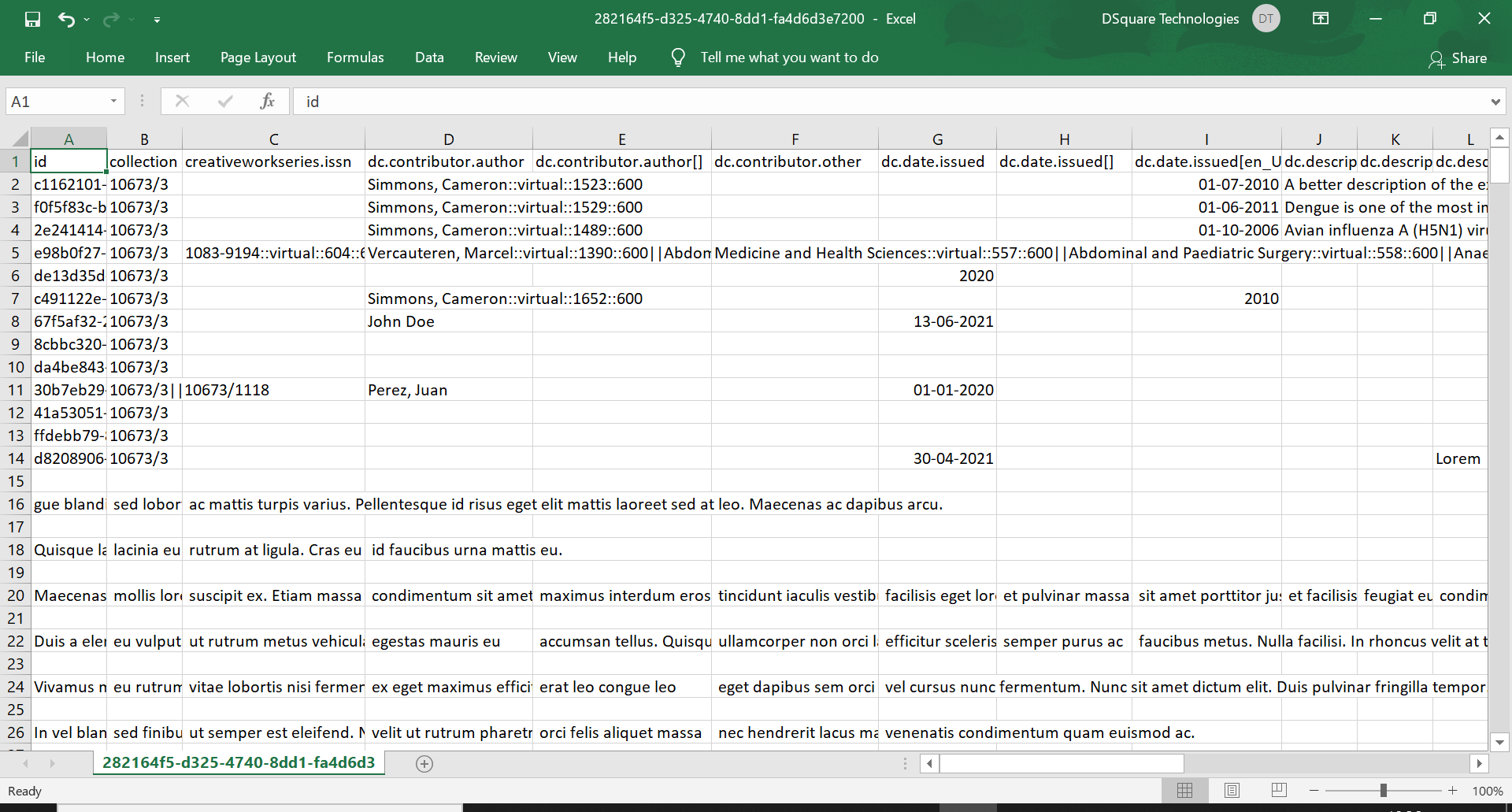
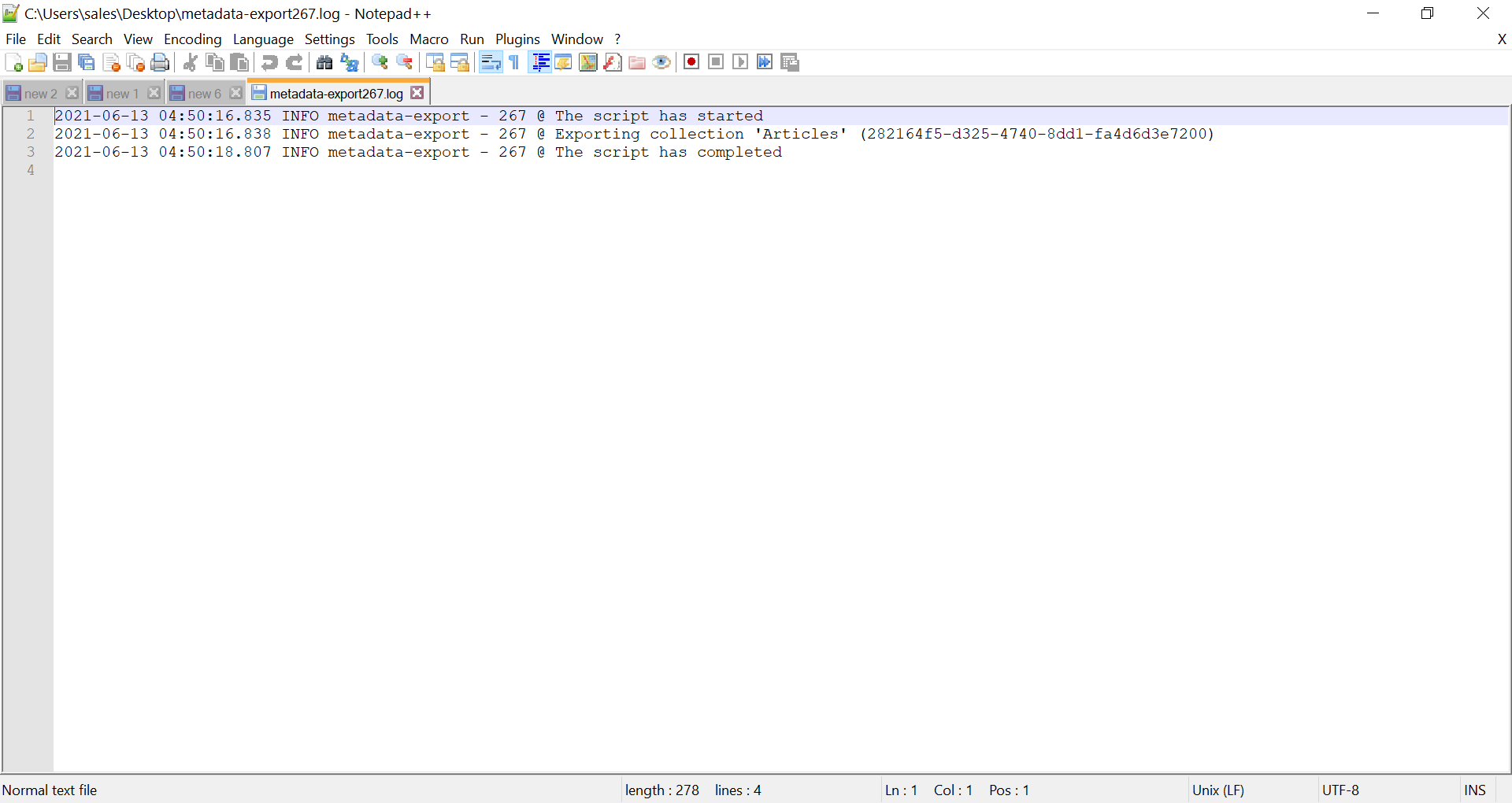
- Click on the log file link to download. The Logfile contains details of steps performed during the export job.
Overview
Content Tools
All content on the LYRASIS Wiki is licensed under the CC BY (Attribution) license , unless otherwise noted.