Contribute to the DSpace Development Fund
The newly established DSpace Development Fund supports the development of new features prioritized by DSpace Governance. For a list of planned features see the fund wiki page.
Scope and Use Case
Items within DSpace (including bitstreams and metadata) can be edited after submission by authorized users. This page describes how to access the Edit Item page and provides an overview of the Edit Item page. It shows screenshots of each tab in the Edit Item page and lists the functions that are available on each tab. For details about using specific functions, see the specific pages within this wiki (linked below).
Audience
- Repository Administrators
- Community Administrators
- Collection Administrators
Access the Edit Item Page
Step 1: Login using your credentials
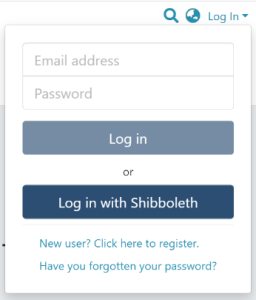
Step 2: Go to the item you want to move.
Users can reach an item through multiple methods, including those listed below:
- Search for an item
- Browse communities and collections
- Find an item in the Administration section at Edit > Item
- Use the existing item URL
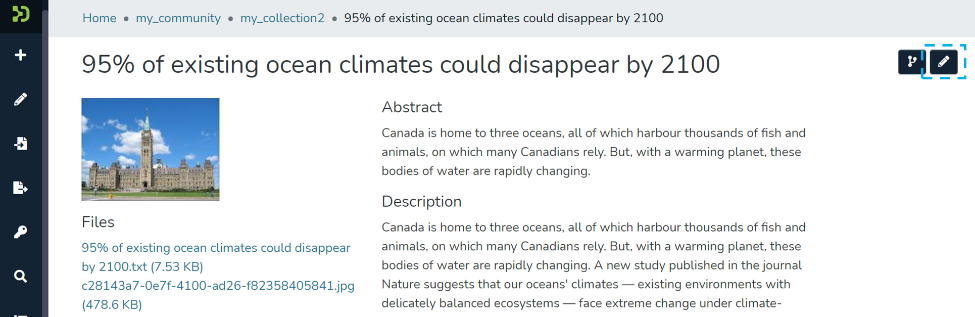
Step 3: Click on the “Edit” button as highlighted on the screen below. This button will appear to any user who has edit rights on the target item.
Edit Item Overview
Status tab
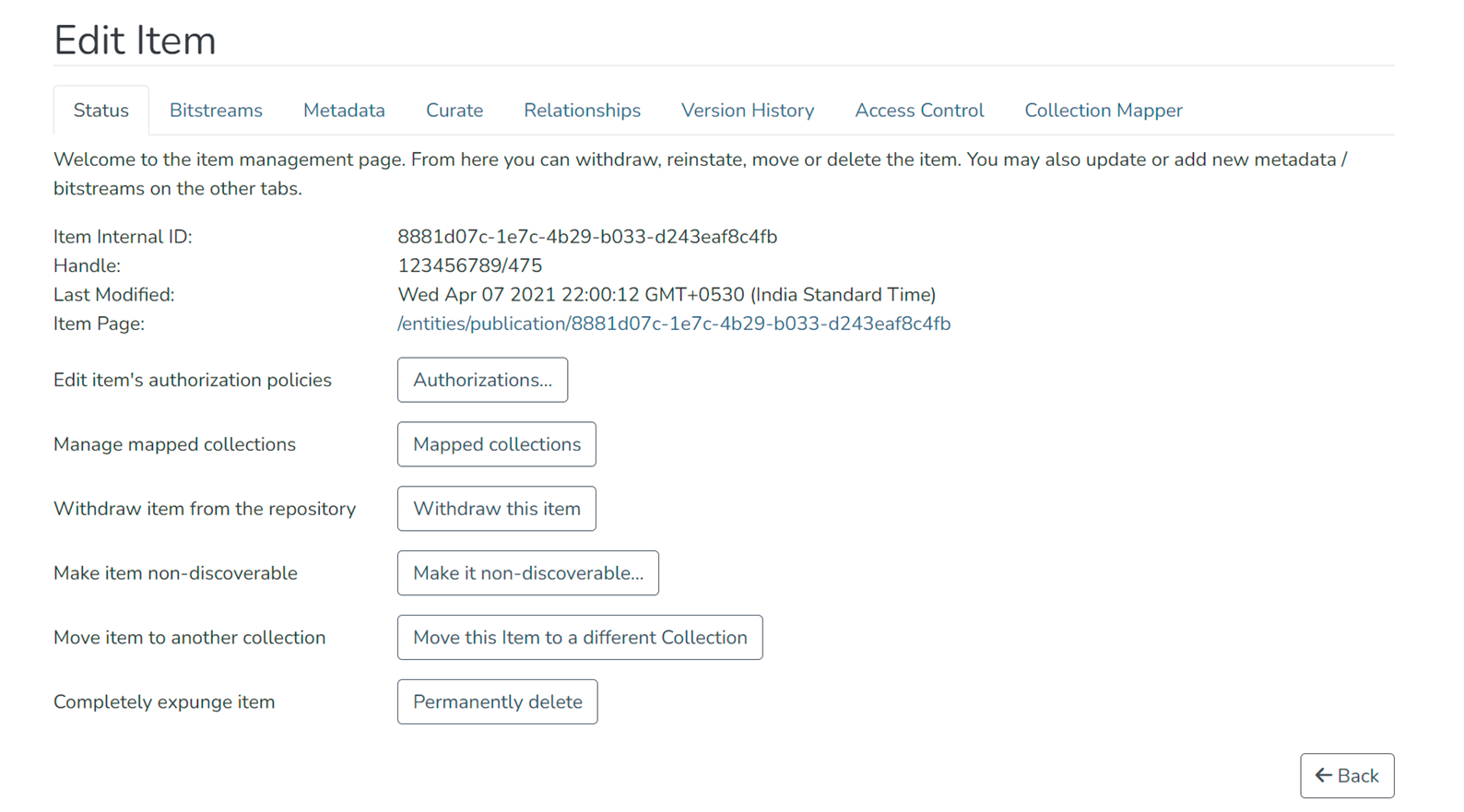
- Edit item's authorization policies - Authorizations (Manage access to an item)
- Manage mapped collections - Collection Mapper
- Withdraw item from the repository - Withdraw an item
- Make item non-discoverable - Make an item non-discoverable (or make it discoverable after it's been made non-discoverable - Make an item discoverable)
- Move item to another collection - Move an Item
- Completely expunge item (permanently delete) - Delete item
Bitstreams tab
See Edit Bitstream page
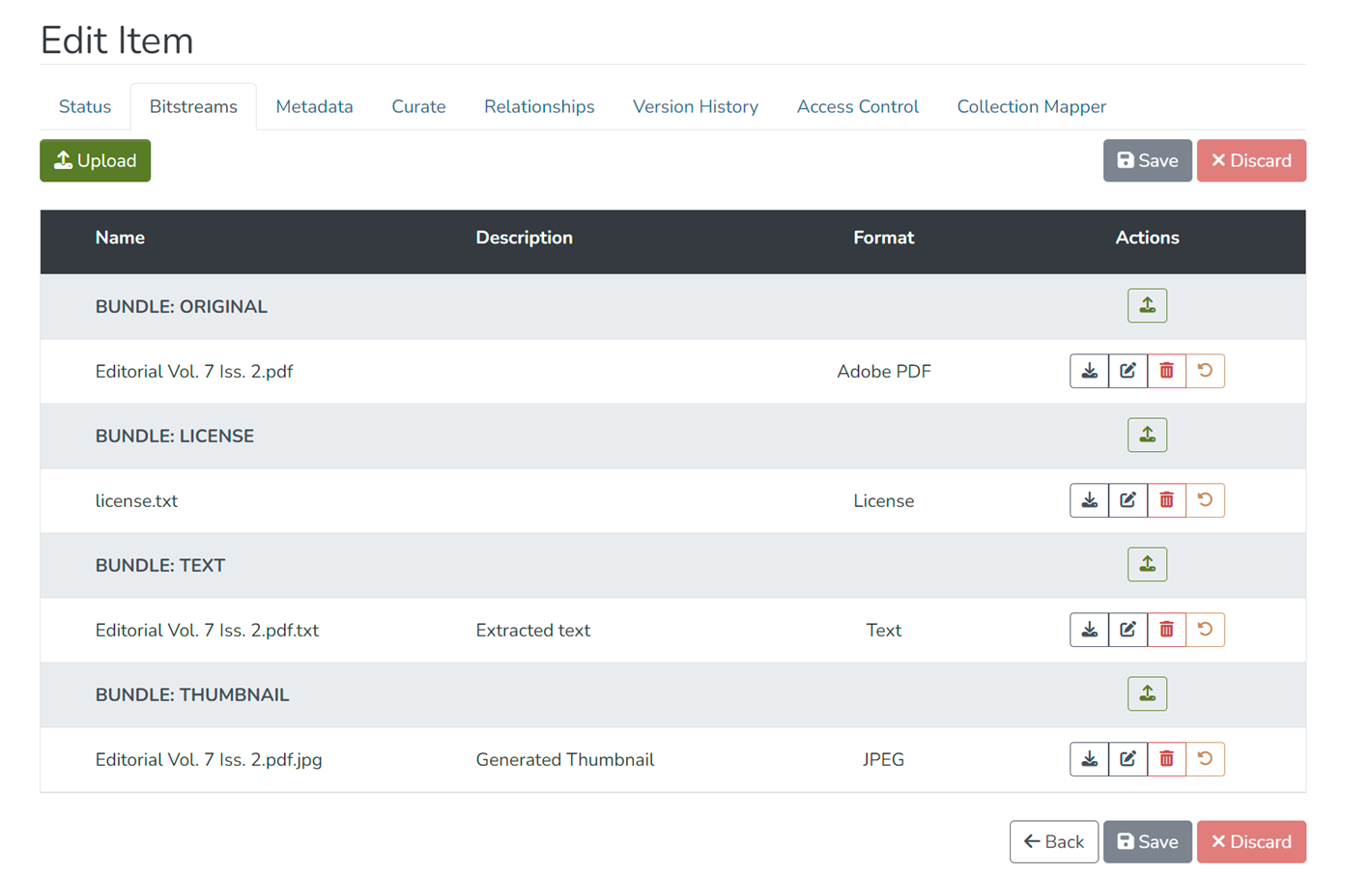
- Add or remove licenses or other bitstreams (i.e., files) attached to the item
- Edit metadata associated with the bitstreams, including filename, file format, and file description
- Reorder bitstreams attached to the item
Metadata tab
See Edit Metadata page
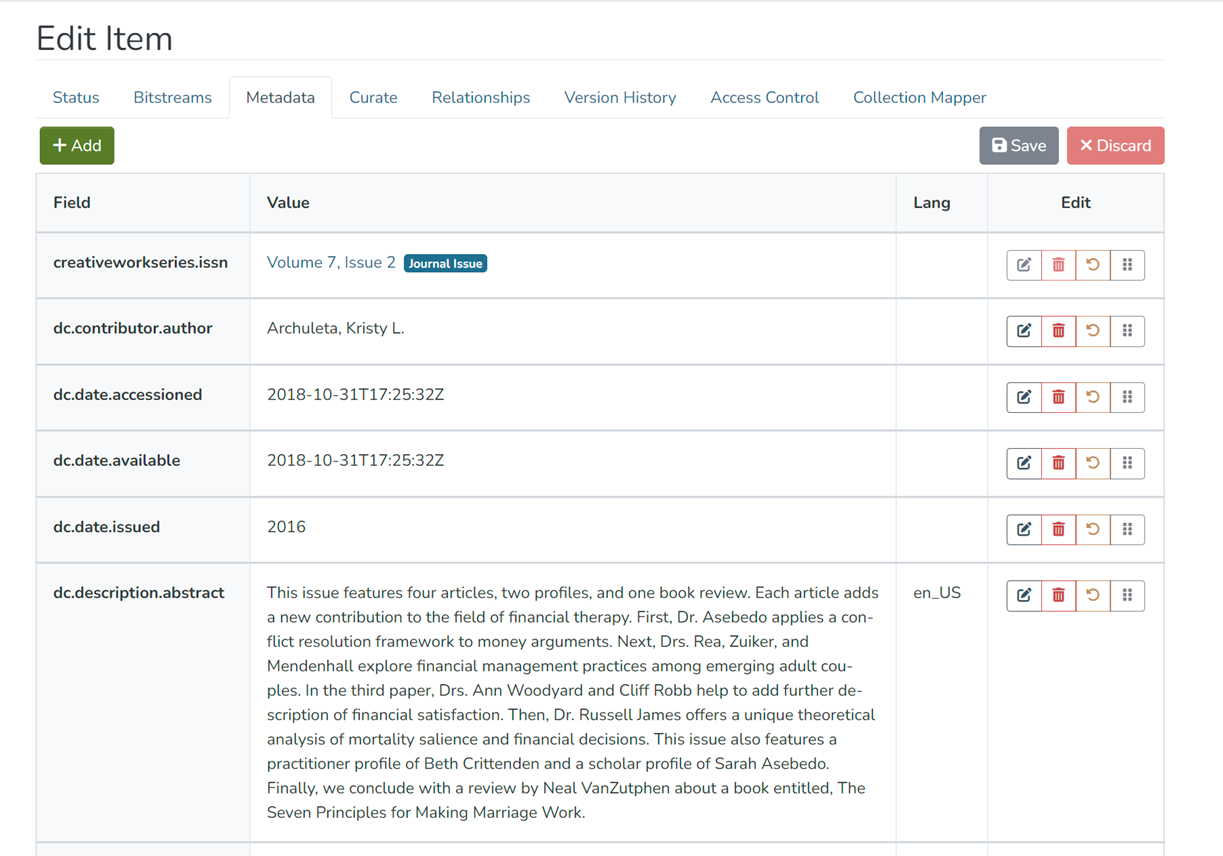
- Add or delete metadata fields (i.e., elements added to describe the item)
- Edit values in existing fields
Curate tab
See Curation System page (In the admin UI section)
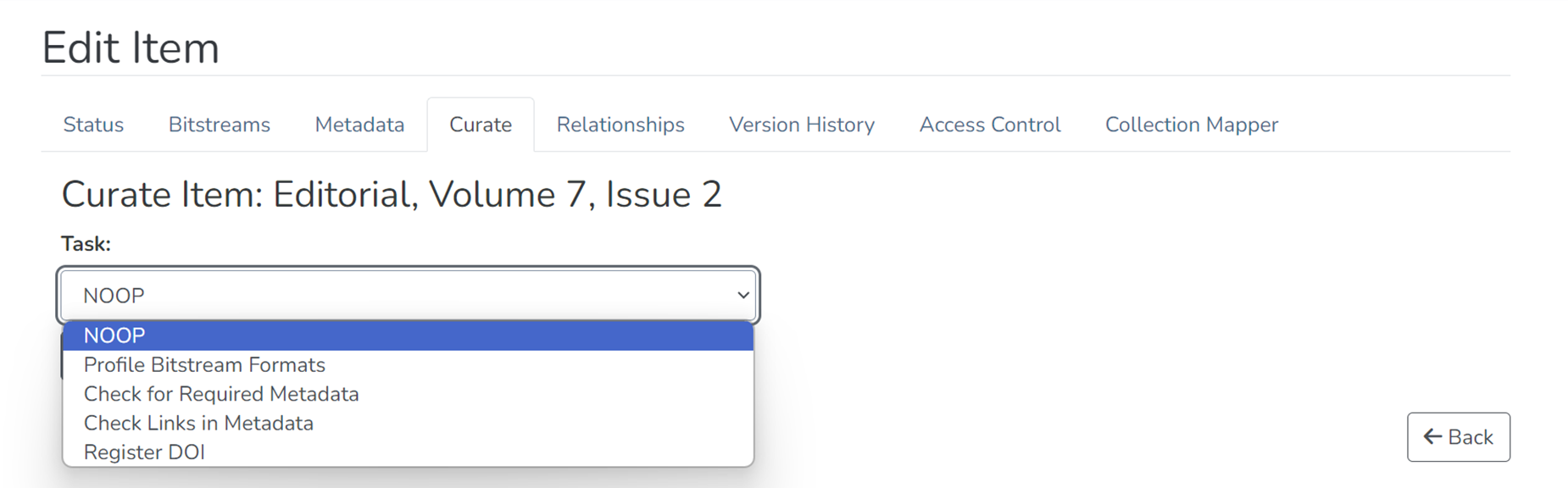
- Perform various curation processes on the item
Relationships tab
See Edit Relationship page
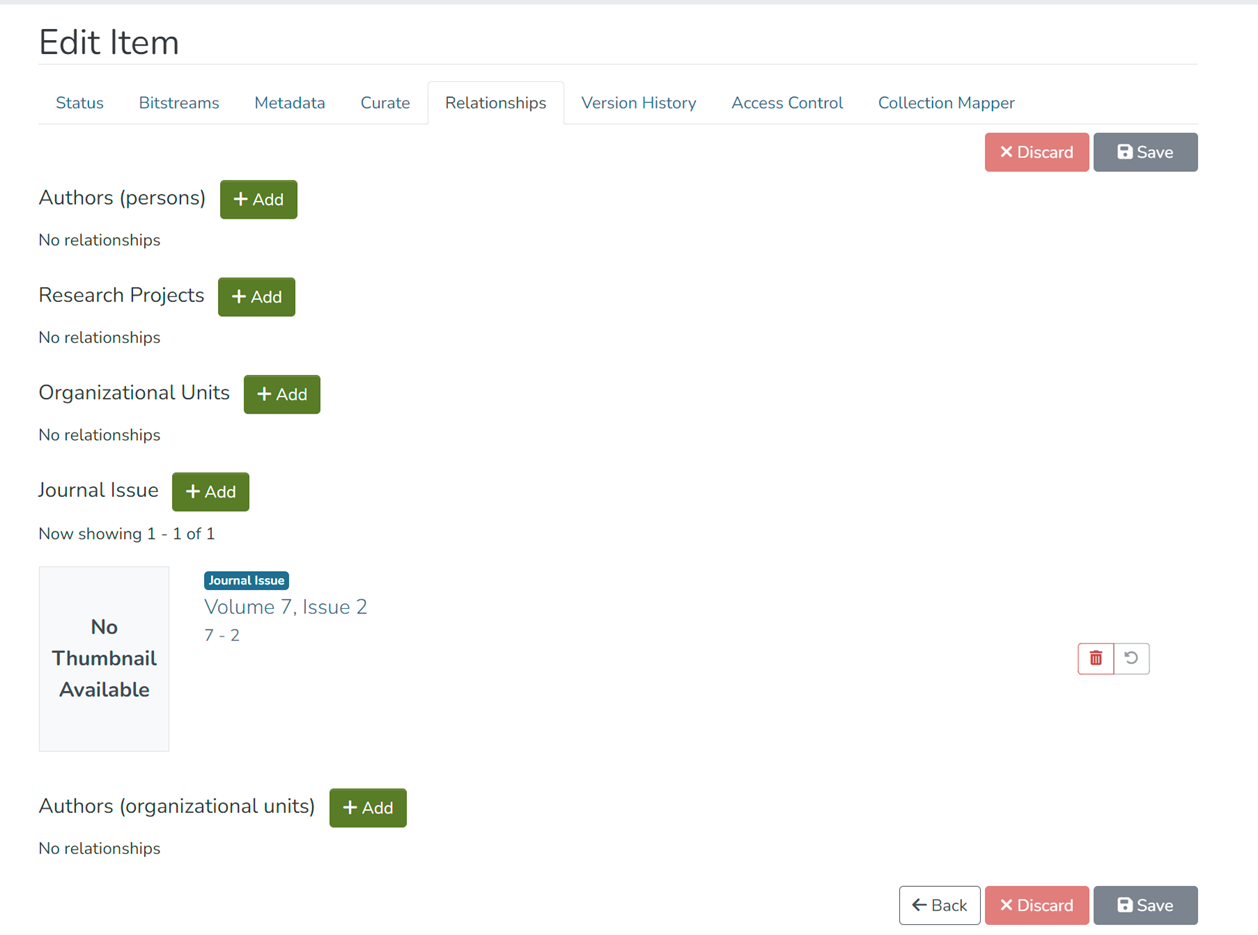
- Add or delete relationships with other items
- Edit existing relationships with other items
Version History tab
See Versioned Item page
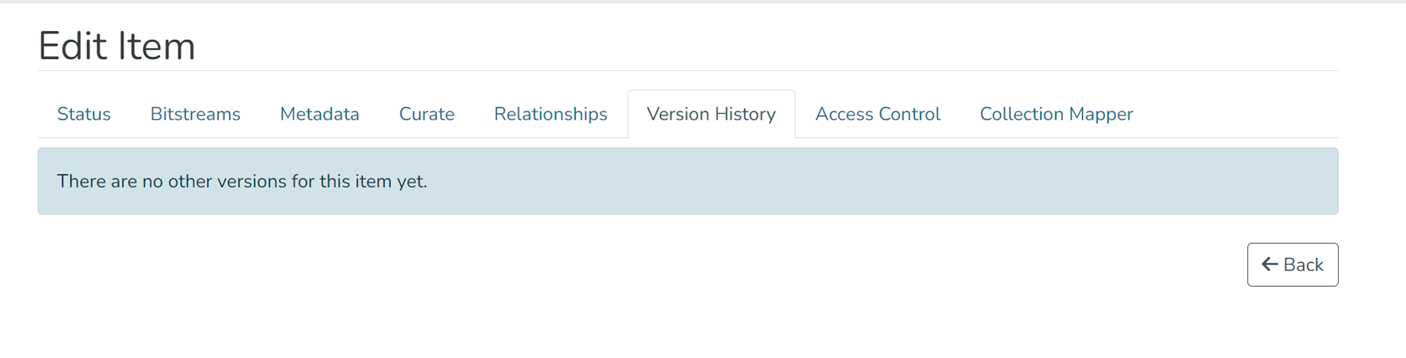
- Create and manage item versions
Access Control tab
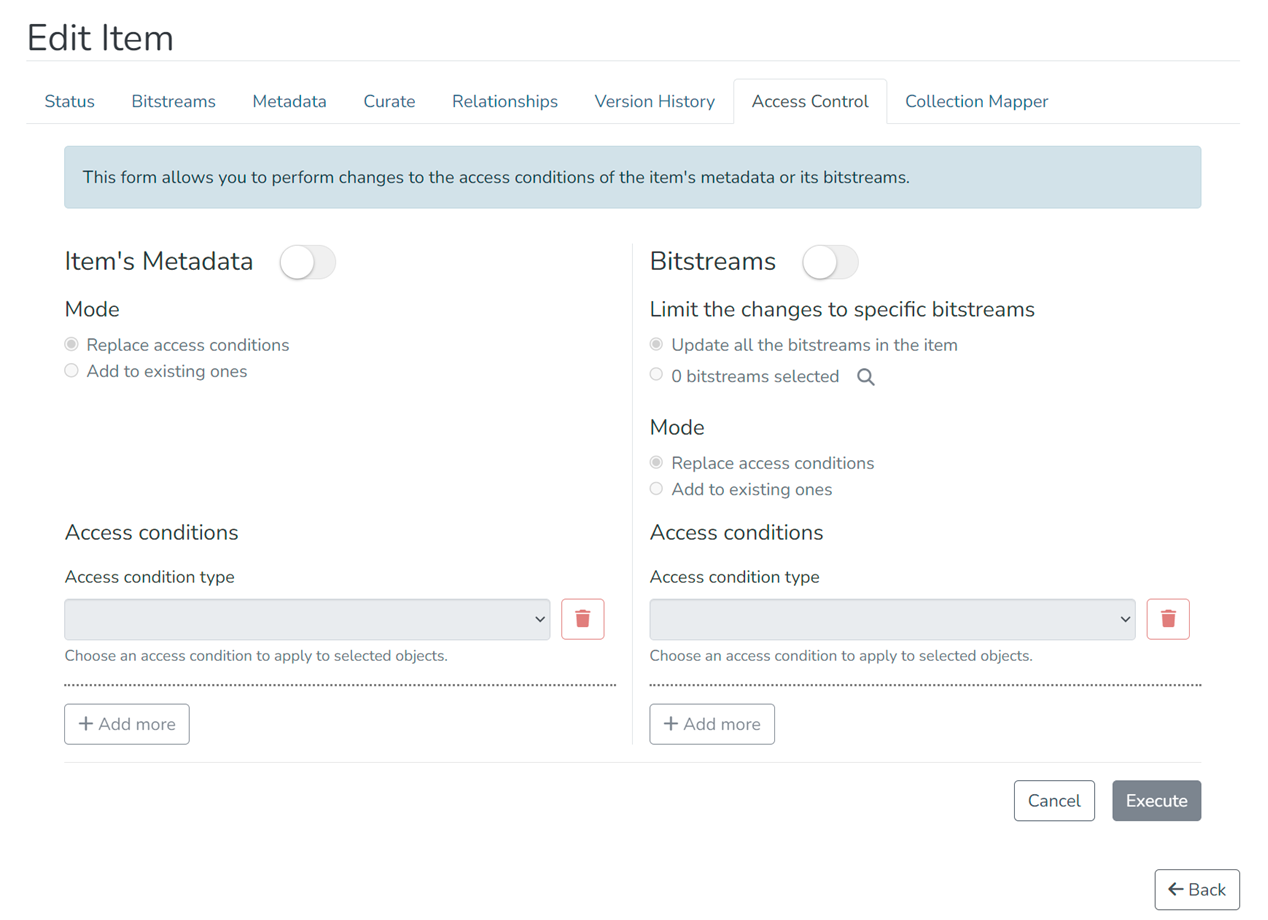
- Manage separate access policies for item's metadata and bitstreams
Collection Mapper tab
See Collection Mapper page
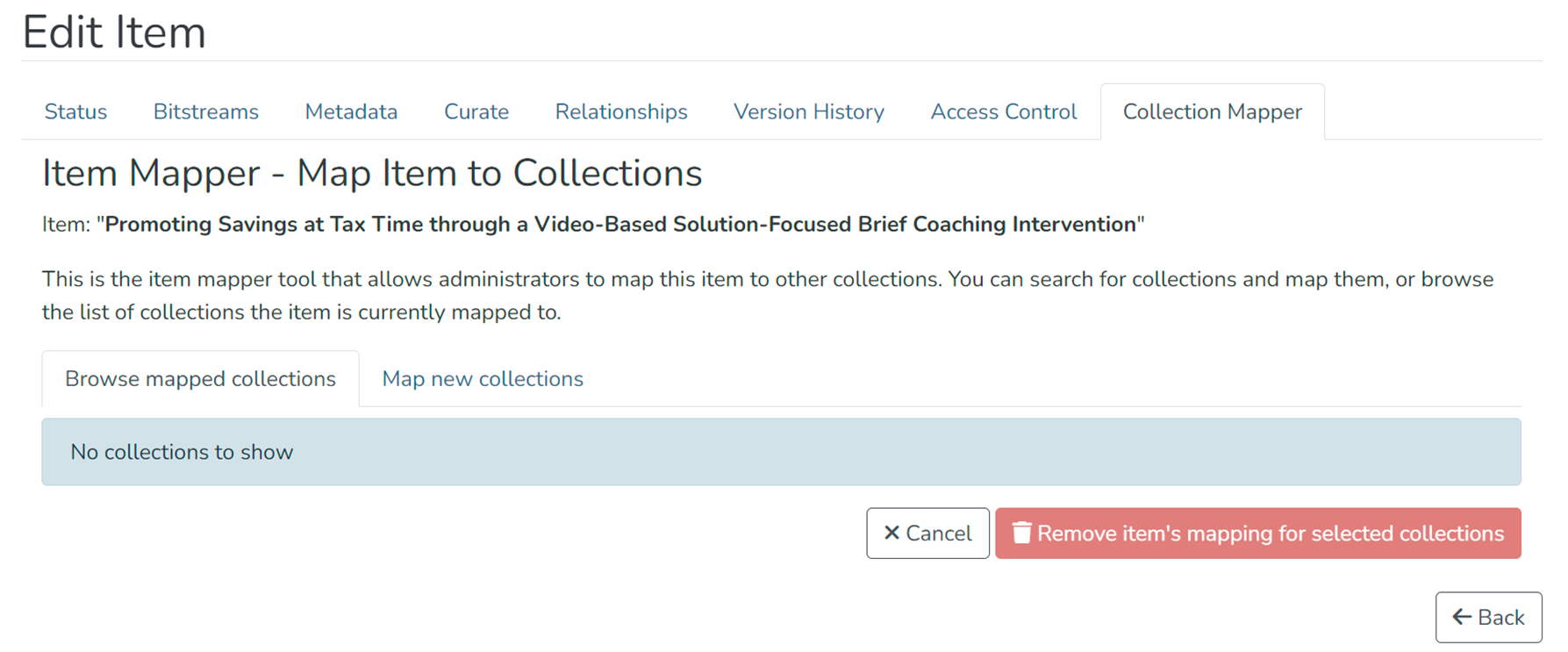
- Map item to other collections and manage collections mapped with the item
Edited and approved by DCAT Documentation Working Group, December 2024.
Overview
Content Tools
All content on the LYRASIS Wiki is licensed under the CC BY (Attribution) license , unless otherwise noted.